
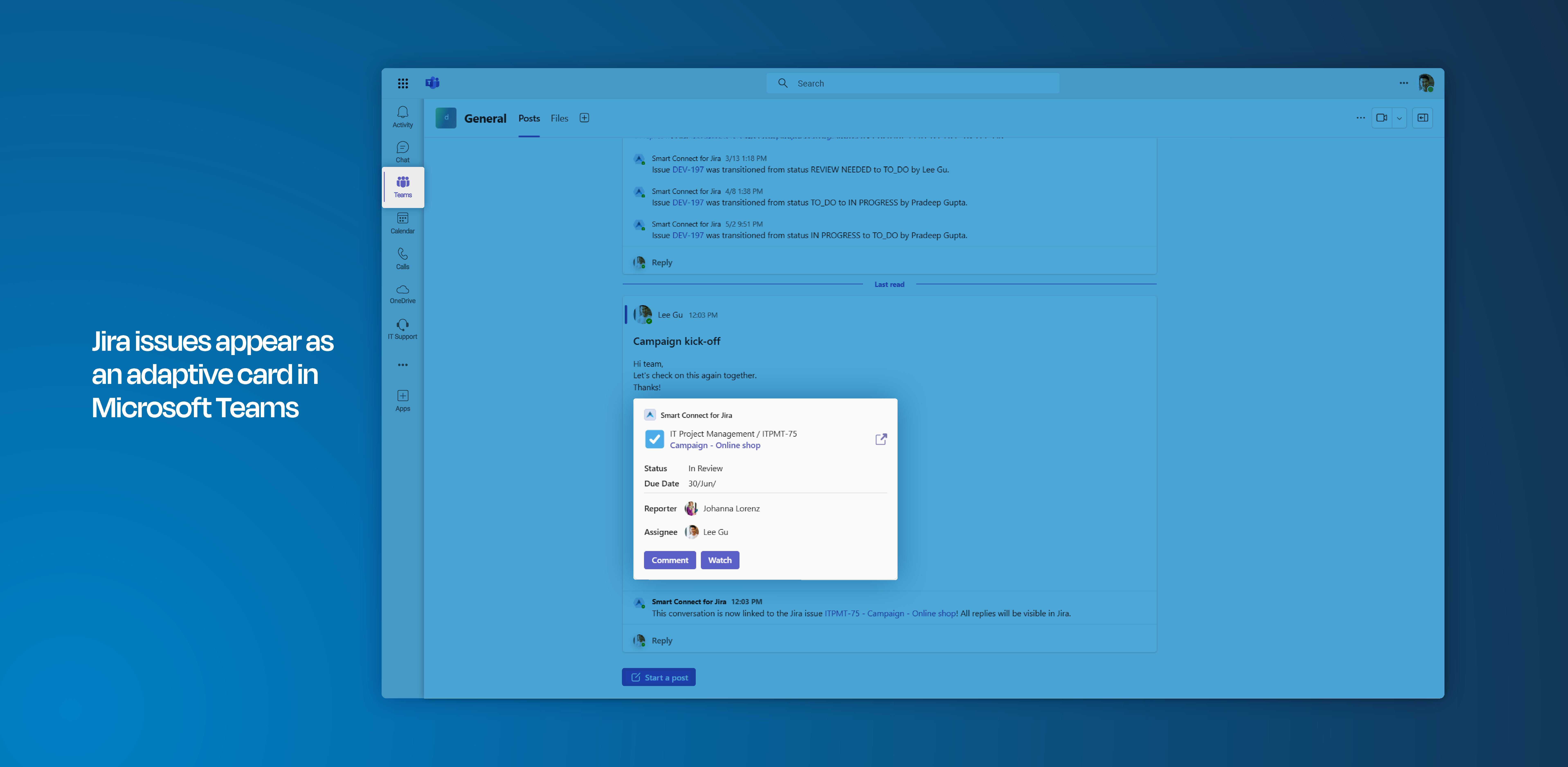
Adaptive cards display Jira information, like text and Jira fields, in messages posted by the Microsoft 365 for Jira Teams bot.
Once configured in the global settings, you can select the most appropriate adaptive card when setting up your MS Teams channel preset (for software or JSM projects) or when setting up an individual project automation (JSM / software).
Please be aware, that the choice of adaptive cards is depending on the Jira space and can be thus, restrictive. For example you can only choose among Issue View Card types when setting up a Microsoft Teams channel Preset for software spaces.
Set-up an adaptive card
Open your Microsoft 365 for Jira settings and go to the “adaptive cards” tab.
Edit existing cards or create a new one.
The issue view cards are automatically generated/posted, when a Microsoft Teams conversation is initiated from Jira.
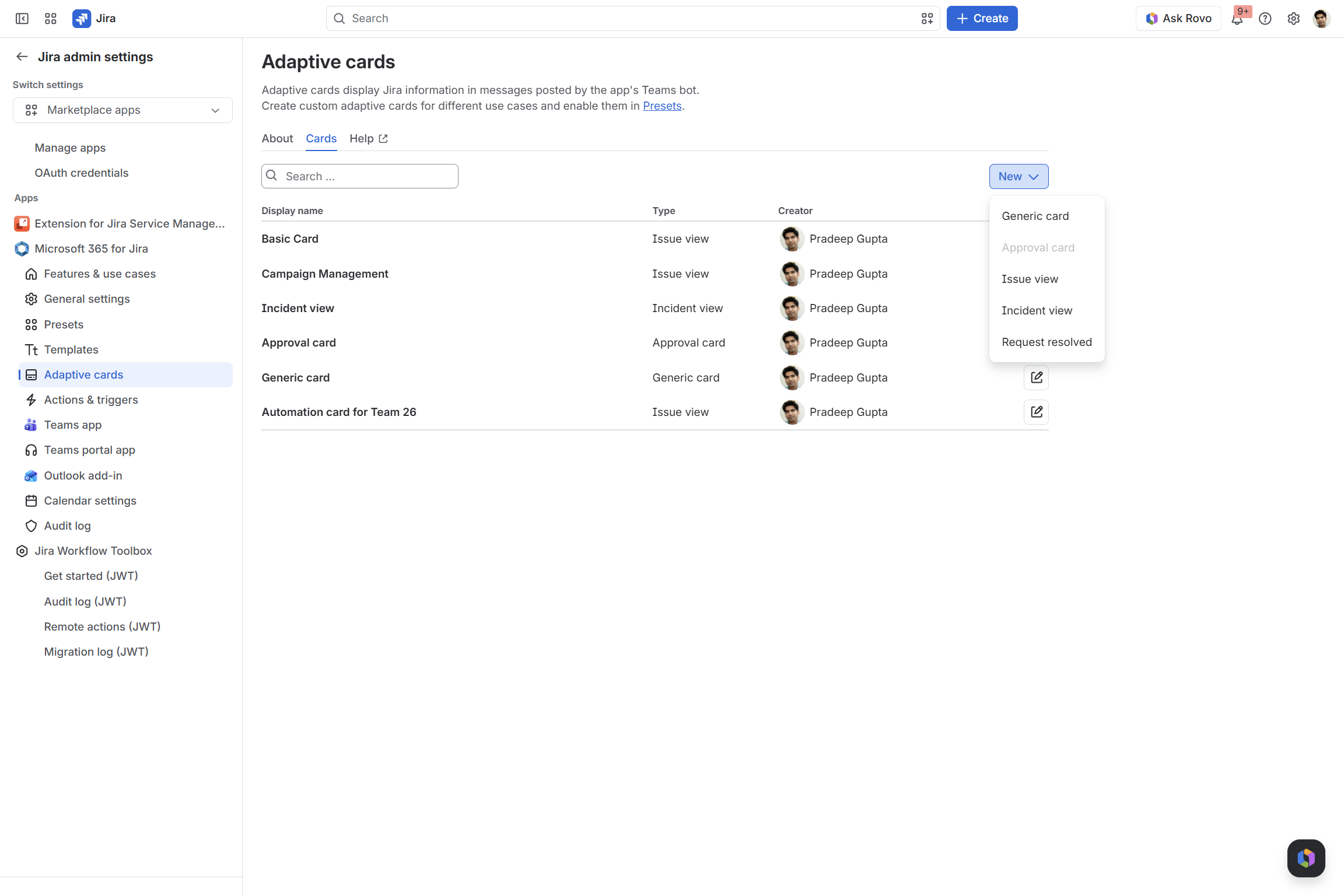
Currently, Approval cards and request resolved cards can only be set-up once.
Configure the adaptive card
Give your card a unique Card name.
Configure the design and simultaneously check the layout in the preview area.
Toggle “display issue fields without values”* to also display fields with no value.
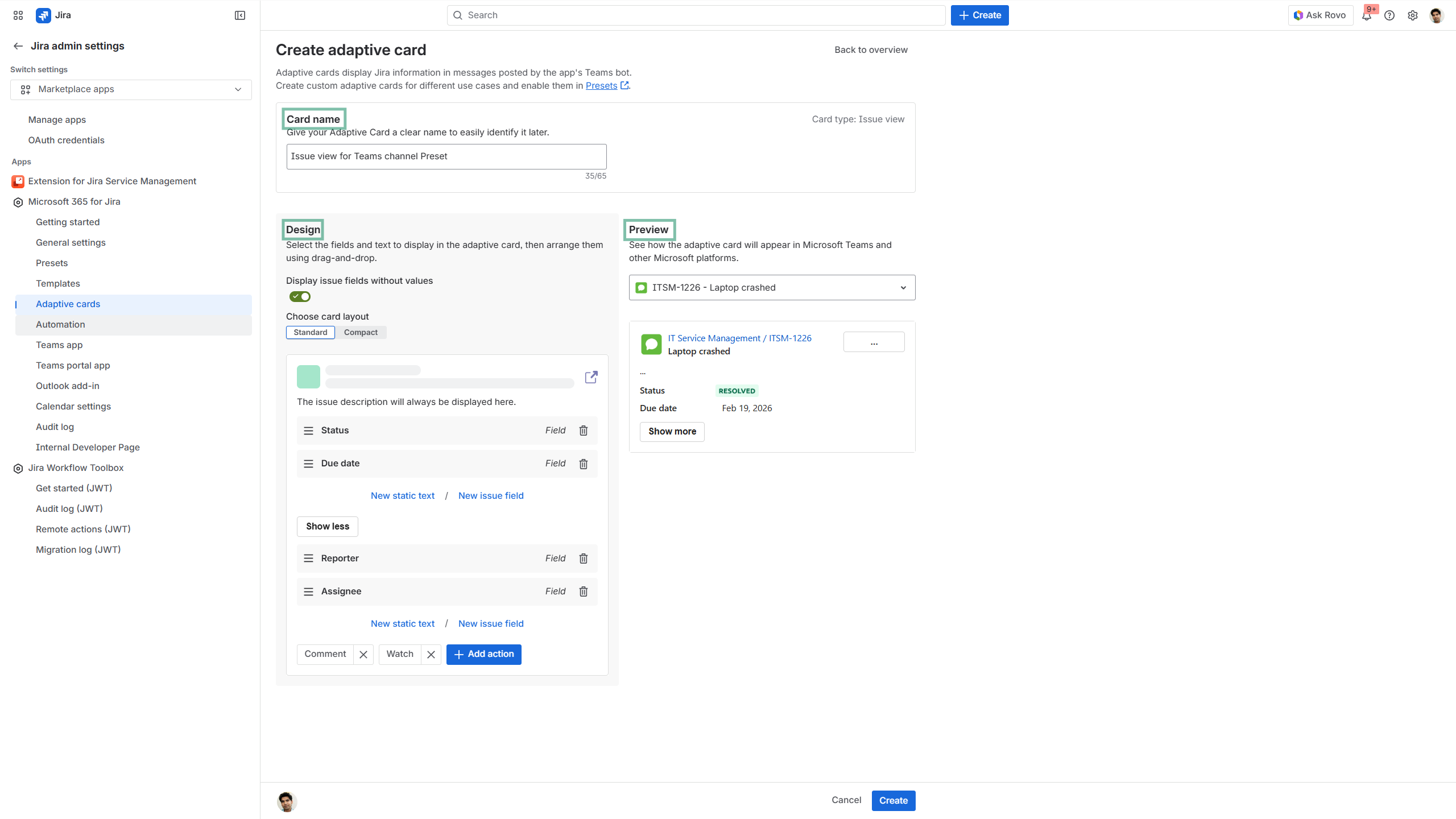
* When a work item field lacks values, like an unset due date, they will still be displayed then as a reminder e.g. to ensure nothing is overlooked.
Check on the layout
Check the layout of the design configured via the preview area.
Click on the “show more” button to get an overview on how all Jira information will be displayed (refer to screenshot above, as well).*
Create the adaptive card, when finished.
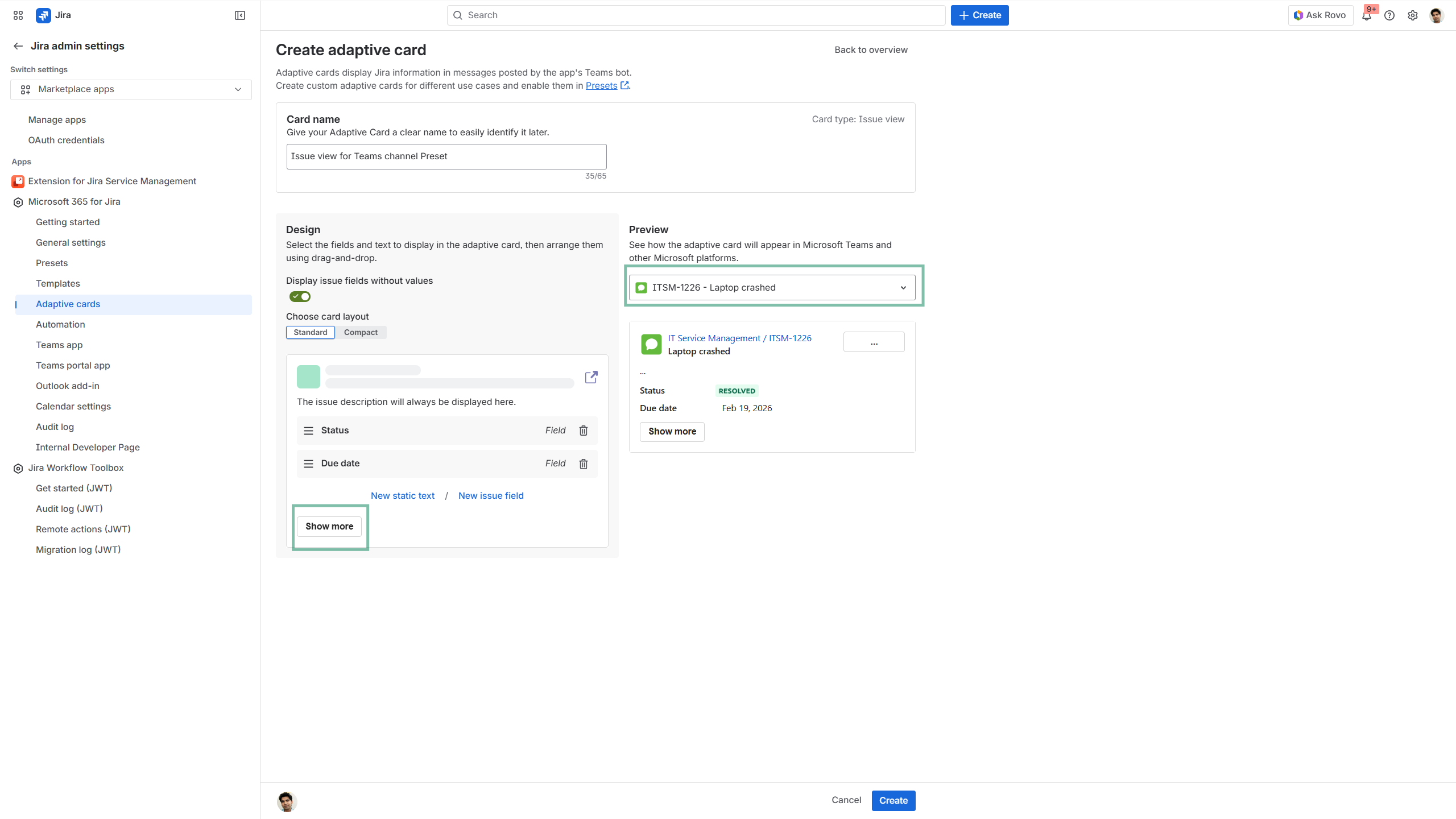
* The Preview area displays your recently accessed work items. Click in the work item field to search for a specific issue to be displayed.
Work with adaptive cards in Presets
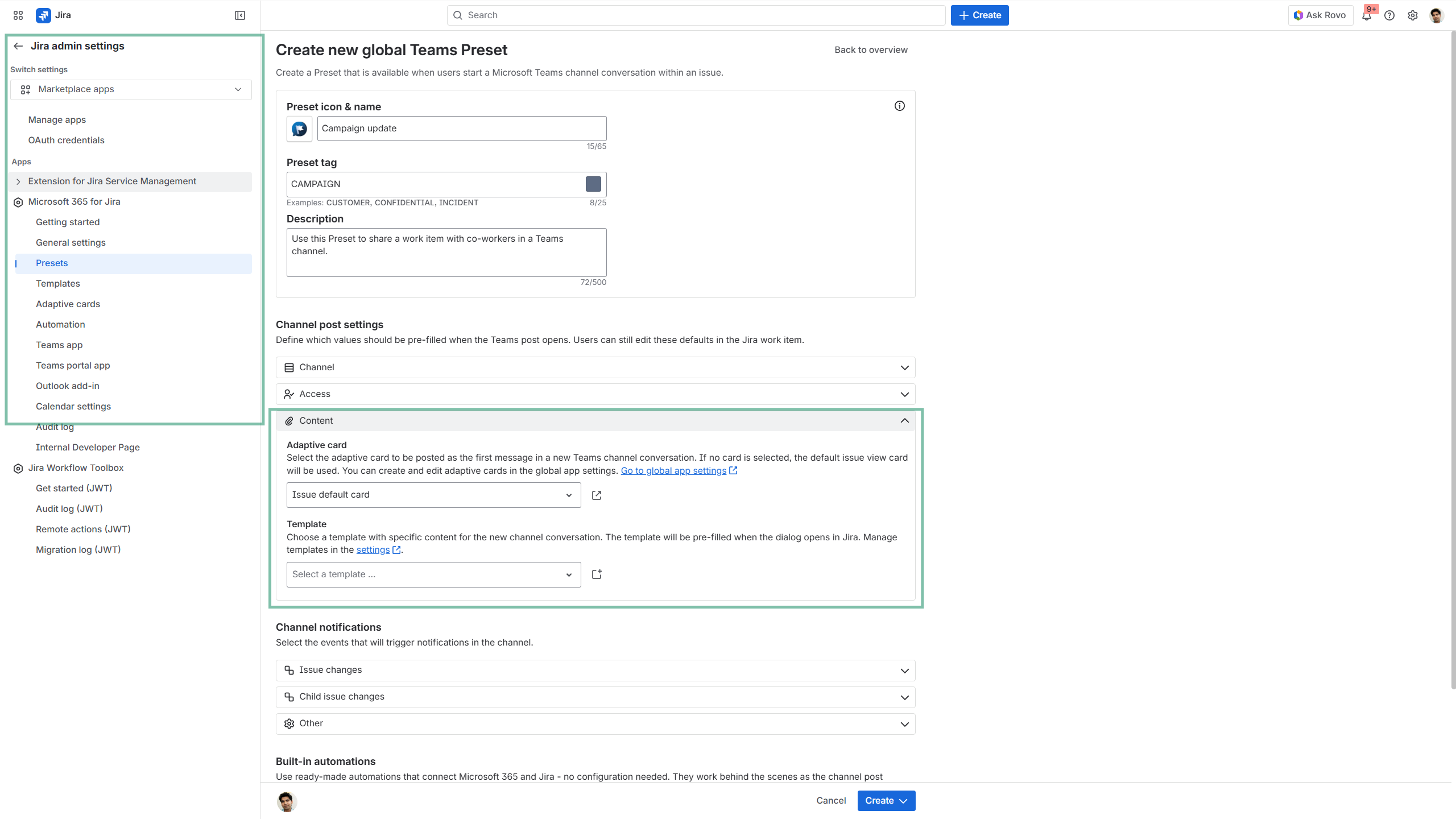
Once the card is created, go to the Teams channel Preset settings.
Now, choose the adaptive card in the Content section (refer to your card name here!).
The content will be displayed in that layout, when the message is posted from the Jira work item to the respective Teams channel.
Admin responsibilities
|
|
Responsibility |
To Do |
|---|---|---|
|
Option |
Jira global admin |
Creates Presets for their organization
|
Benefits
✍️ Easier card setup for admins
The enhanced user interface in the card settings allows Jira administrators to configure adaptive cards more intuitively and efficiently. With a simple drag-and-drop feature, users can easily set up their cards and review them in preview mode.
📌 Streamlined information sharing
Utilizing preconfigured adaptive cards, issue information shared from Jira or from Microsoft Teams is presented in a clear and structured manner. Adaptive cards ensure that relevant issue details are included, making essential information about them readily accessible to the entire team.
🏗️ Structured for your individual use case
Adaptive Cards in Microsoft Teams enable real-time tracking for software development and incident management by displaying updates, allowing status changes, and integrating with Jira. They enhance communication, minimize context switching, and facilitate quick decisions within Teams. For incidents, they centralize internal and stakeholder comments, promoting faster resolution through structured workflows.
Roadmap
In the future, you will also have the capability to use adaptive cards within the automation feature.
We’d love to hear your feedback. Let us know how you’d use this feature.