
About
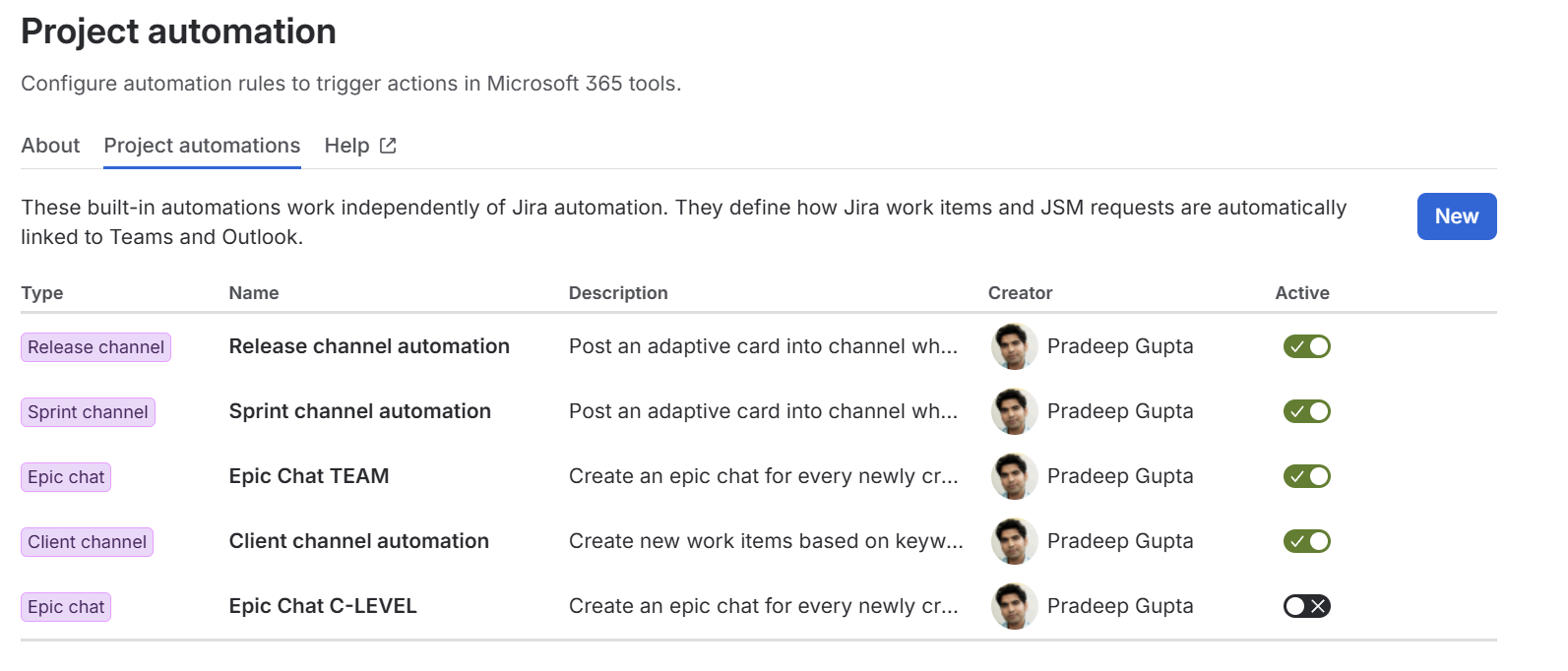
Project automations save time and effort managing development projects across teams. Clear and consistent information among team members improves work and documentation efficiency.
Our project automations are simple to set up and offer multiple configuration options to fit your needs.
For Jira Software, there are three automation types:
Usage recommendation
release channel
As soon as a new release starts, our app will automatically post an adaptive card into a dedicated Teams channel where stakeholders can get an overview about the overall timeframe and duration, included work items and progress of those, not yet being finished.
Although information is shared in MS Teams, this automation does not aim to open discussions or active exchanges on releases between stakeholders and development teams. It rather focuses to transparently provide necessary information to stakeholders who rely on updates.
sprint channel
As soon as a new sprint starts, the automation will post an adaptive card with relevant key sprint information to a predefined Teams channel. As work items change their status (from To Do → In Progress → Done), stakeholders can track this progress in the respective channel.
Sprint Channel automation basically works like the release channel automation and is also primarily used to provide relevant information and updates on projects for stakeholder.
Like release channel automations, this automation does not aim to spark discussion or exchange about the sprint in MS Teams. Instead, it focuses on consistently sharing project transparency with the relevant stakeholders involved in the project.
CLIENT CHANNEL
Use the Client channel automation when clients or stakeholders regularly share feature requests, improvements, or other actionable feedback in a Microsoft Teams channel.
For a channel dedicated to new requests, configure the automation to create a Jira work item from every new post. For a channel that also contains general discussion, use a keyword reply so team members can decide which conversations should become Jira work.
The Teams thread remains linked to the newly created work item. Clients can continue the conversation in Teams while the development team plans and tracks the work in Jira.
epic chat
Whenever a new epic is created, the automation will initiate a Teams chat with a set of predefined participants. Team members across departments can join the conversation from Teams, too and information is shared across Jira and Teams.
If configured, the chat is also accessible in all child work items of the corresponding epic.
Epic chat automation helps the team to exchange and discuss on current projects and provides a communication hub for developers.
This automation type is primarily used for internal collaboration on epics and their work items.
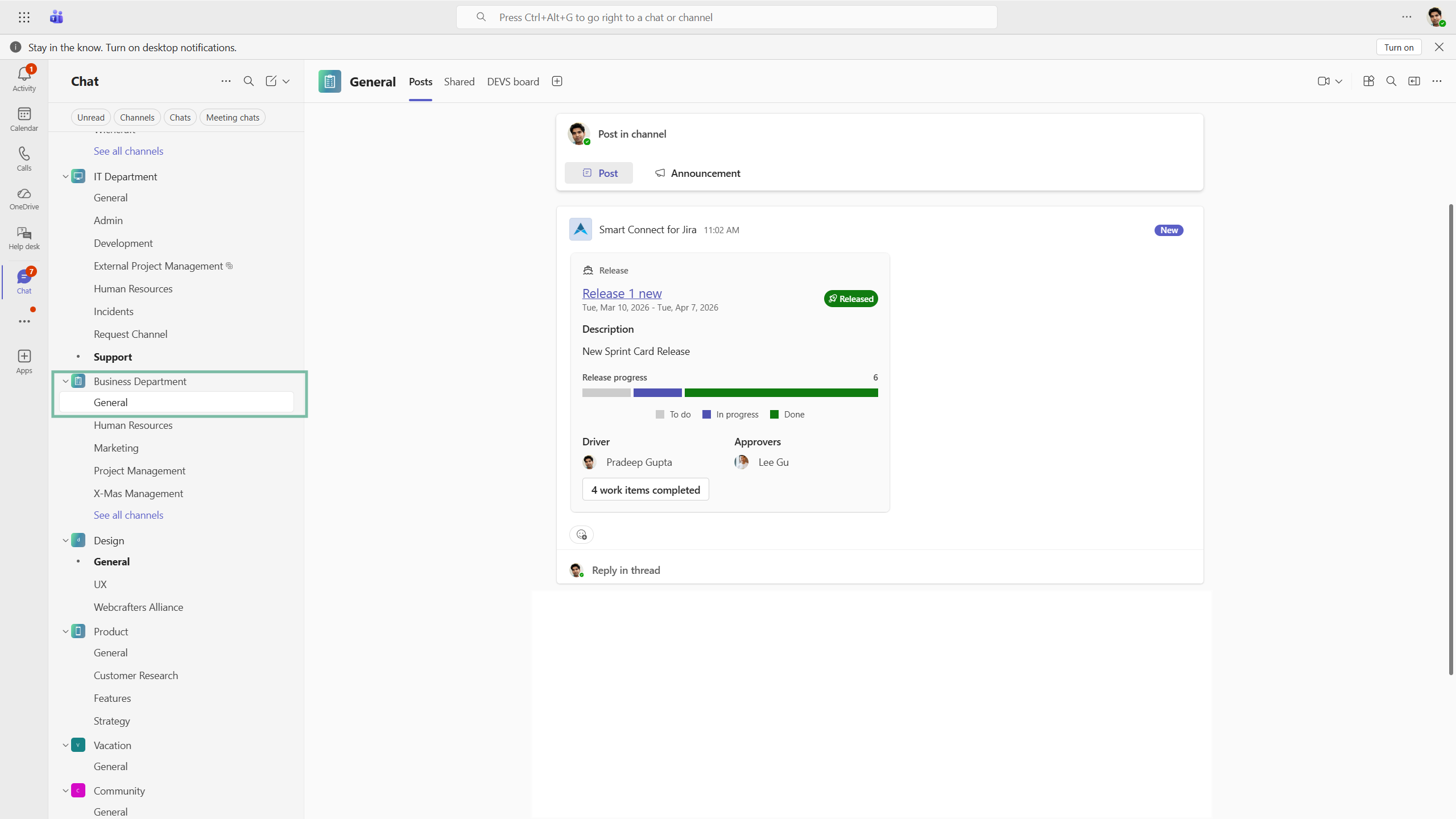
Release channel
Our release channel automation initiates a Microsoft Teams channel post whenever a new release has started.
This way, all participants involved in the channel will be informed about its current status and progress (including all included work items related to it) while information is constantly shared transparently across Jira and Teams.
If individual work items of a release are not yet finished, this can be tracked and seen via the adaptive card.
Configure the automation to your specific needs and align it with your projects' different purposes and your team’s overall way of working.
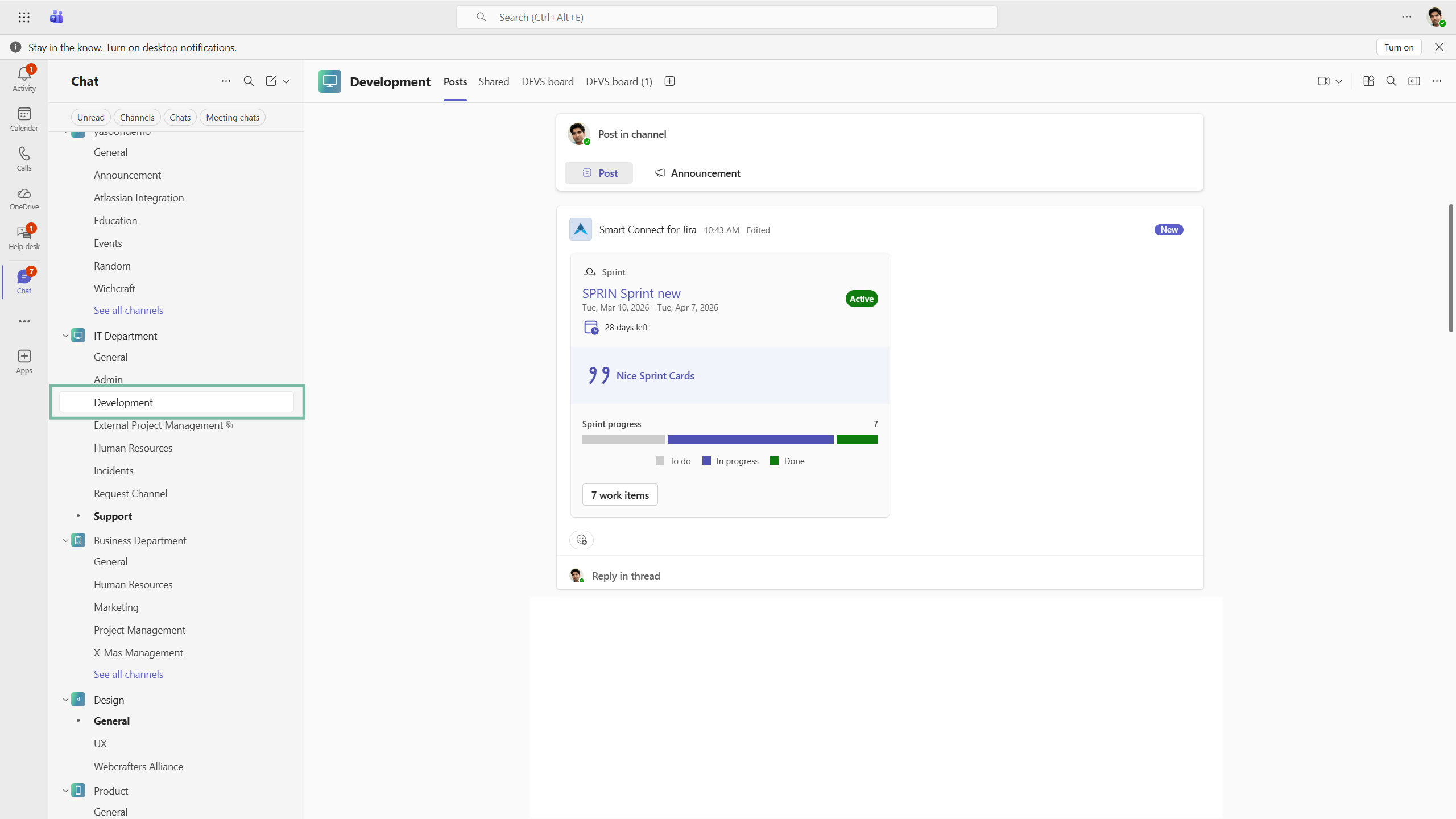
Sprint channel
Our sprint channel automation initiates a Microsoft Teams channel post whenever a new sprint starts. All participants involved in the channel will be informed about the current status and progress of included work items of the sprint.
Use this automation specifically when stakeholders need to be involved and regularly informed about the current status of a project. As sprints focus on a specific time frame and aim to deliver relevant parts of a final product or service, it can be important to maintain transparency with customers and enable them to contact people involved in the sprint via MS Teams.
Configure the automation to your specific needs and align it with your projects' different purposes and your team’s overall way of working.
Configure an adaptive card
Currently, you can only use our “default release card”. In future, it will be customizable, allowing you to choose among different adaptive cards.
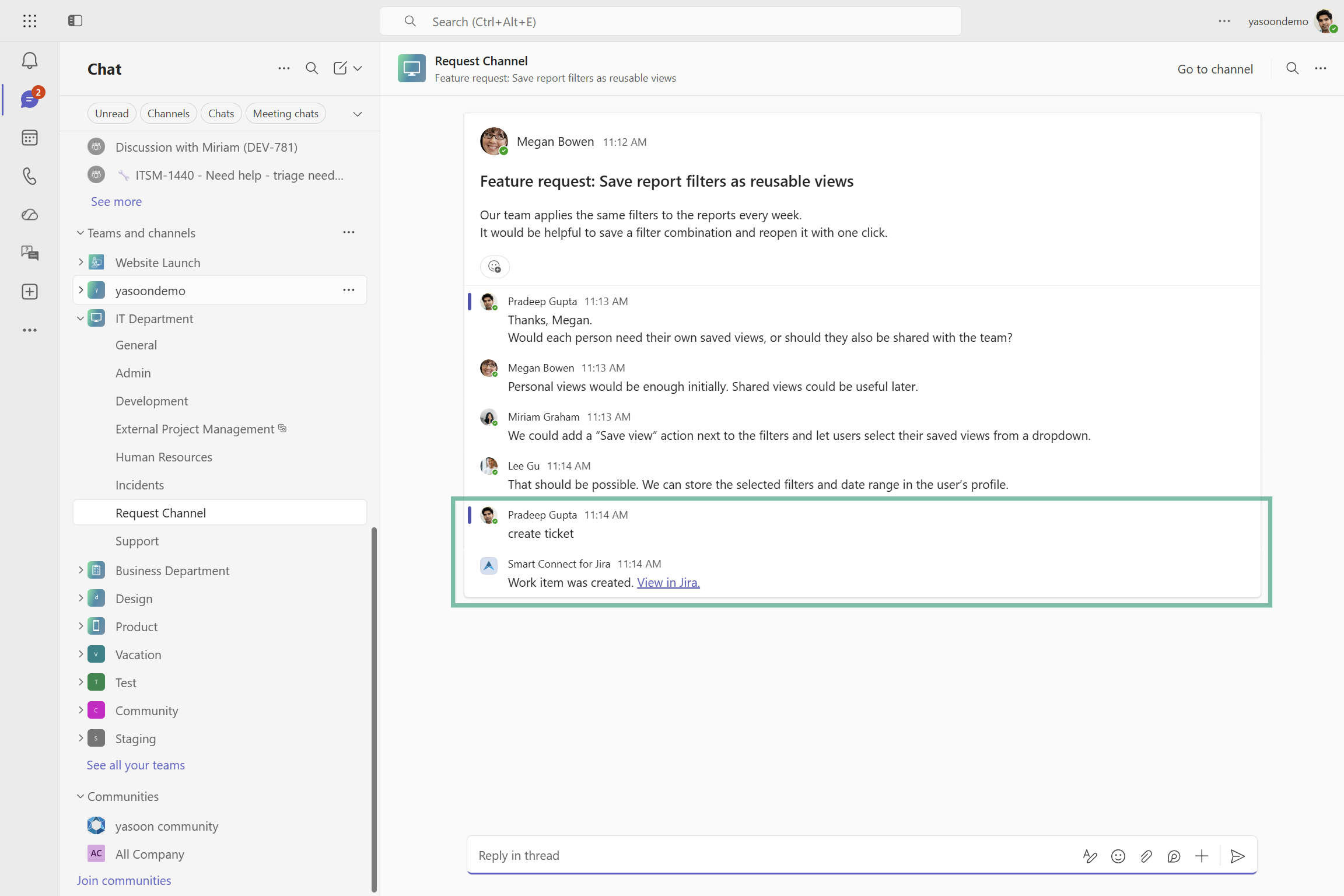
Client channel
The Client channel automation turns selected Microsoft Teams channel conversations into Jira work items and keeps the original thread linked to Jira.
When the configured trigger occurs, Microsoft 365 for Jira creates a work item using either:
-
The content of the top-level Teams message, or
-
An AI-generated summary of the complete conversation thread
Use the top-level message when the initial post already contains a complete and structured request. Choose an AI summary when requirements, decisions, or technical details emerge through the replies. The AI summary brings this information together as an actionable work item description which can be edited later in Jira, if required.
Using AI-generated summaries requires AI features to be enabled in the global Jira settings for Microsoft 365 for Jira settings. Generated content should be reviewed before implementation begins.
Configure the automation to your specific needs and align it with your projects' different purposes and your team’s overall way of working.

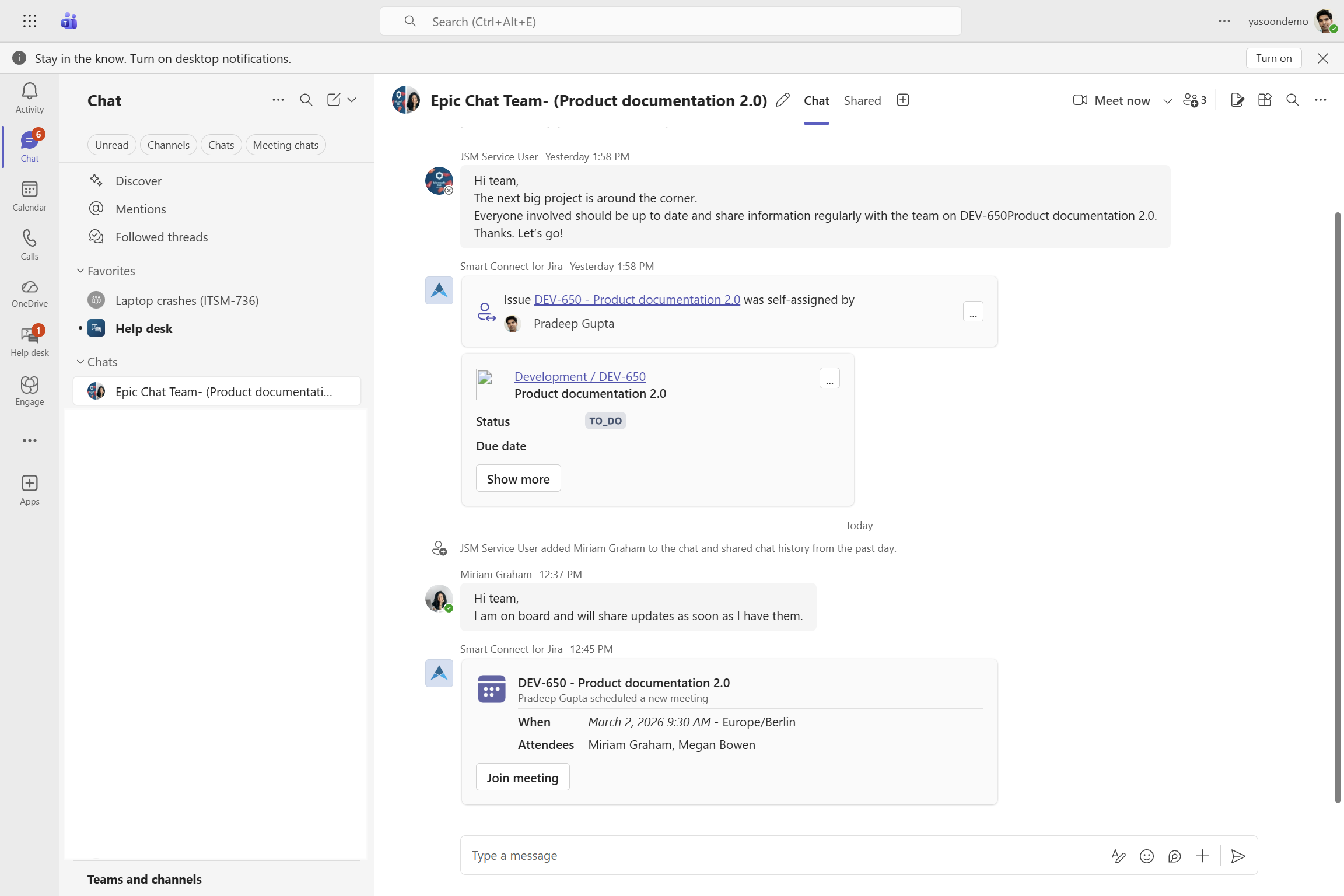
Epic chat
When a new epic is created, our epic chat automation instantly starts a Teams chat with a predefined number of team members of your space.
If configured, the epic chat can be accessible in each child work item, ensuring full project transparency across the team.
Use epic chats to share updates, request approvals or reviews, and discuss challenges with all people involved.
Configure the automation to your specific needs and align it with your projects' different purposes and your team’s overall way of working.
Use Epic chat automations for any other issue type as well, such as stories, tasks and bugs.
Configuring epic chats
Our epic chat automation combines several configuration options of our Microsoft 365 for Jira app. We recommend reviewing them first before jumping into the set-up itself. In the section below we want to outline steps which require attention and preparation.
Of course, you can configure them during the set-up process of the automation via the arrow next to the individual steps.
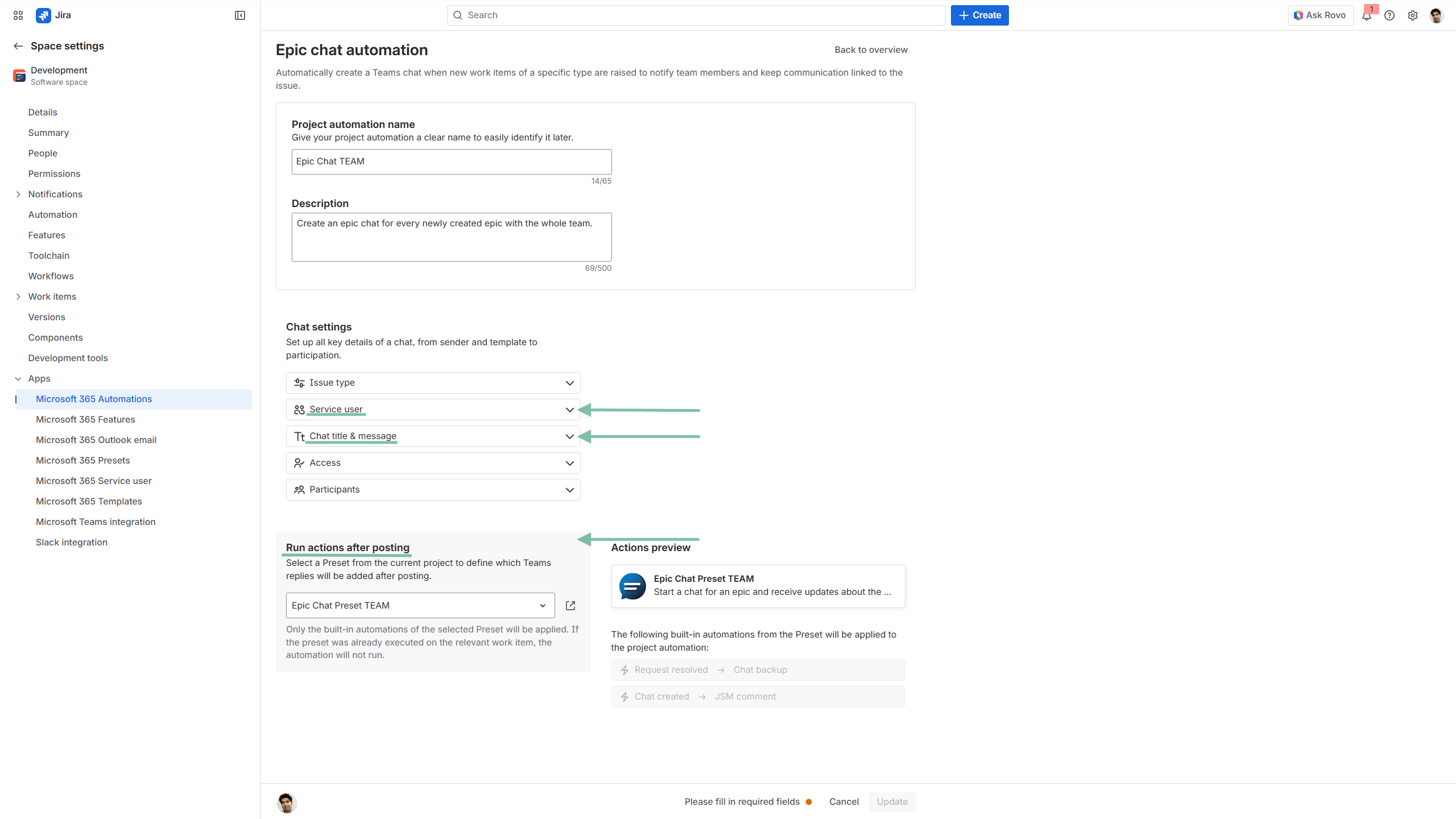
Set-up a service user
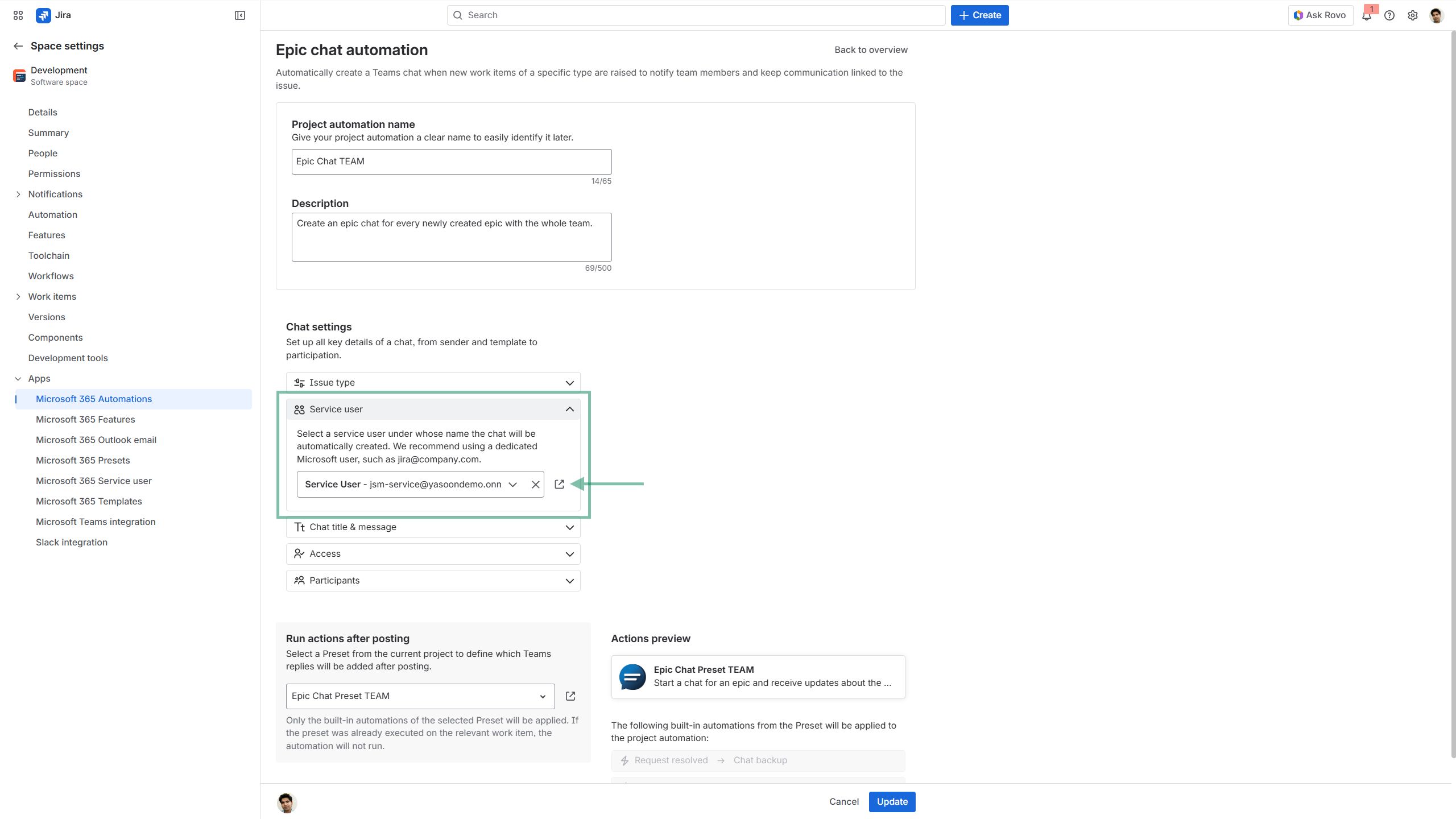
When configuring the epic chat automation you need to define a service user. It is this neutral user who initiates Teams chats on behalf of the app until an agent or team member jumps in.
Since this automation starts MS Teams chats automatically whenever a new epic is created (which is not necessarily your personal project), you should not use your personal credentials as the sender.
Follow the link (arrow) next to the service user tab to set them up.
The service user enables faster communication and makes information about new projects centrally available.
Please keep in mind, that the service user requires a Microsoft Teams license.
Learn more about service users.
Set-up a chat template
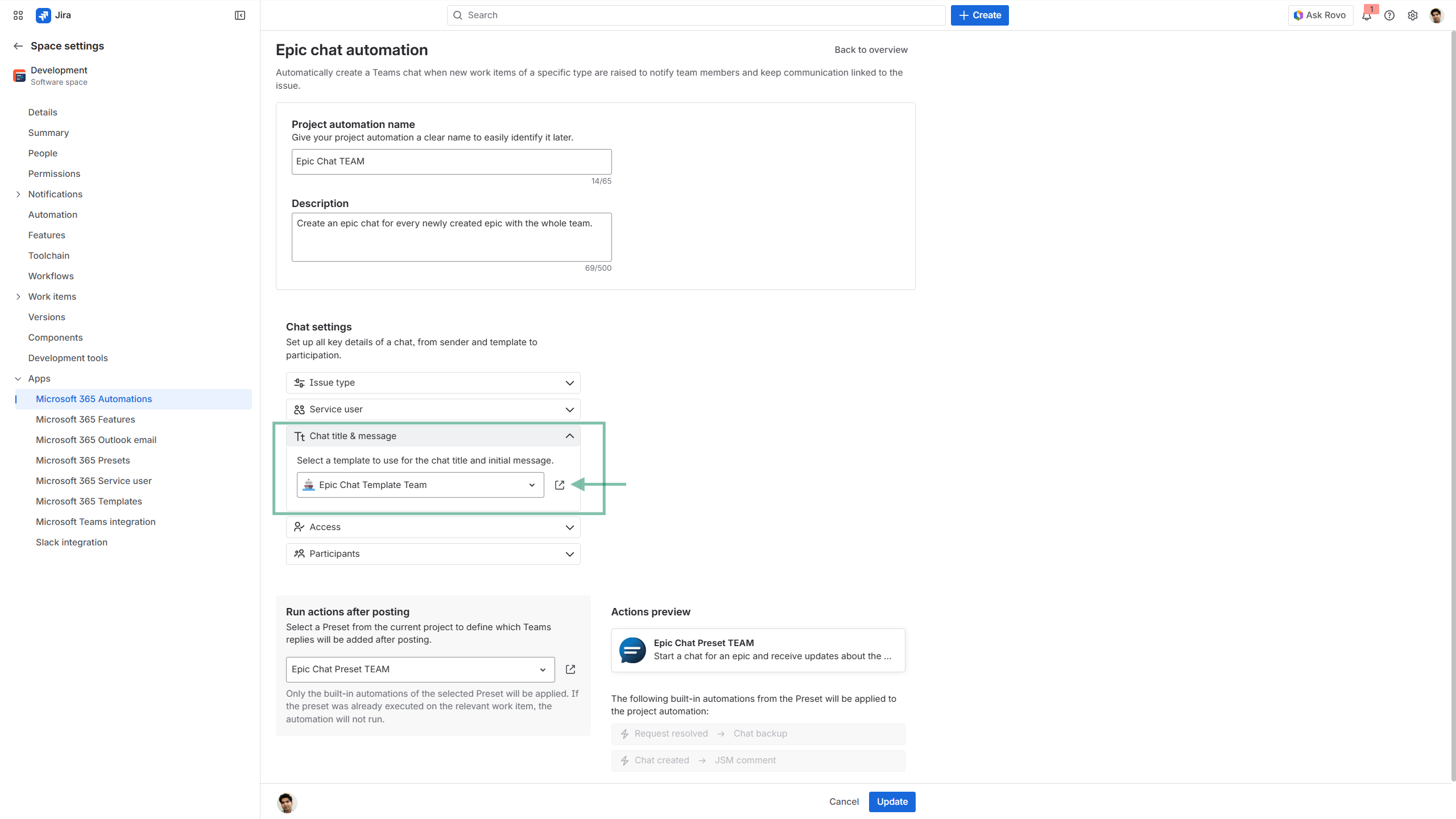
Select a suitable template as the basis for the initial chat message posted by the Service User when a new epic is created.
We recommend to set-up a template before configuring the automation. To do so, go to your space settings. Alternatively, you can do so when clicking on the arrow.
If there is already a template at hand, conveniently select it via the drop down menu.
Make sure, that the message aligns with the purpose of the chat and may already contain overall information / next steps for the team.
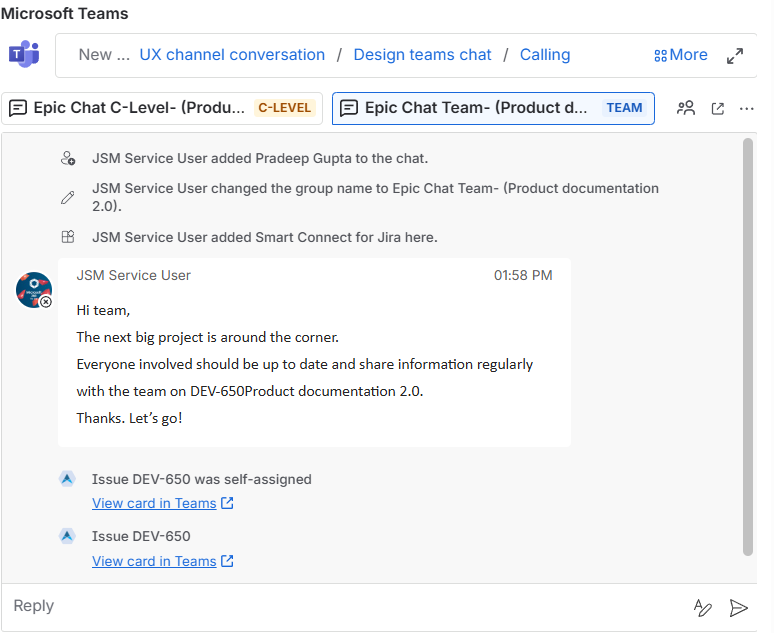
Set-up a Teams chat Preset
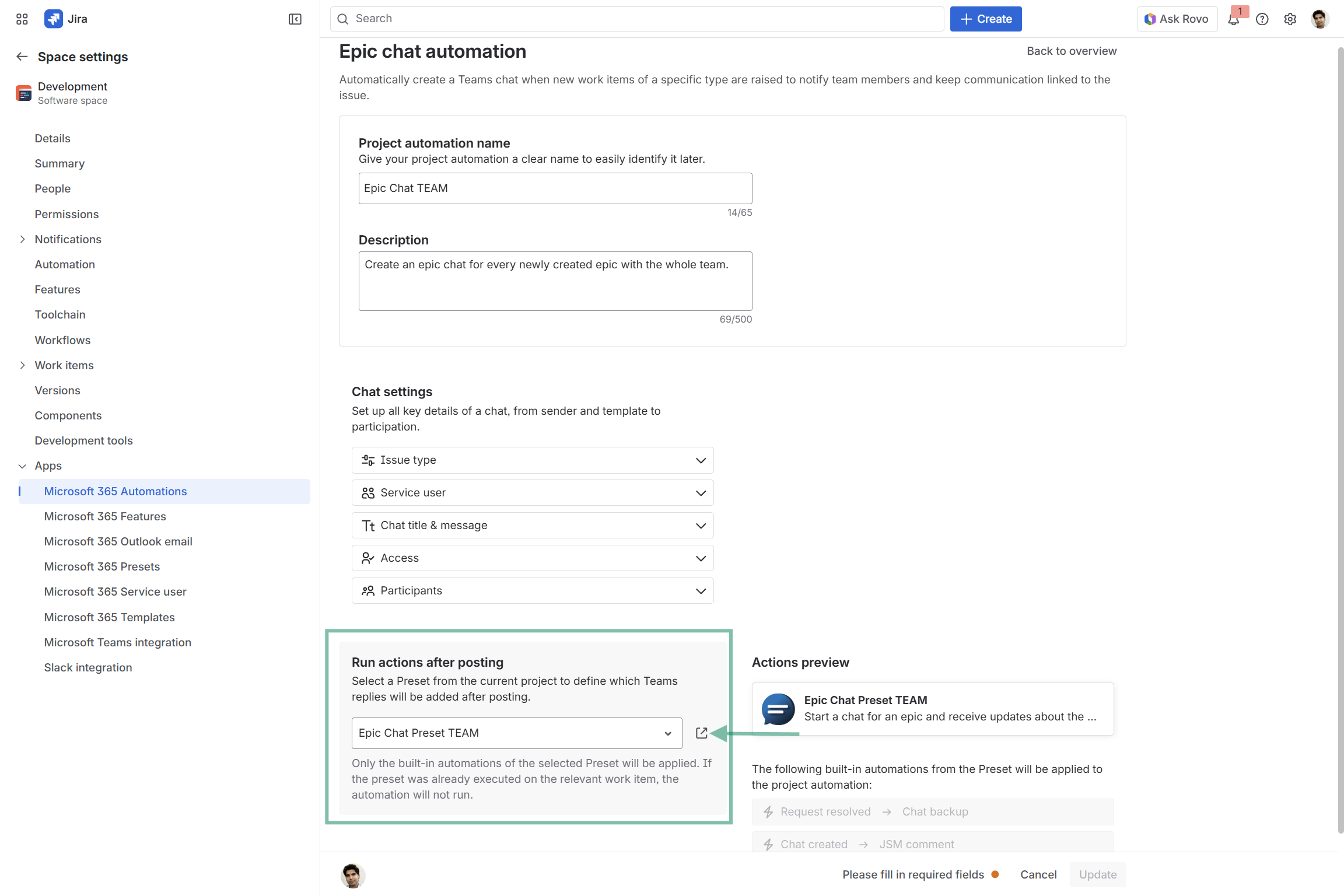
Chat behavior and subsequent actions after posting the chat to MS Teams, depend solely on the preconfigured Preset (keyword: built-in automation).
It is the Preset that will kick off actions like adding a JSM comment to the work item after the chat has been started. Or that the chat will be backed up as a PDF file, if the work item is resolved, for example.
The Preset should to be configured before in the space settings. Alternatively, do so via the arrow. Make sure that the Preset has a clear and distinct name to find it easily in the drop down menu.
Configure a Teams chat Preset.
Existing epics
For existing epics the project automation will not work.
If you want to create an epic chat for existing epics, you need to set-up a dedicated Teams chat Preset via the space setting.
⭐ We recommend to give your Preset a unique title to locate it easily among your other MS Teams chats in your work item, if they are existing (see below screenshot).
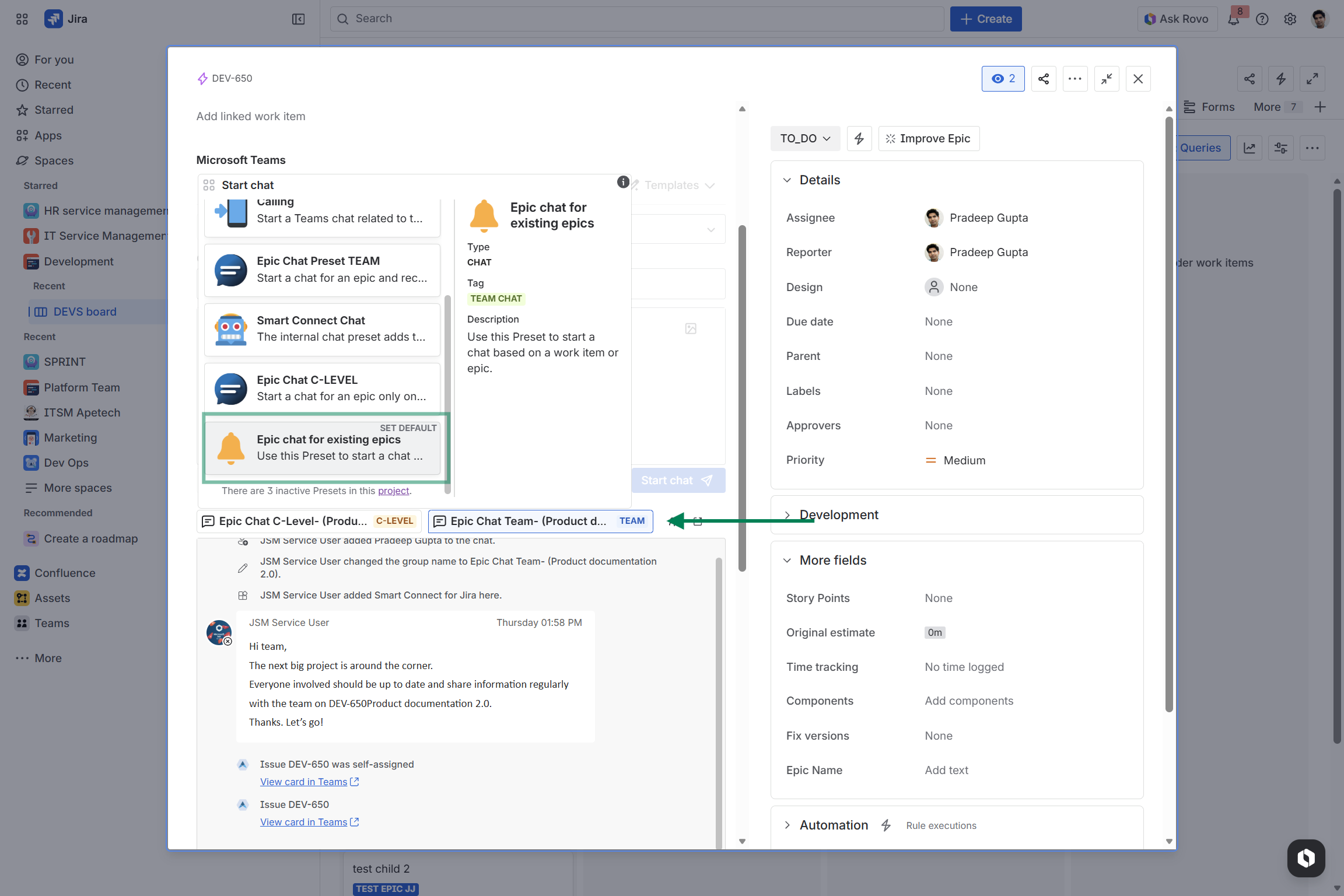
You can then easily start an epic chat with your team right from your work item, just as you’re used to with any other MS Teams chats / channel conversation you can kick off from Jira.
Configure the Preset to suit your needs, ensuring that message content, (number of) participants, sharing options, and built-in automations are set correctly.
Automation configuration
The configuration of all automation types mentioned here, are basically the same.
The automation settings for Sprint and Release Channel follow the same structure while the one for Epic Chats require a few more options to be configured (see above).
The set-up of all automation types, needs to be done via a Jira project admin.
Admin configuration
The process is simple and takes just a few clicks.
The project admin can set-up and configure project automations via the space settings.
Under “Microsoft 365 automations” → “Project automation”, the admin can access all setup steps.
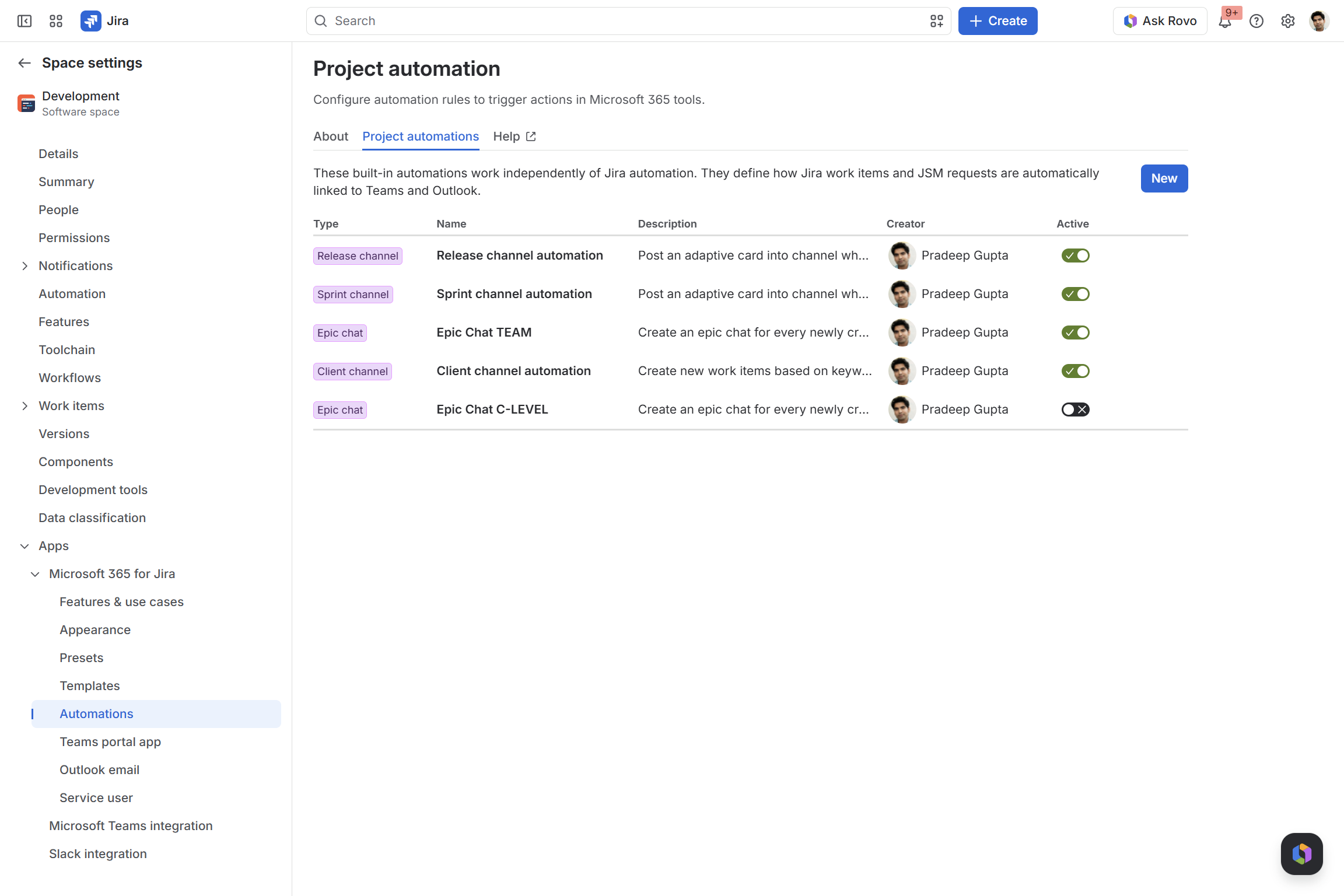
Client channel
As a Jira space admin, define how the automation should turn Microsoft Teams channel conversations into Jira work.
Select the source channel, configure the trigger and transferred content, and determine the work item type, target field, summary, and reporter. AI features must be enabled in the global Jira settings in order to use an AI-generated content for the description field and work item summary.
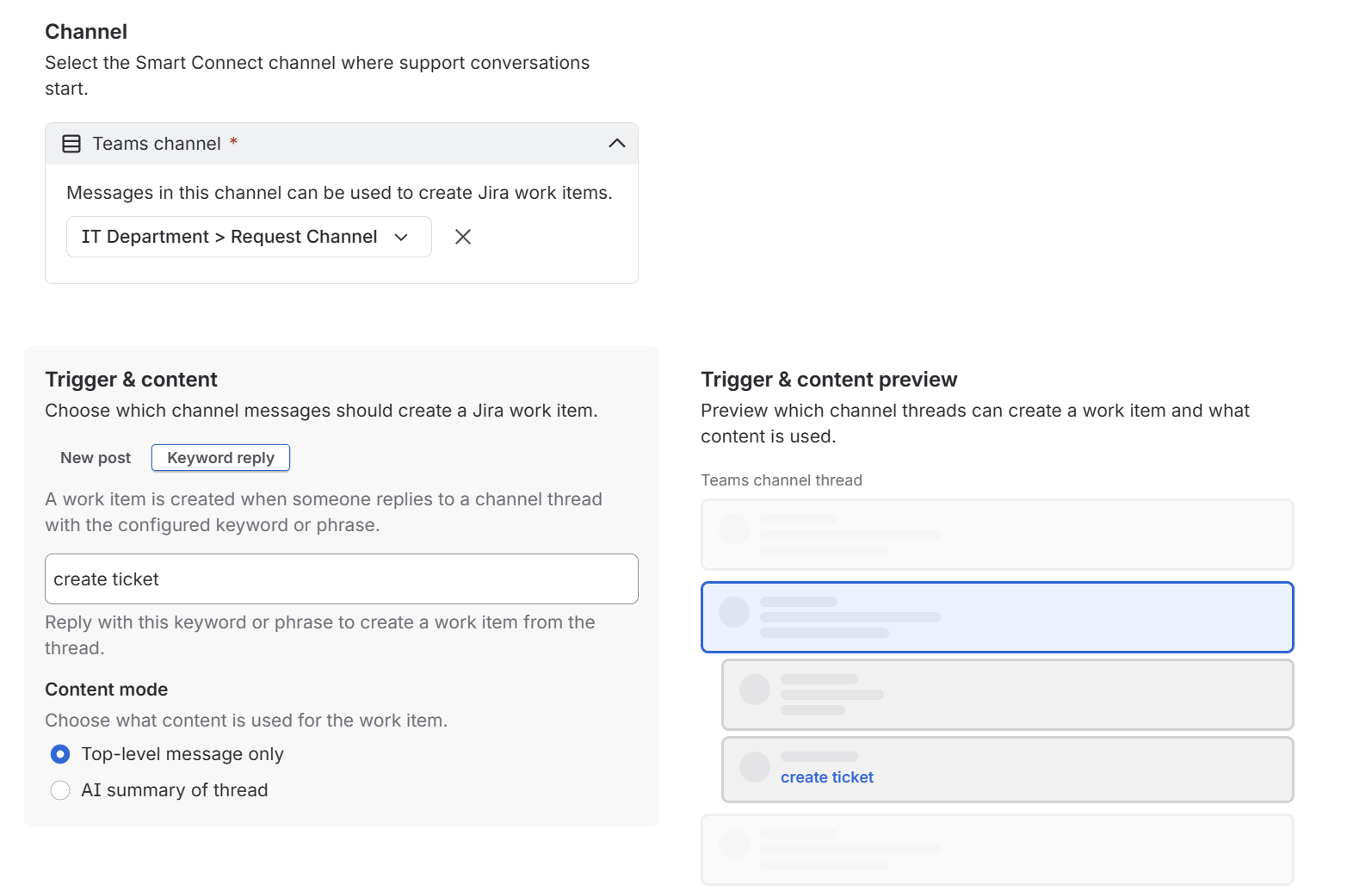
Trigger and content
Choose which messages in the selected Microsoft Teams channel should create a Jira work item and what information should be transferred to Jira.
-
New post: Create a Jira work item whenever someone starts a new conversation in the selected channel. Use this option for channels dedicated to collecting requests or ideas.
-
Keyword reply: Create a Jira work item only when someone replies to a channel conversation with the configured keyword or phrase. Use this option when the channel also contains general discussions and only selected conversations should be tracked in Jira. Enter the keyword or phrase that team members should use to trigger the automation, for example create ticket.
Content mode
Choose which conversation content is added to the configured Jira text field.
-
Top-level message only: Add the original channel post without including its replies. This is suitable when the initial message contains a complete and structured request.
-
AI summary of thread: Summarize the top-level message and its replies. This is useful when requirements, decisions, or technical details emerge throughout the conversation.
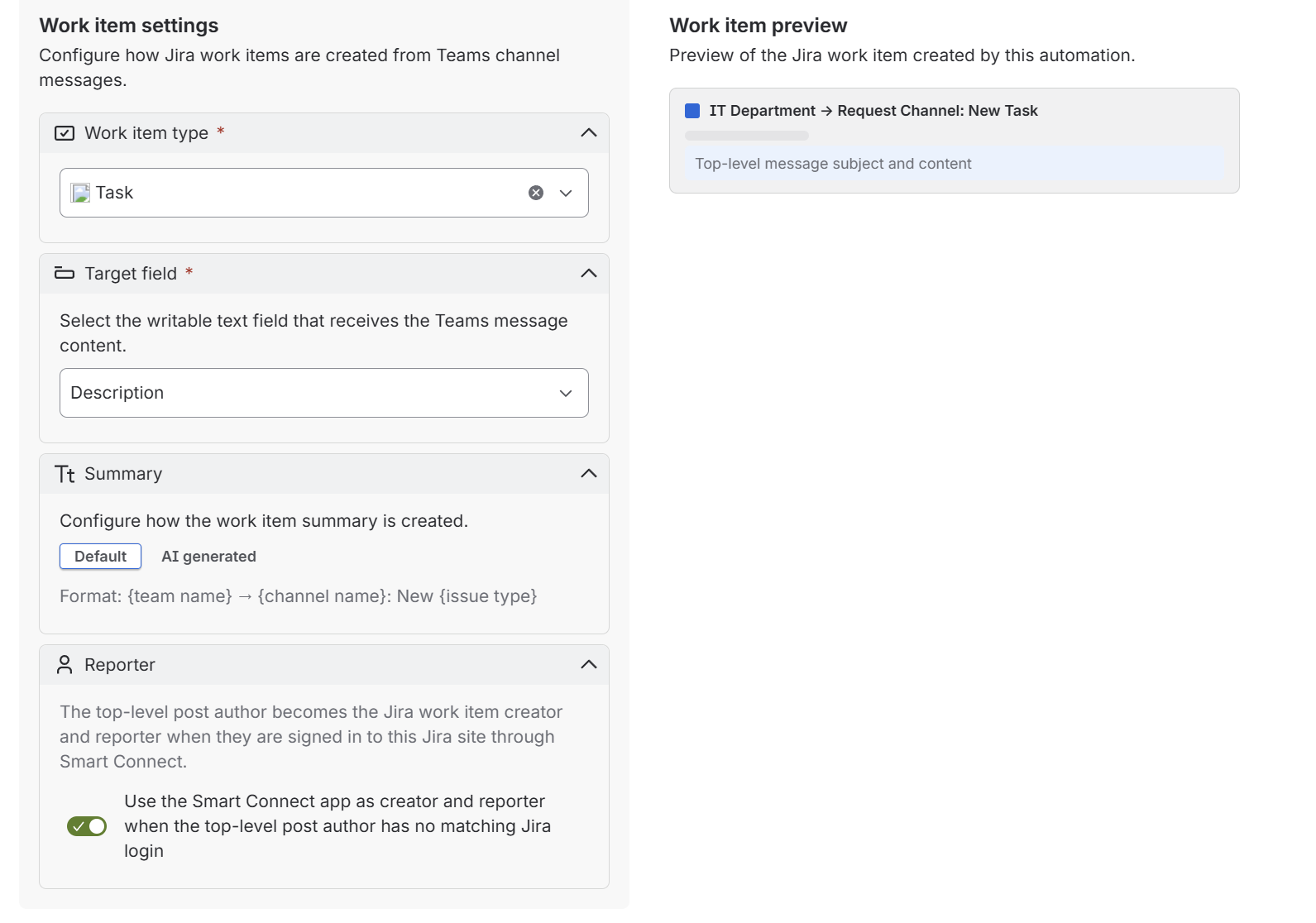
Work item settings
Configure how the Client channel automation creates Jira work items from Microsoft Teams conversations. Select the work item type, determine where the Teams content is added, and define the summary and reporter.
-
Work item type: Select the Jira work item type created by the automation.
-
Target field: Select the writable text field that receives the Teams message content or thread summary.
-
Summary: Use the default summary, consisting of the team name, channel name, and an automatically generated number, or create an AI-generated summary based on the conversation.
-
Reporter: Select the Jira user recorded as the reporter of automatically created work items.
Epic chat
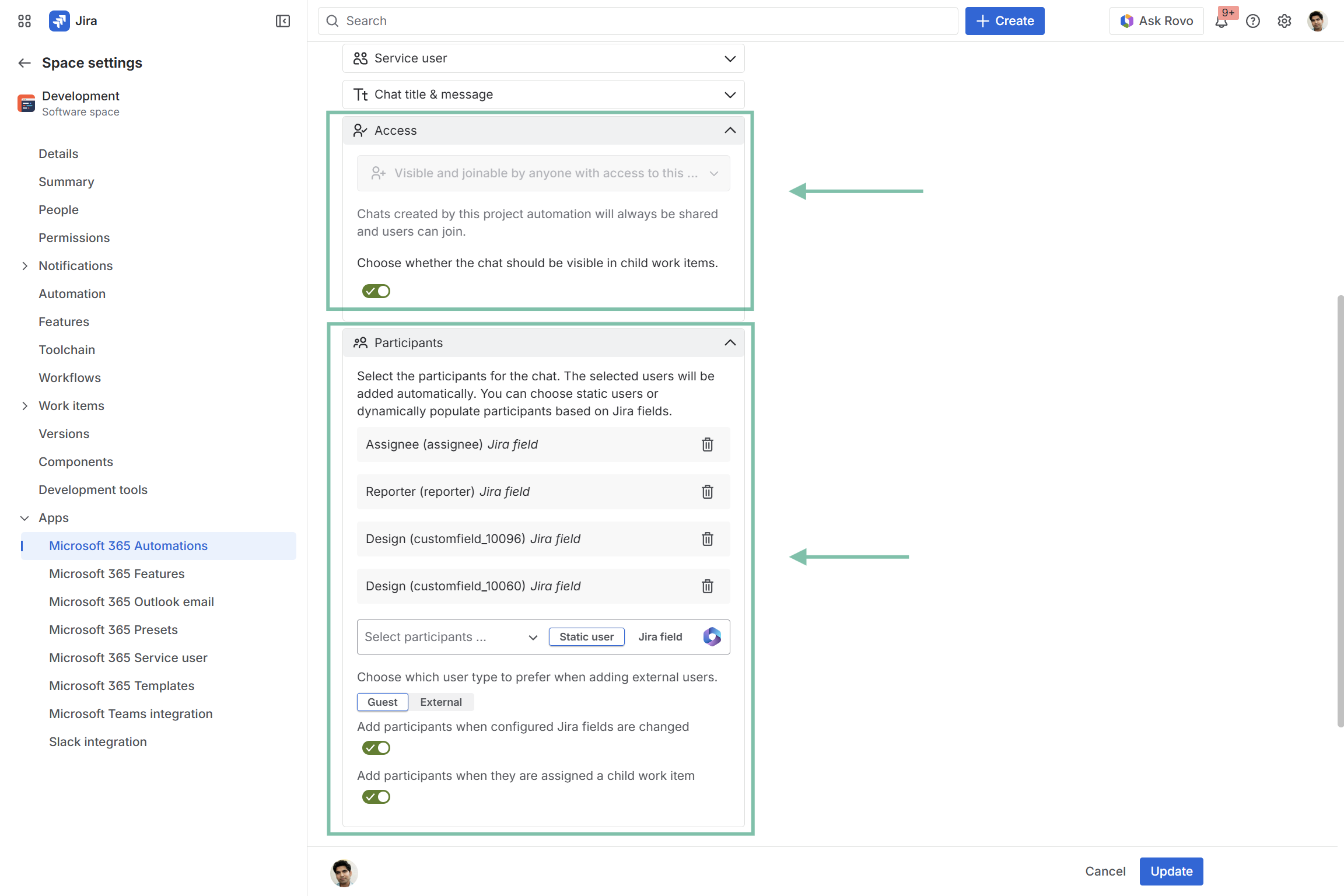
For Epic chat automation, please consider our configuration guidelines in order to better understand the reason why for individual steps in the configuration process.
Please note: Options such as “Access” and “(External) user types” being available in project automation settings cannot be configured in a Preset.
User configuration
This feature offers instant accessibility with no user configuration needed.
You can start right away.
Useful links
-
You require more a more extensive and detailed automation for your team? Check out our Microsoft 365 automations and configure individual actions and triggers globally: https://support.yasoon.com/M365FJ/automation-features