
About
Our Microsoft Teams integration lets you use a dedicated Microsoft Teams space chat in Jira.
Whether you create a new Jira space or work in existing spaces, the space chat appears automatically in the Jira navigation as a separate tab.
In JSM projects, the space chat appears in the Jira navigation on the left.
In Jira software projects, the space chat is accessible right at the top in the navigation bar.
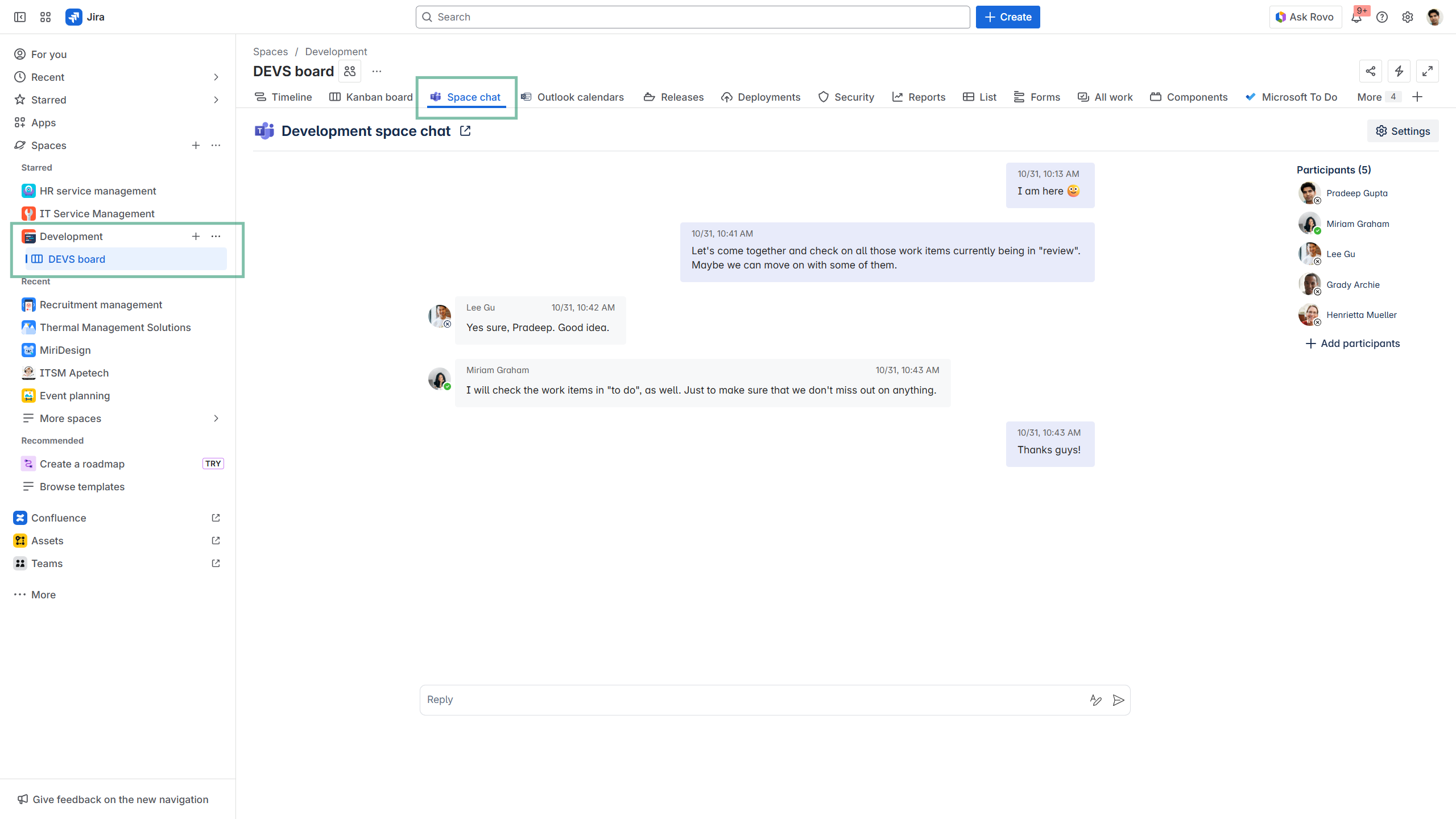
When setting up a space chat for the first time, you can choose to create a new chat or sync an existing one. Both options are valid.
You can use only one space chat per Jira space.
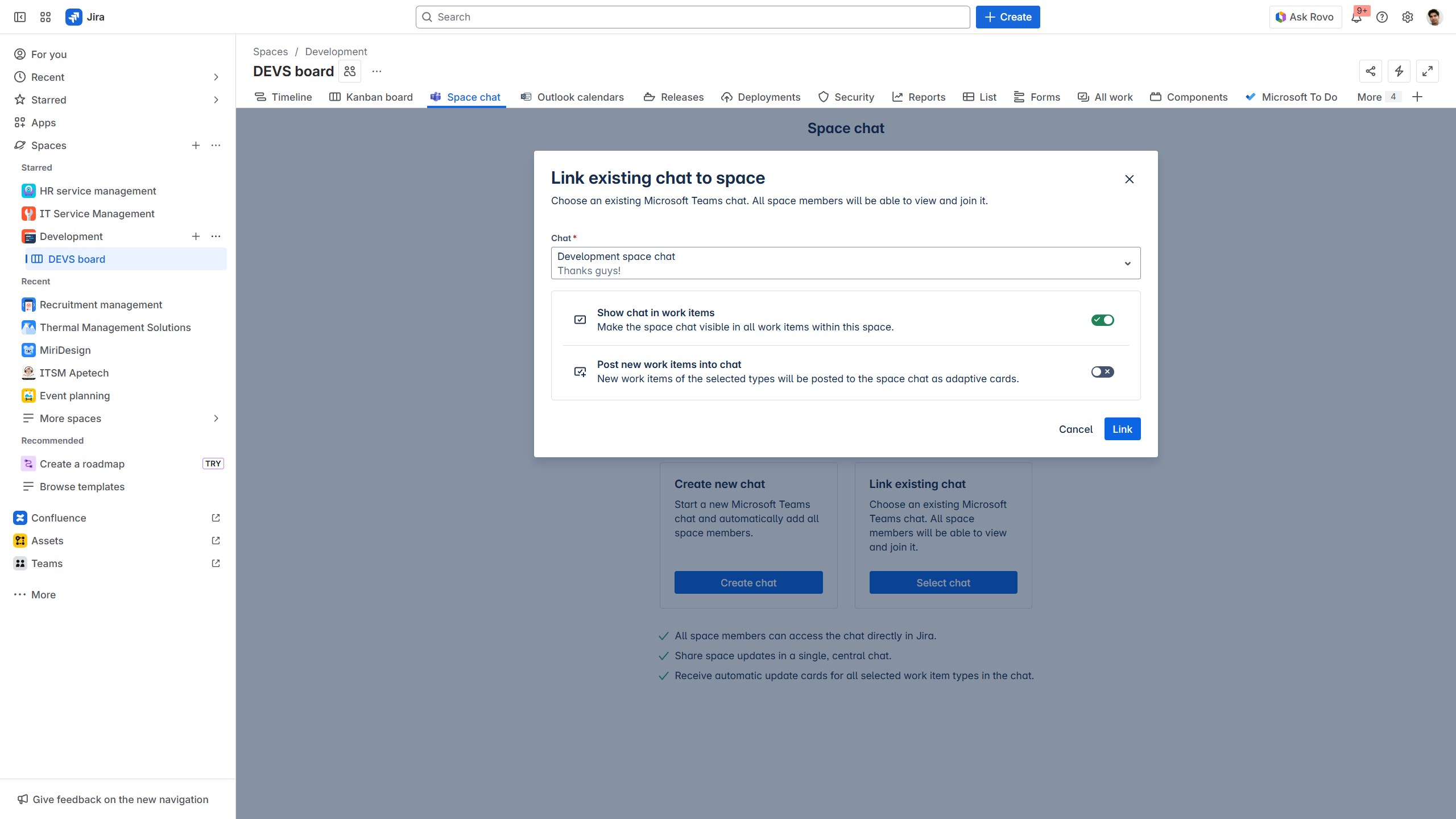
Existing chat
Choose the chat via the dropdown.
Decide on chat settings:
-
Show chat in work items
-
Post new work items into the chat
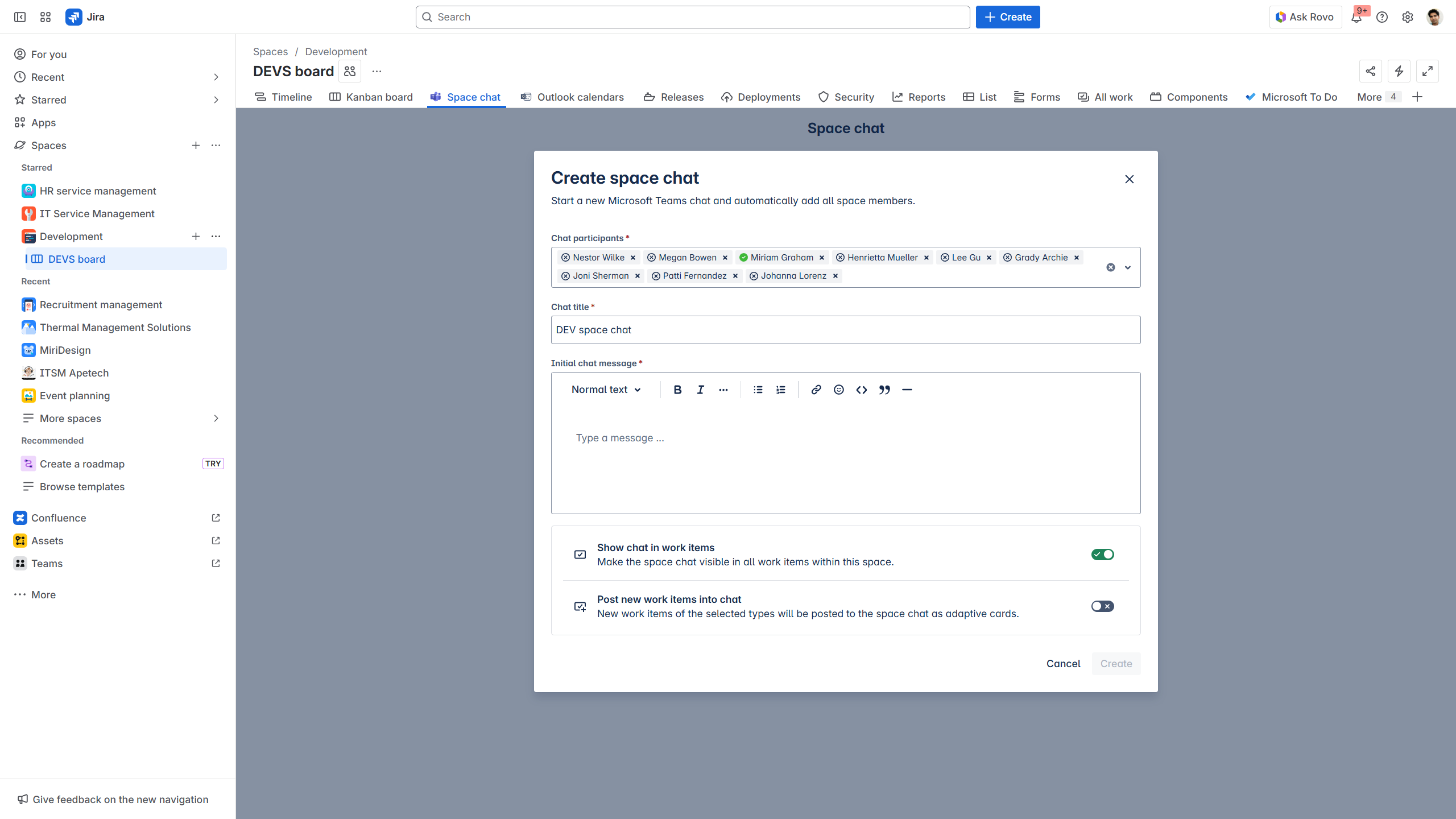
Create new chat
Create a specific space chat with all/relevant team members of the space.
Decide on chat settings:
-
Show chat in work items
-
Post new work items into the chat
Whether you work in Jira or Microsoft Teams, you can stay in sync and collaborate jointly on projects. Share updates and provide knowledge and information in one place.
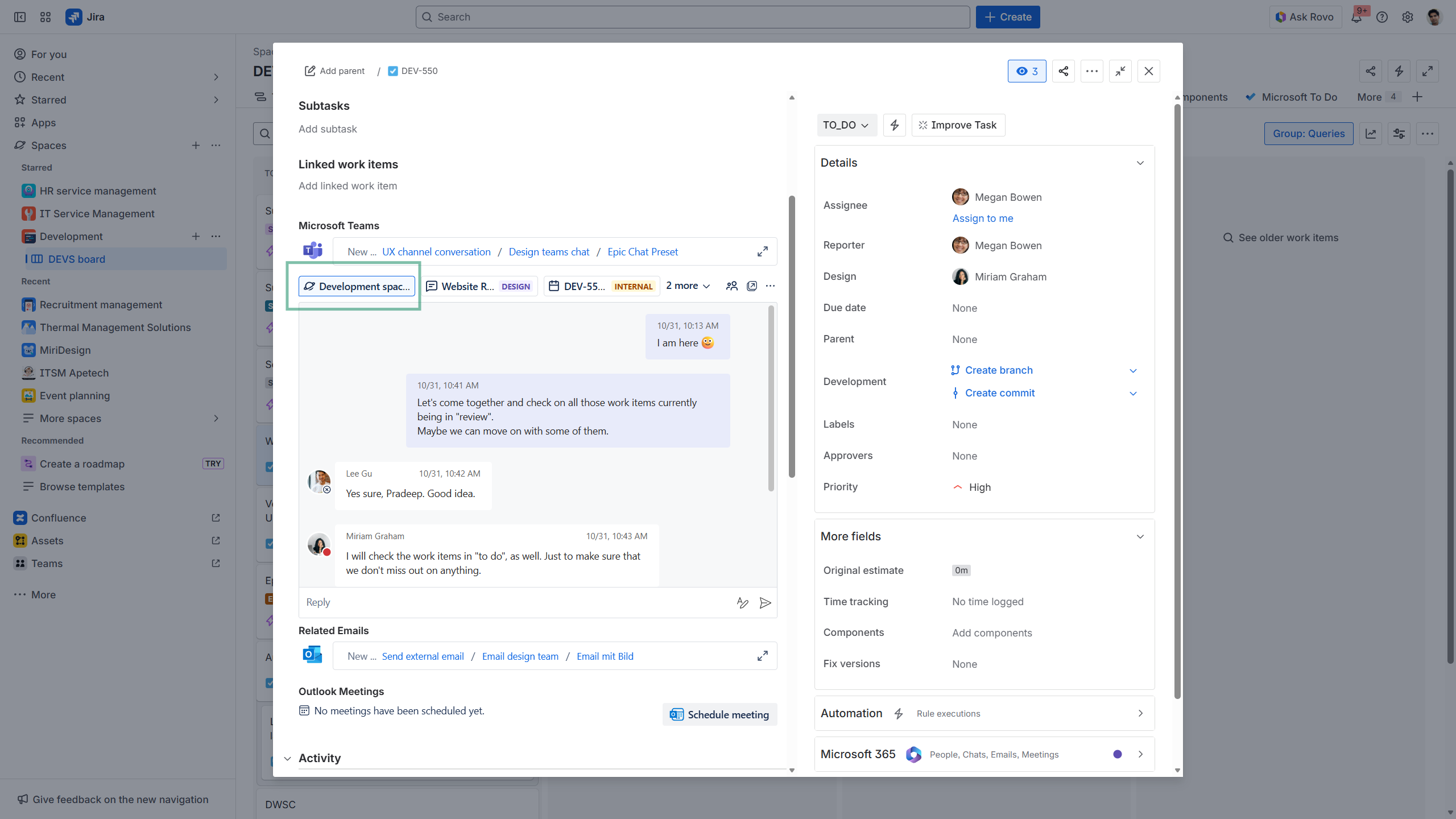
If enabled in settings, the space chat can be accessible in every work item of the space.
Join conversations, share updates, or tag team members to keep projects moving. This streamlines project and team management.
Configuration
Useful links
-
Want to start dedicated Teams chats from your individual Jira work item? Find out more here: https://support.yasoon.com/M365FJ/microsoft-teams-start-a-chat-in-jira
-
Learn more about how to use Jira features in your MS Teams to e.g. create new work items based on chats or channel conversations with the team: https://support.yasoon.com/M365FJ/create-new-jira-issues-in-ms-teams
-
Check out our Teams Presets for set-up preconfigured templates when starting chats/channel conversations from your work item: https://support.yasoon.com/M365FJ/preset-teams