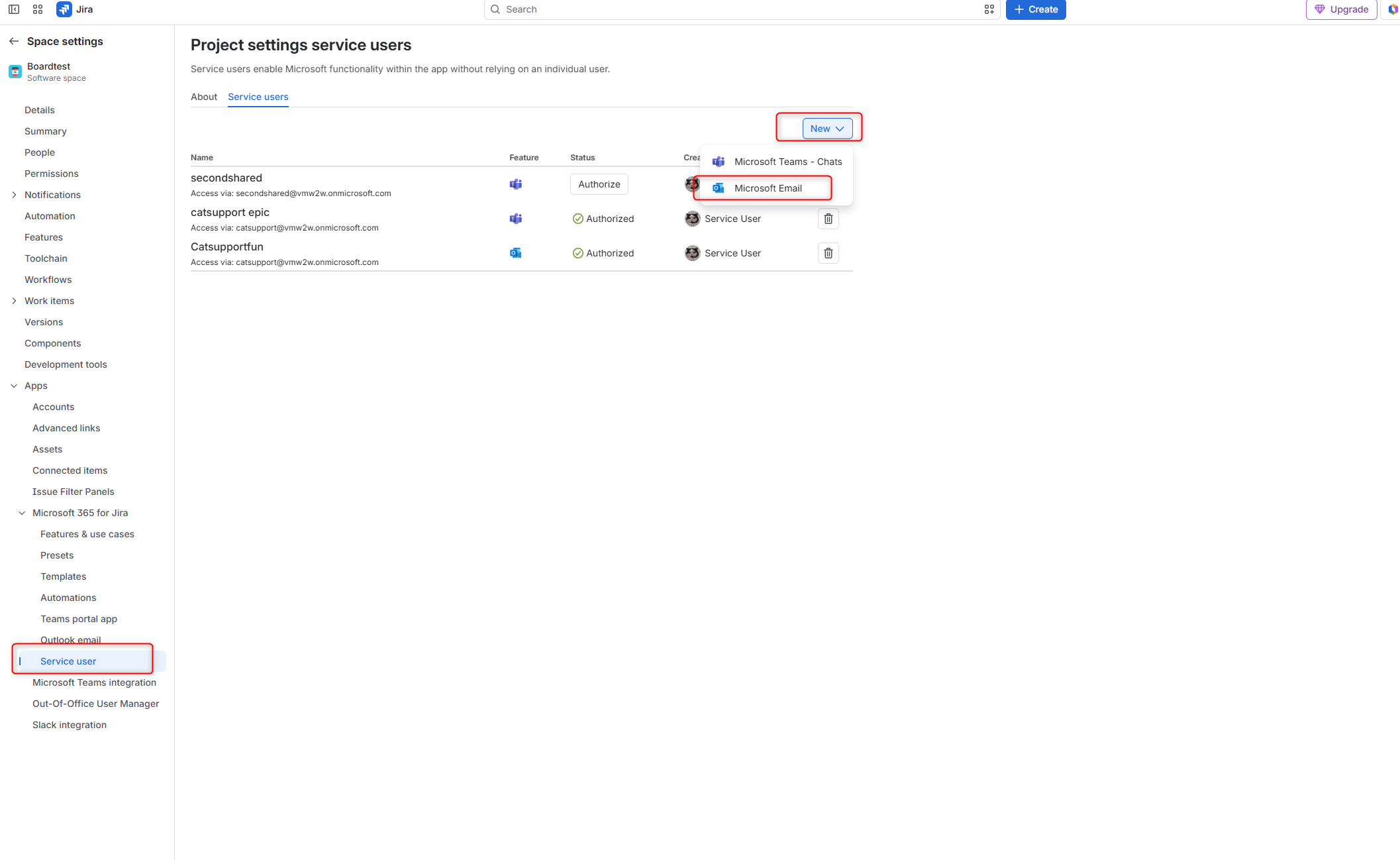
Use automation to have Rovo/Rovo agents draft a reply to a customers work item and populate a Jira field of your choice. After you add this information to the relevant Jira work item, access the value via our Templates.
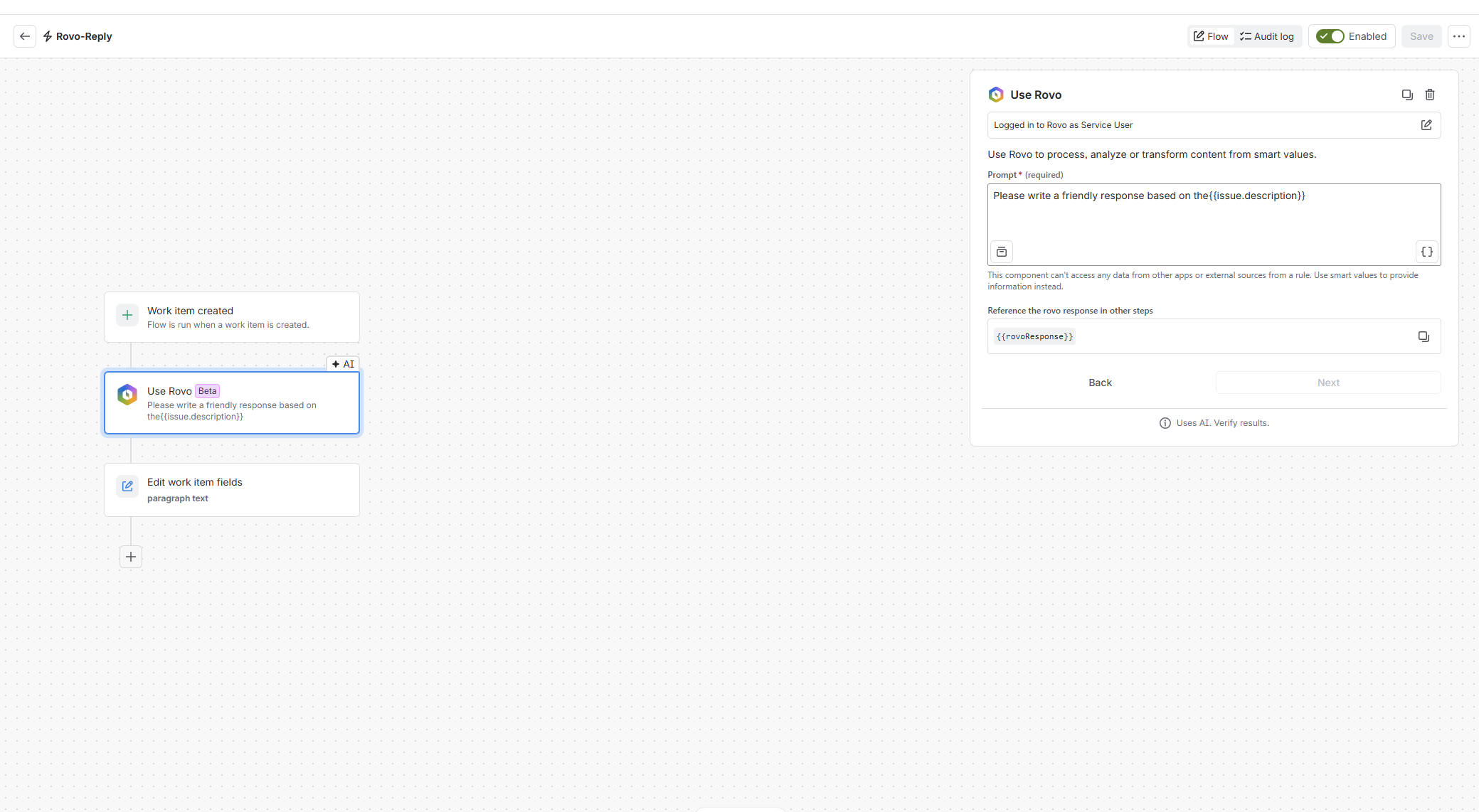
Example automation sequence to place the Rovo response into a custom field:
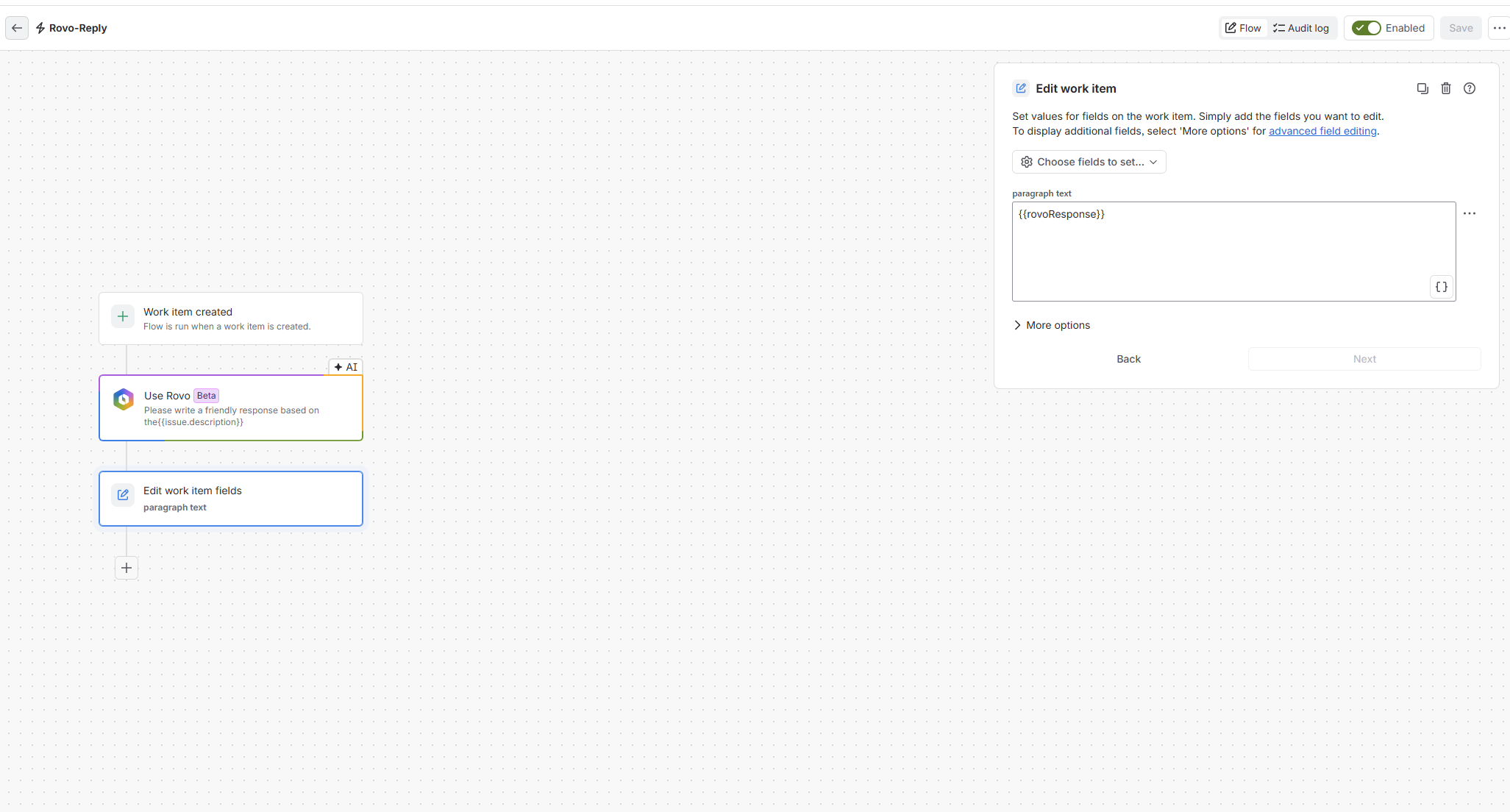
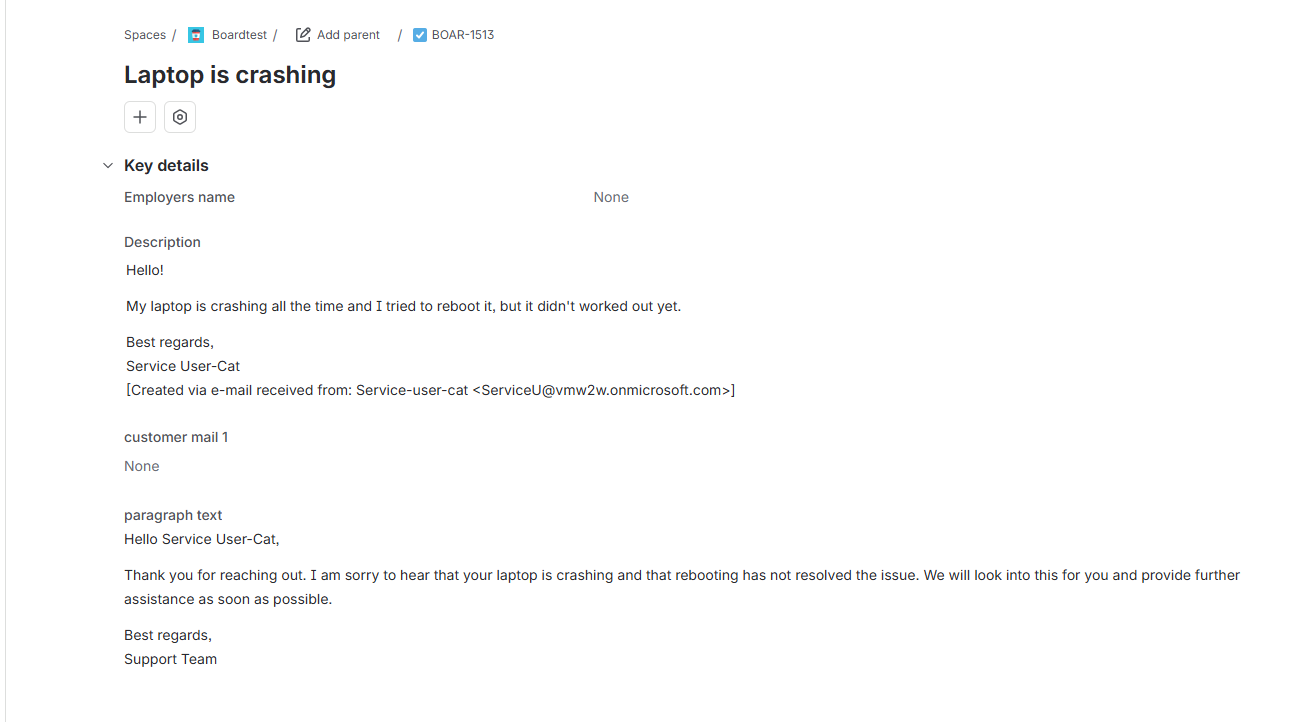
Reviewing a work item example, you will see Rovo's reply inside the paragraph text field:
If you want to use the reply as a draft within our applications, insert the field value into a template to predefine the answer:
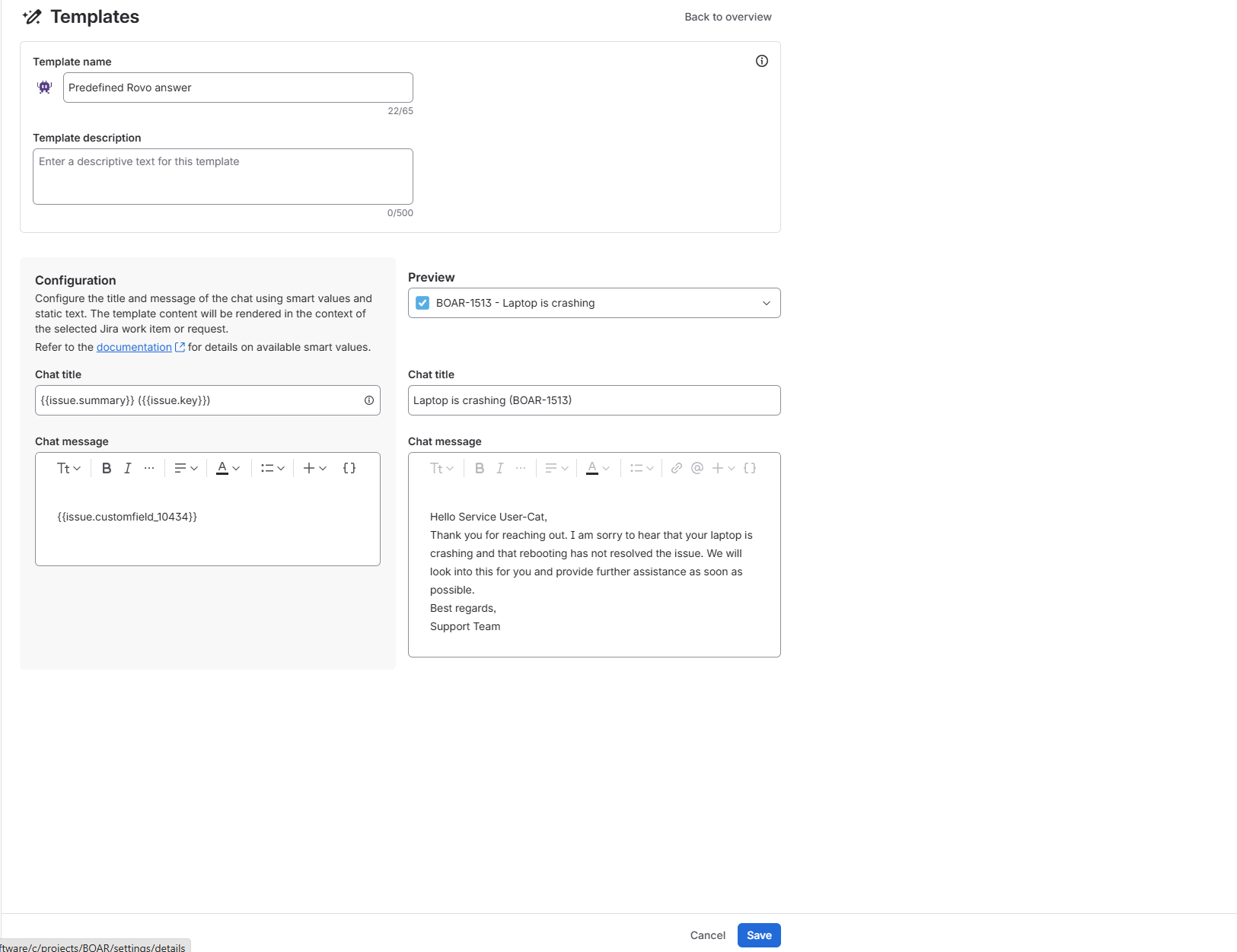
How can this be helpful? Use case scenario using Emails from Jira
When you receive requests via a mail handler, use our Service User feature, Rovo, to draft a reply and apply a template from the Email functionality.
In this example, open the linked email (the initial customer message that created the work item) and the reply will apply automatically:
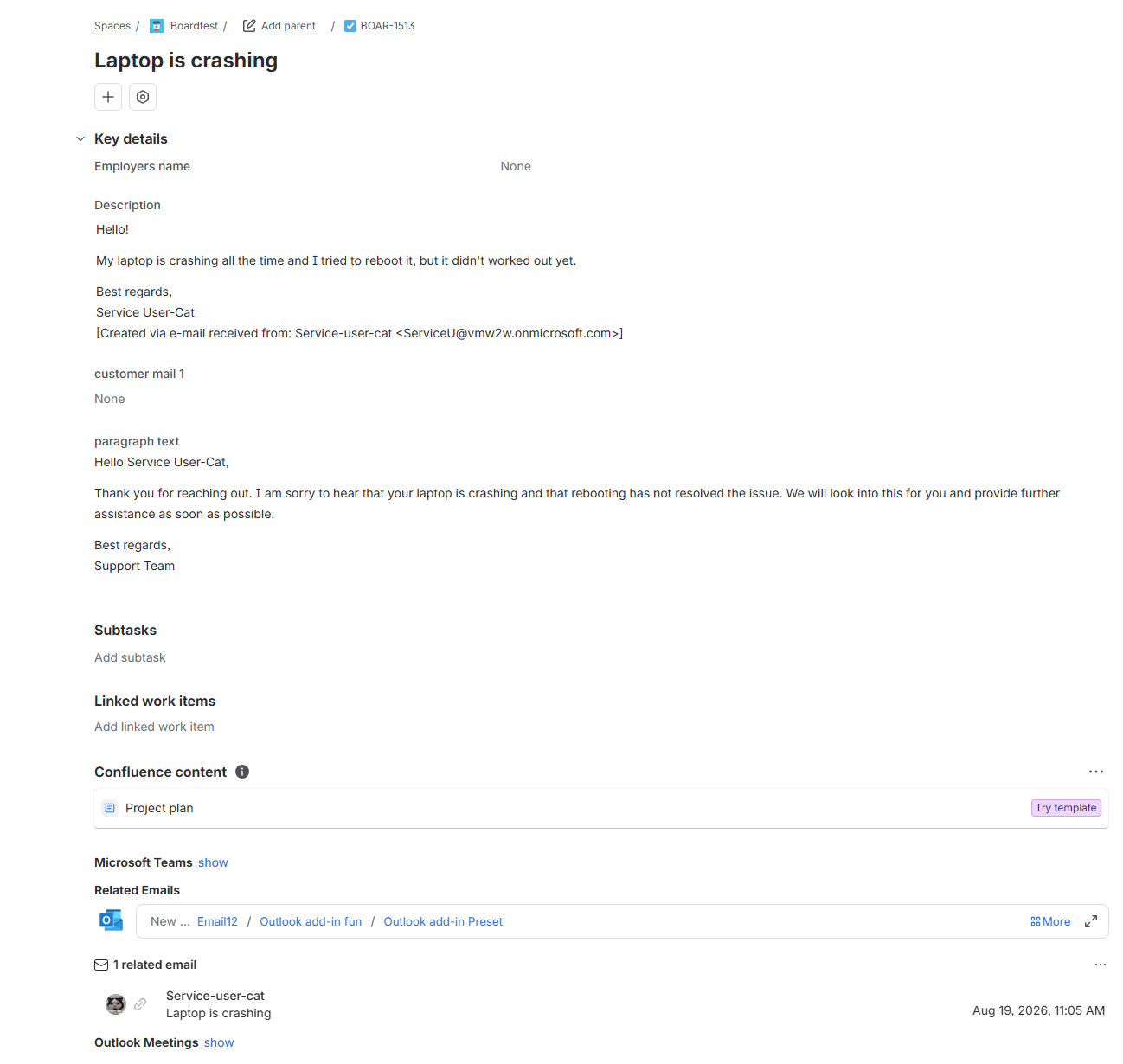
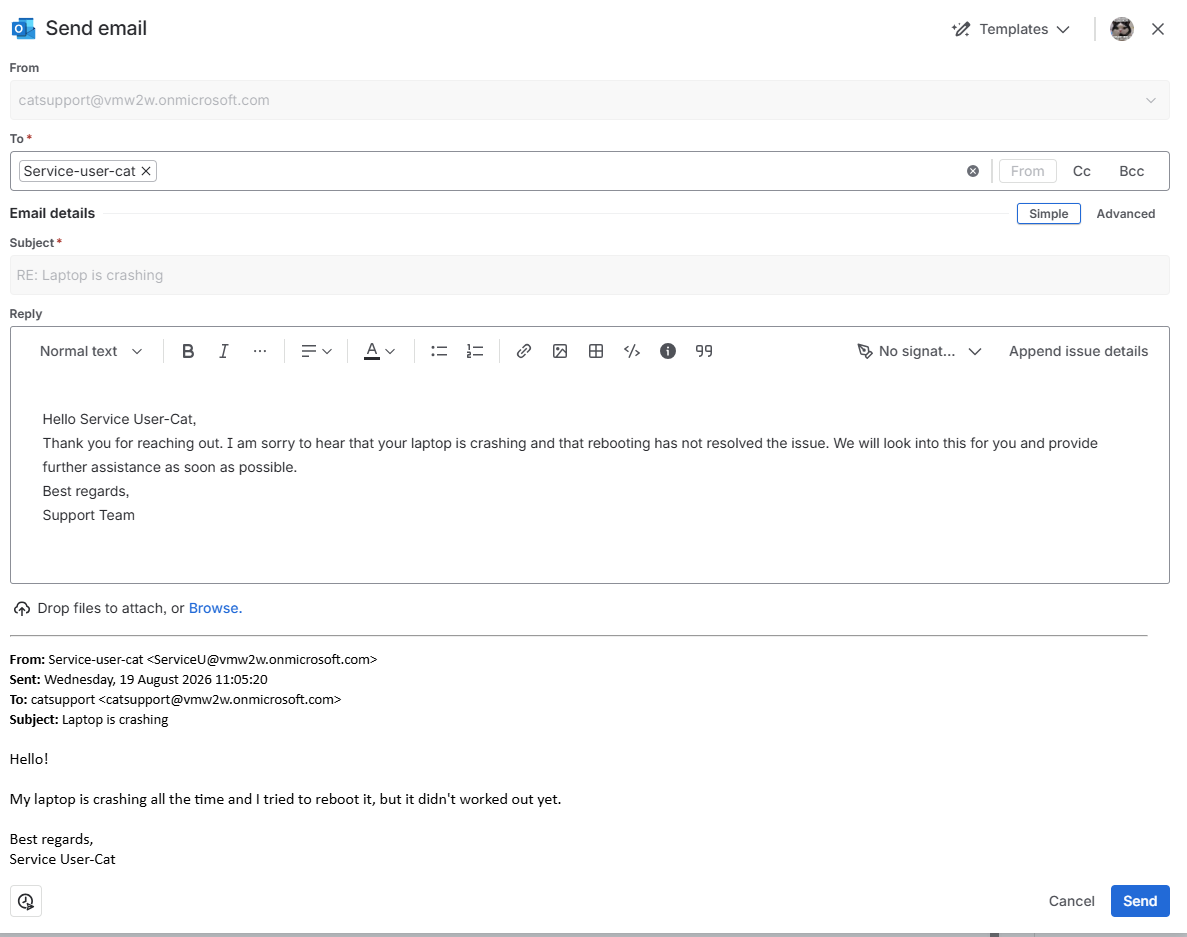
Users can adjust the drafted email to their needs and add their signature, making replies faster and easier.
The same applies to Microsoft Teams chats.
Setup
-
Set up automation to draft the Rovo reply (shown above)
-
Set up the template (shown above)
-
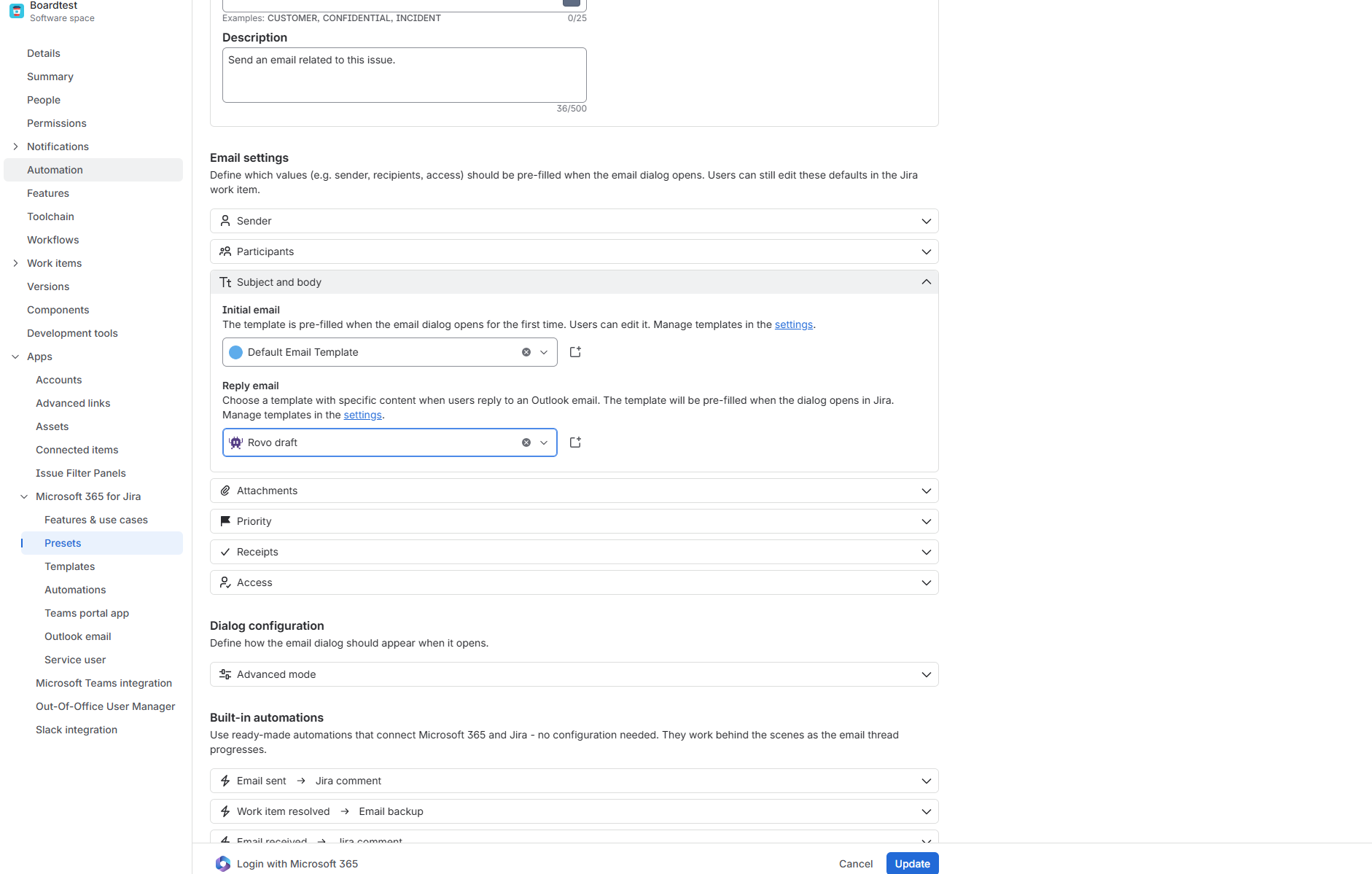
Select the template as the default for newly created emails/chats or as the default reply template for mails within your preset
-
Optional
-
Create a mail handler in Jira to automatically create work items from new emails.
-
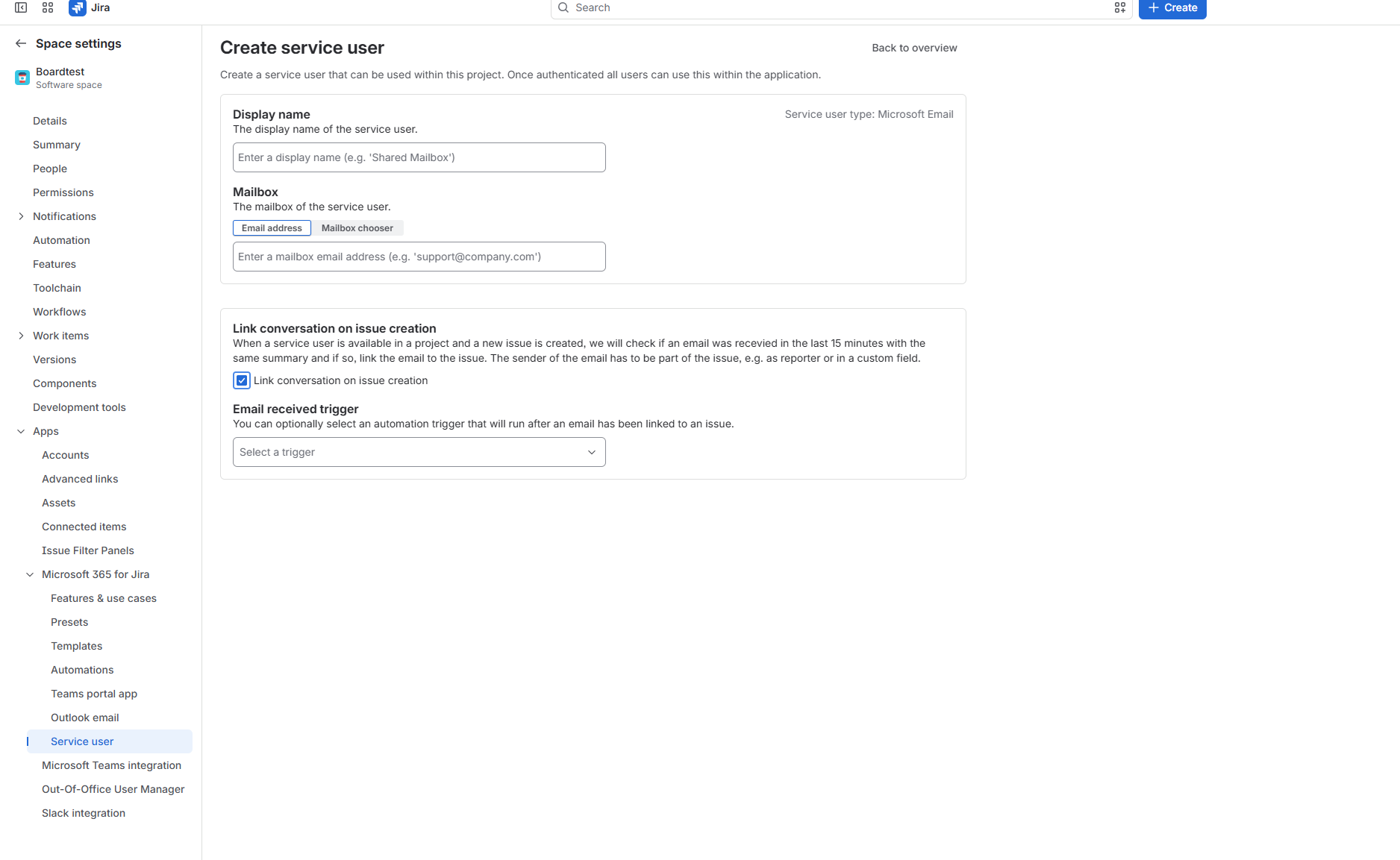
Create a service user for the Email feature in the relevant projects and select “Link conversation on issue creation”.