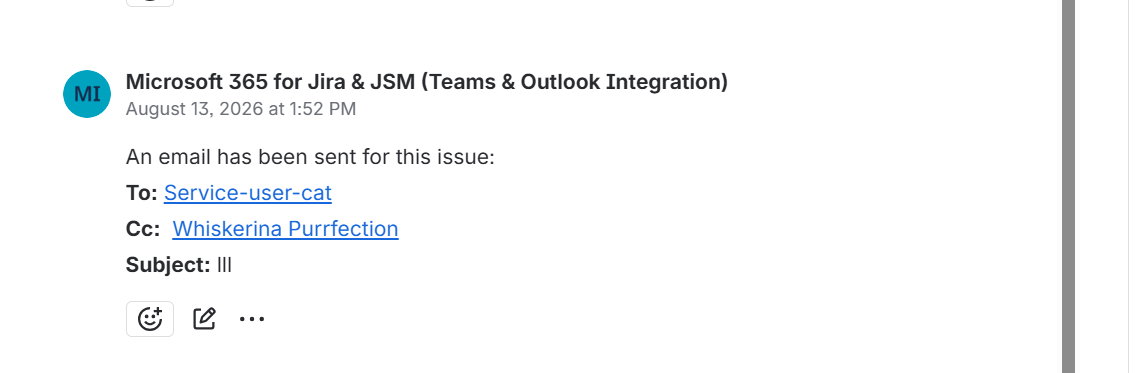
When you use our apps and, for example, send an email from Jira, the app automatically posts a comment (internal if it is a JSM space) noting that an email was sent. By default this appears as follows:
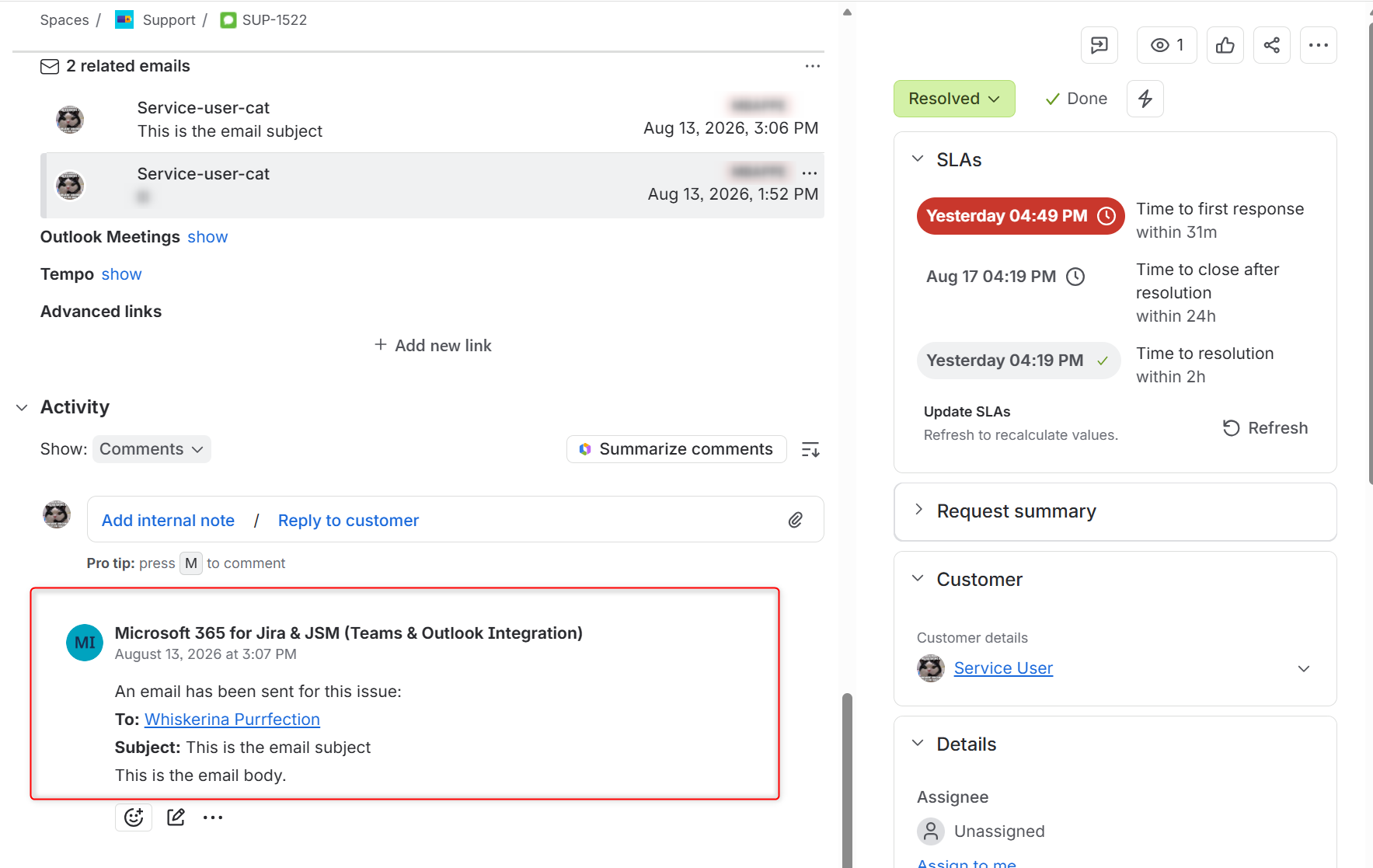
This is an external comment showing all email recipients, the email subject, and the body.
The configuration of this comment is controlled by the “built-in-automations,” which are part of our Presets. If you have not encountered Presets, see our documentation first: Presets | yasoon docs
Within the Presets you will find a section called “Built-in automations.” These run after create events—for example, posting a comment when an email is sent or backing up the email content when a work item is resolved. Below is the configuration for posting a comment after sending an email:
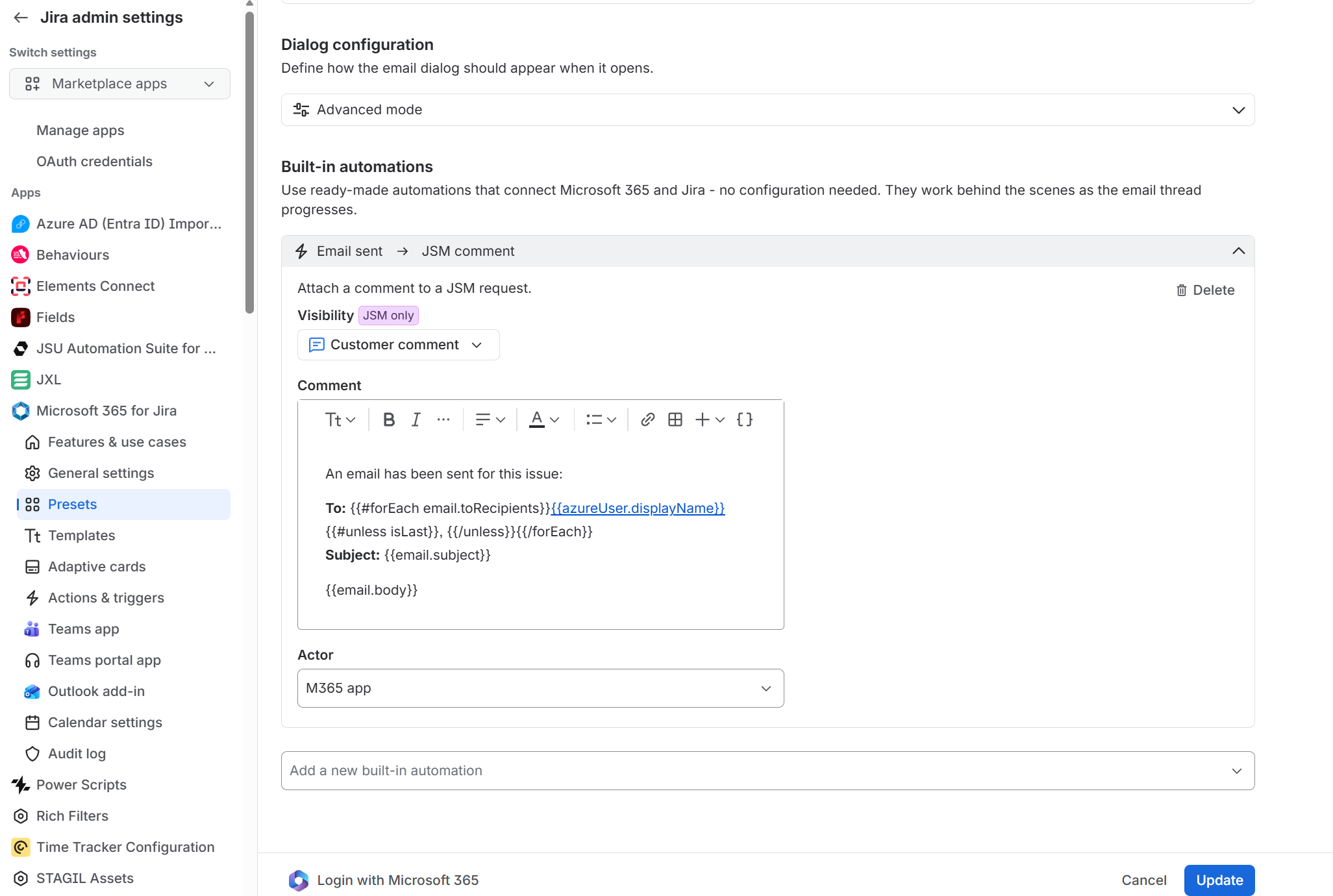
Open the comment edit box and adjust the text. To insert Jira smart values, use the curly-brackets option at the top right and select either Jira values (for example, {{issue.description}}) or Microsoft values (for example, {{email.body}}):
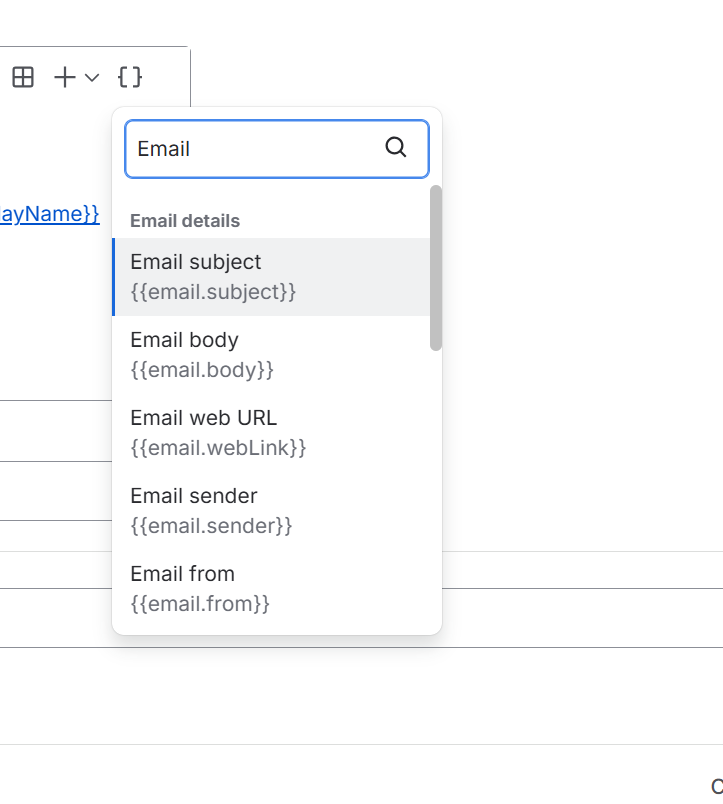
If you want to know more about how to use smart values, feel free to explore our Templates doc here Templates | yasoon docs + Template Functions | yasoon docs
If I want to include CC recipients in my comment when sending an email, I can search the value in the search bar above or use “{{email.ccRecipients}}”. That prints the CC recipients. If there are multiple recipients, use the same function as above:
{{#forEach email.ccRecipients}}{{azureUser.displayName}}{{#unless isLast}}, {{/unless}}{{/forEach}}
Adjust formatting as needed; this outputs the comment.