About
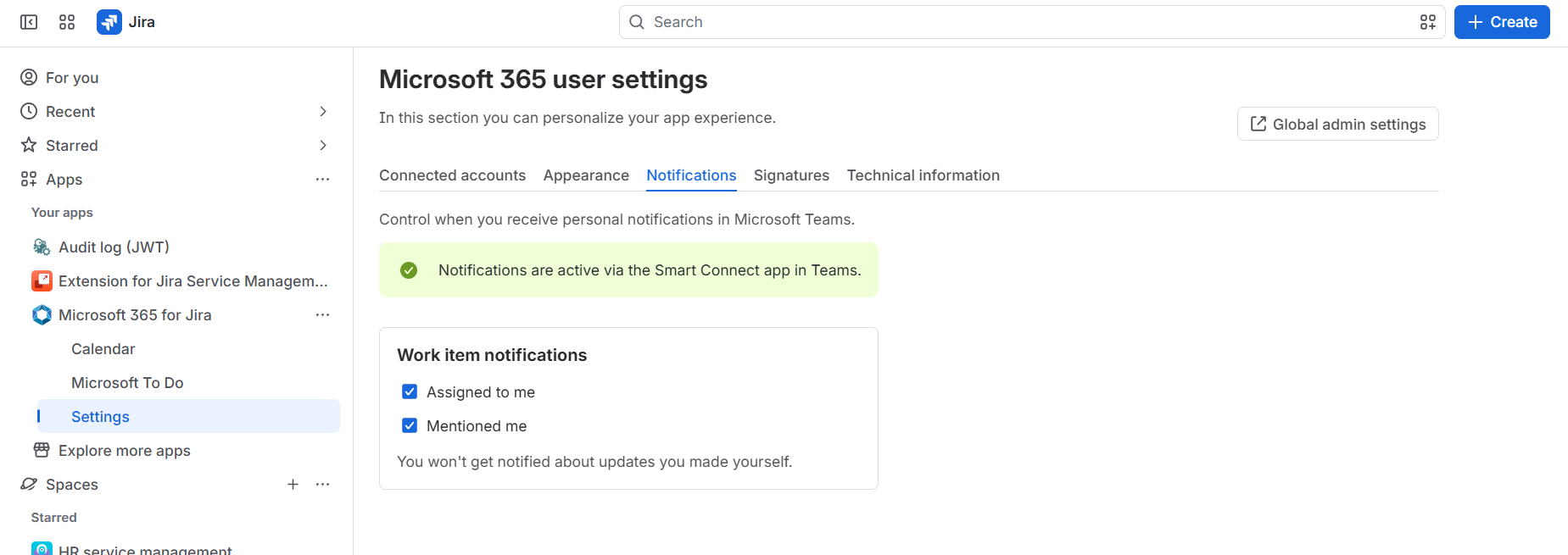
Use the Microsoft 365 settings to connect or switch Microsoft accounts, choose how Microsoft Teams chats are displayed in Jira work items, and personalize notifications. You can choose whether to receive personal notifications in Microsoft Teams when you are assigned to or mentioned in a work item.
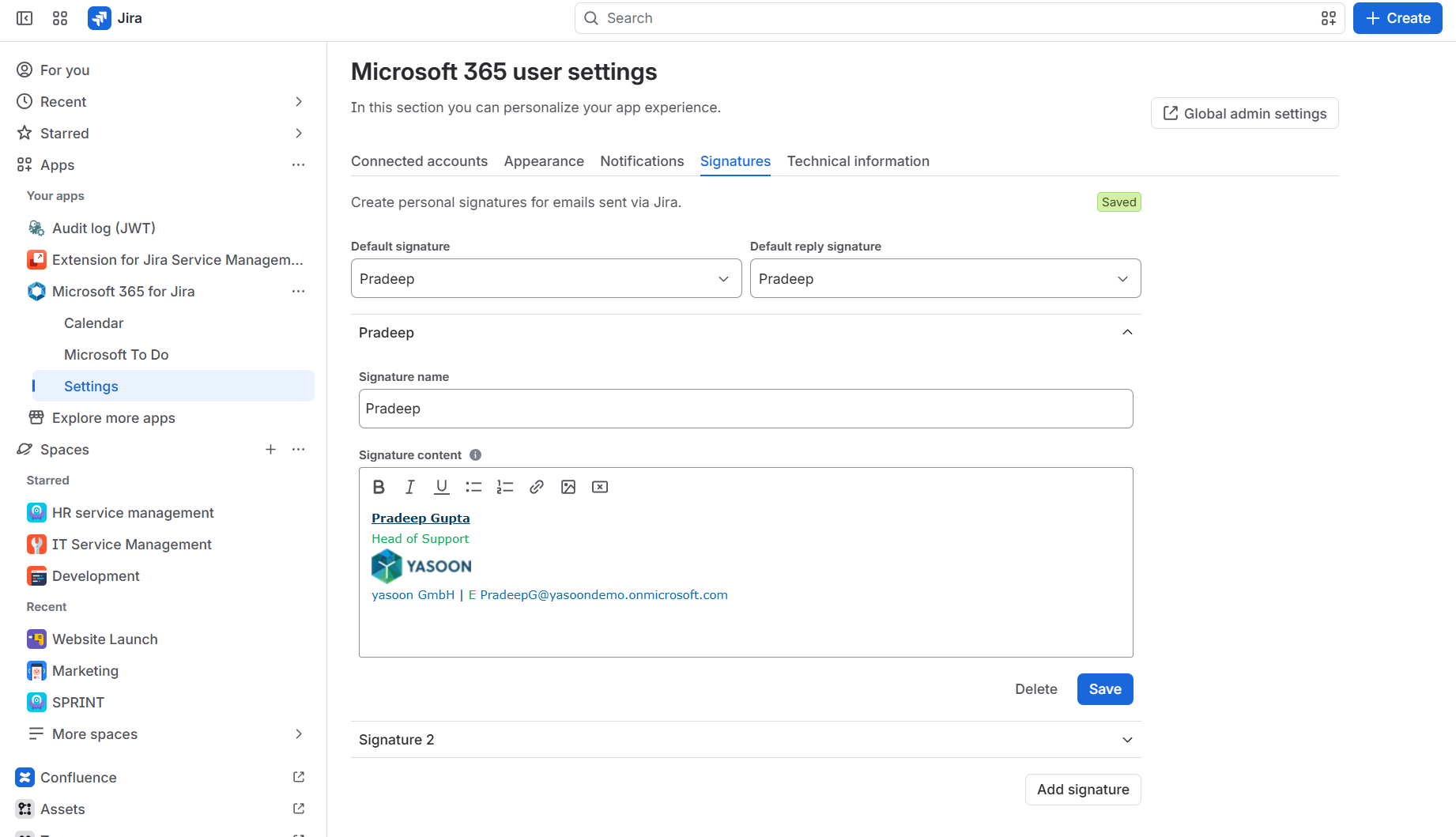
For the email feature, you can also define a standard signature. The signature is automatically included when you send an email from a Jira work item, similar to sending an email from Outlook.
Connecting an account does not make a feature available automatically. Feature visibility is managed separately by project or global admins.
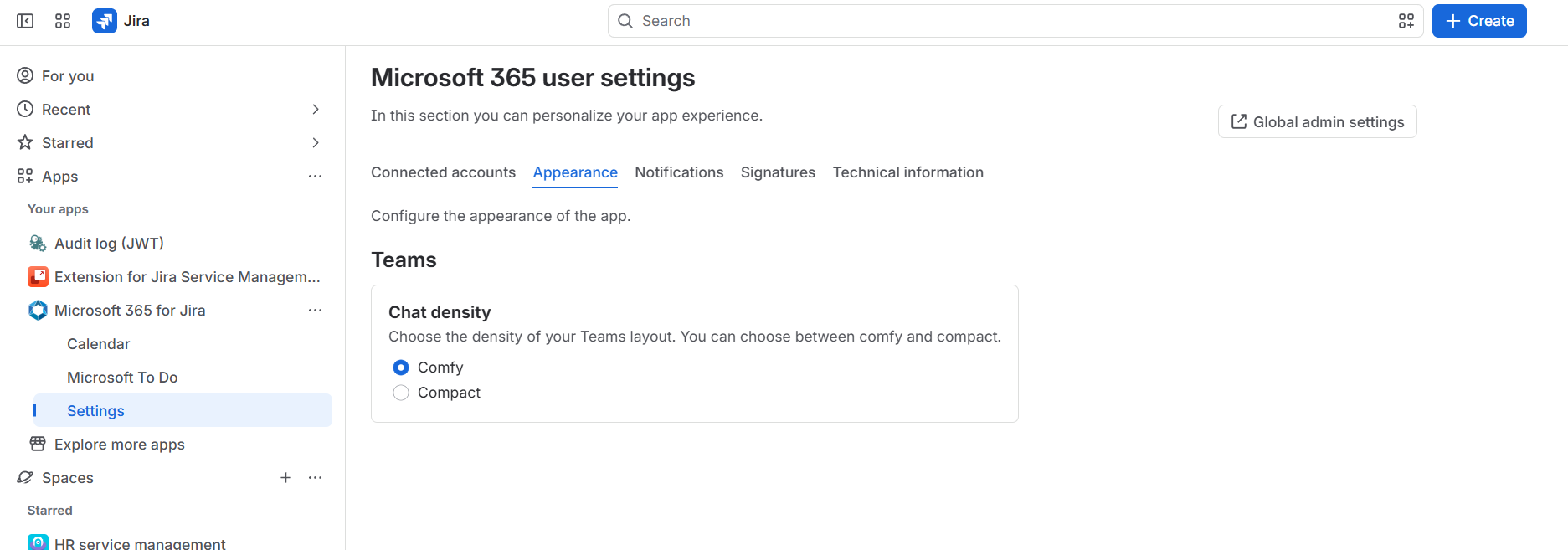
You can access Microsoft 365 settings in the sidebar on the left of your Jira spaces.
Go to “Apps” > “Microsoft 365 for Jira” > “Settings”.
Connected accounts
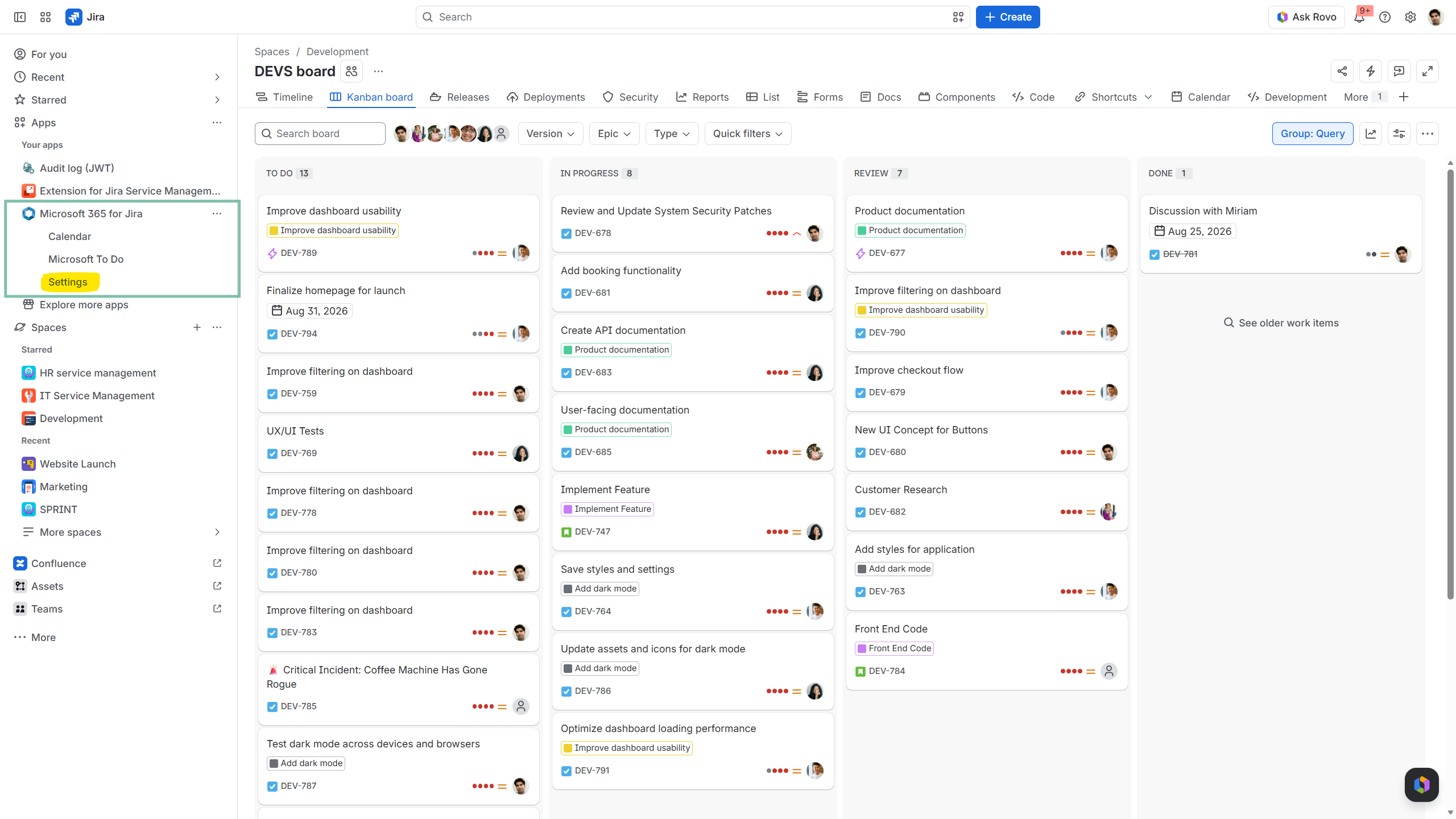
Connect the Microsoft account you want to use with each Microsoft 365 for Jira app.
You can switch the connected account or sign out at any time, for example when troubleshooting access or testing permissions.
Connecting an account does not control whether an app is visible in Jira. App availability is managed separately by a project or global admin. If you cannot access a feature, ask the appropriate admin to enable it. They need to activate it in the first step.
Appearance
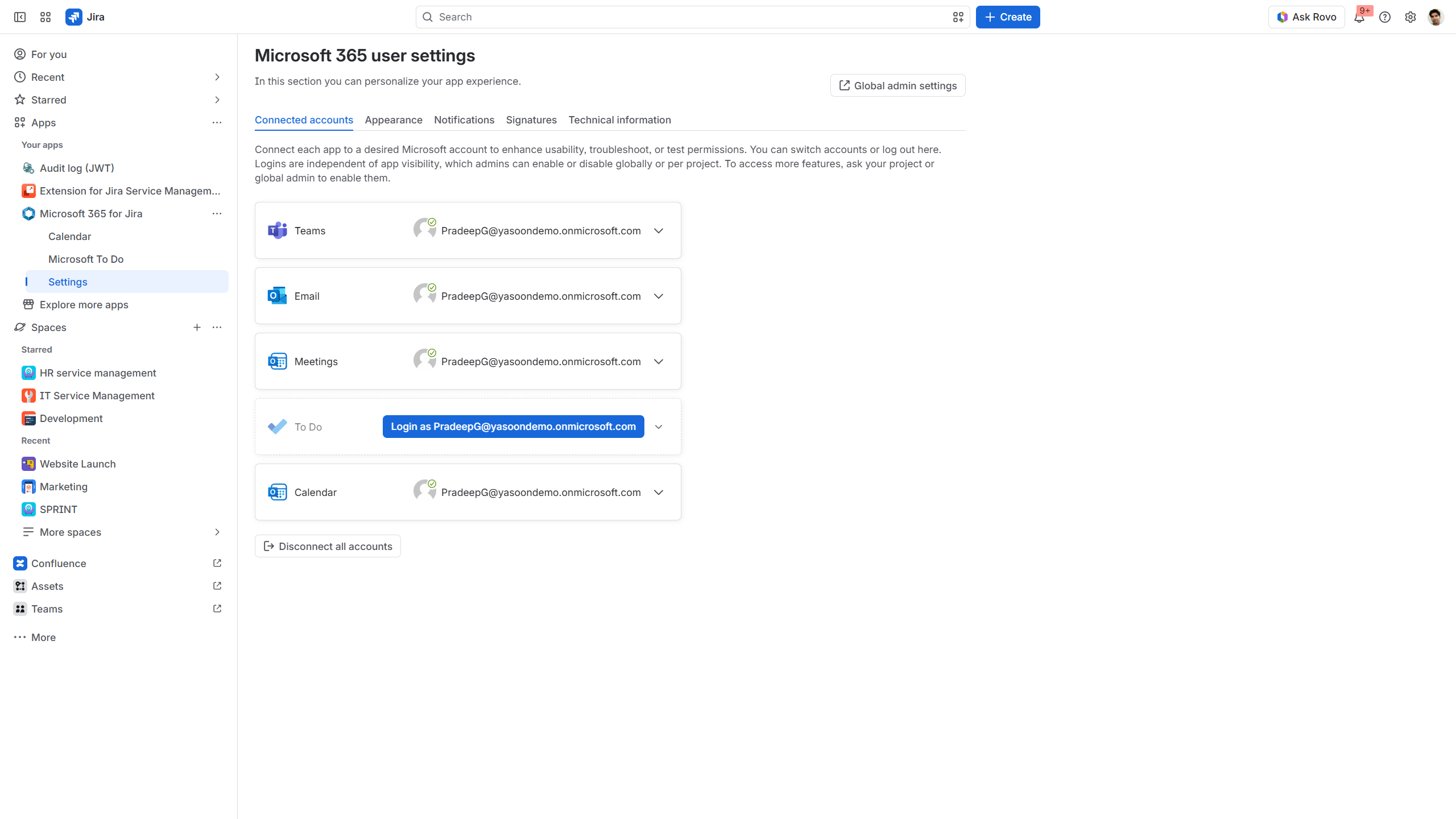
Adjust how Microsoft Teams chats should be displayed in Jira work items to match individual preferences.
You can select between “comfy” and “compact”.
-
Compact view displays only plain text in the related Teams panel.
-
Comfy mode arranges chats like in Microsoft Teams, showing icons and chat bubbles in different colors for sender and receiver.
Personal notifications
This notification type covers personal Microsoft Teams alerts.
When a team member mentions you in a work item or assigns one to you, the Smart Connect bot notifies you in a dedicated Teams chat (1:1).
You must install our Teams app (Smart Connect bot) to use this feature.
Please note: You won't get notified about updates you made yourself.
Chat sections
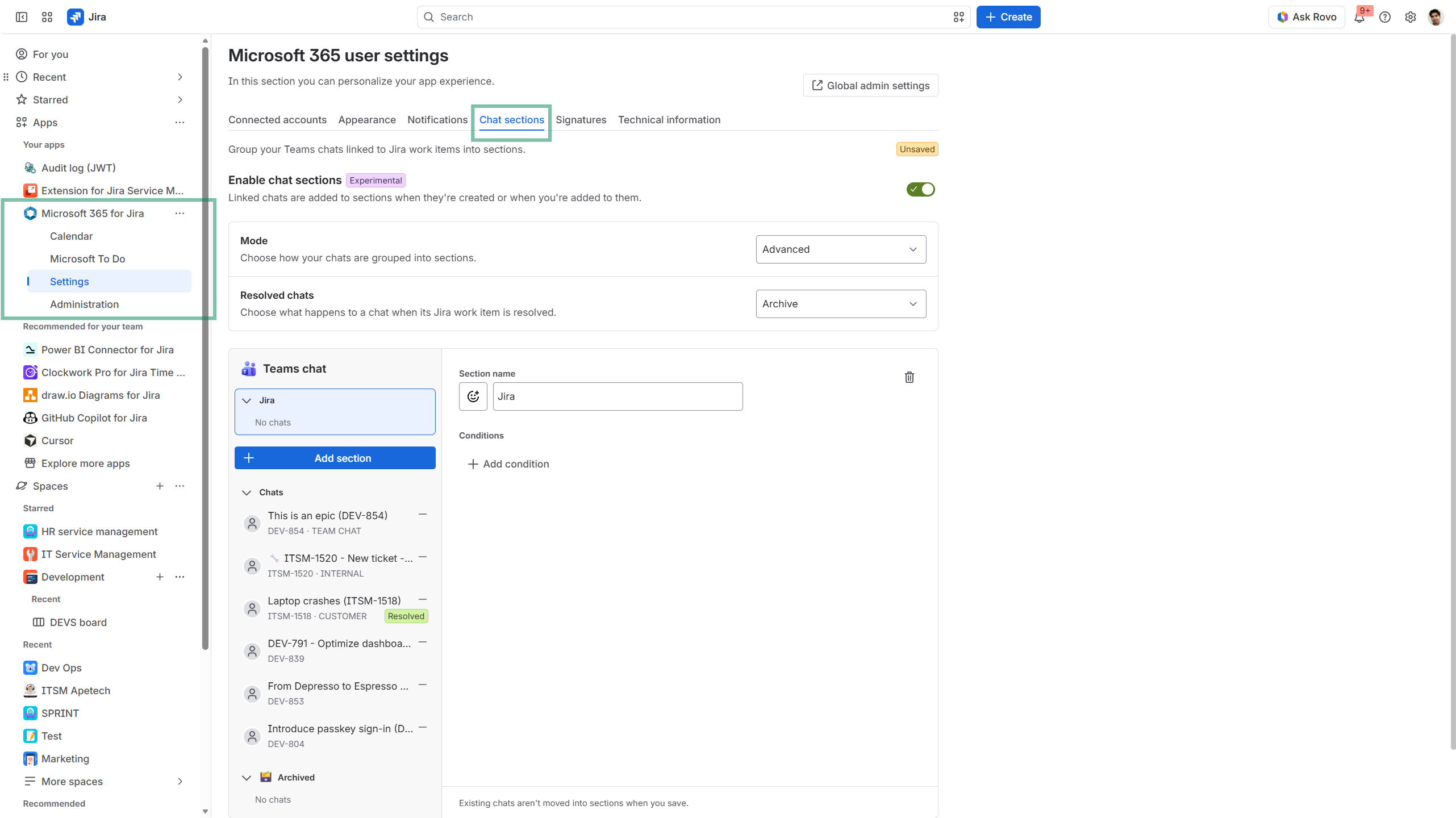
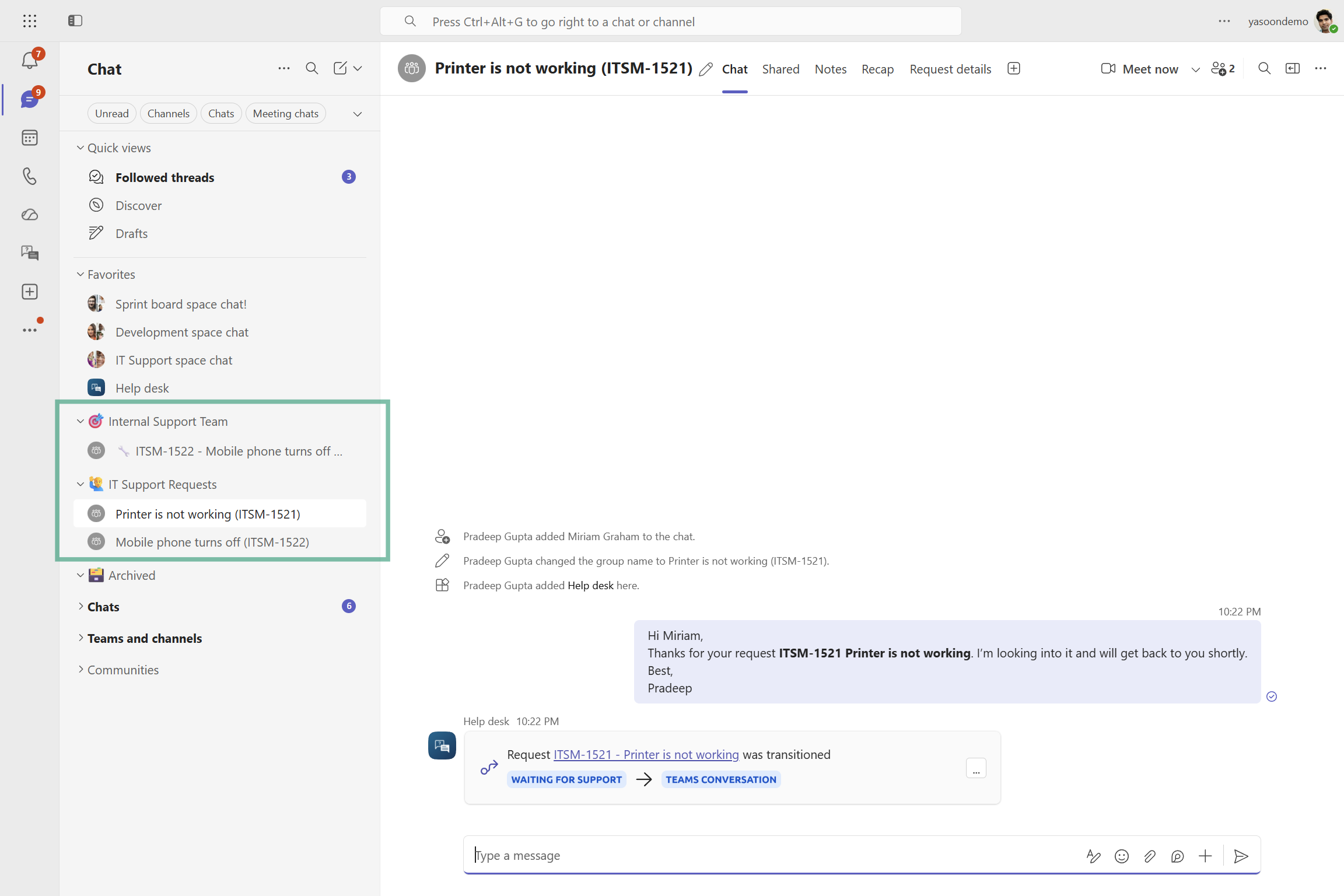
Organize your work item-related Microsoft Teams chats into dedicated sections in Microsoft Teams to keep your chat list structured and easy to navigate.
With Chat Sections, Microsoft 365 for Jira automatically creates and manages sections in Microsoft Teams and organizes new chats into them based on your selected settings. Choose a simple setup, organize chats by Jira space, or define custom conditions for more flexibility.
You can configure Chat Sections in Jira under Microsoft 365 user settings.
Enable chat sections
Enable the Chat Sections setting to automatically organize new work item-related Microsoft Teams chats.
Once enabled, Microsoft 365 for Jira creates the required sections in Microsoft Teams and organizes new chats in which you are a participant according to your selected configuration.
Important: Chat Sections settings apply only to newly created chats. Existing chats remain in their current sections and are not automatically reorganized.
Choose how to organize chats
There are three modes available:
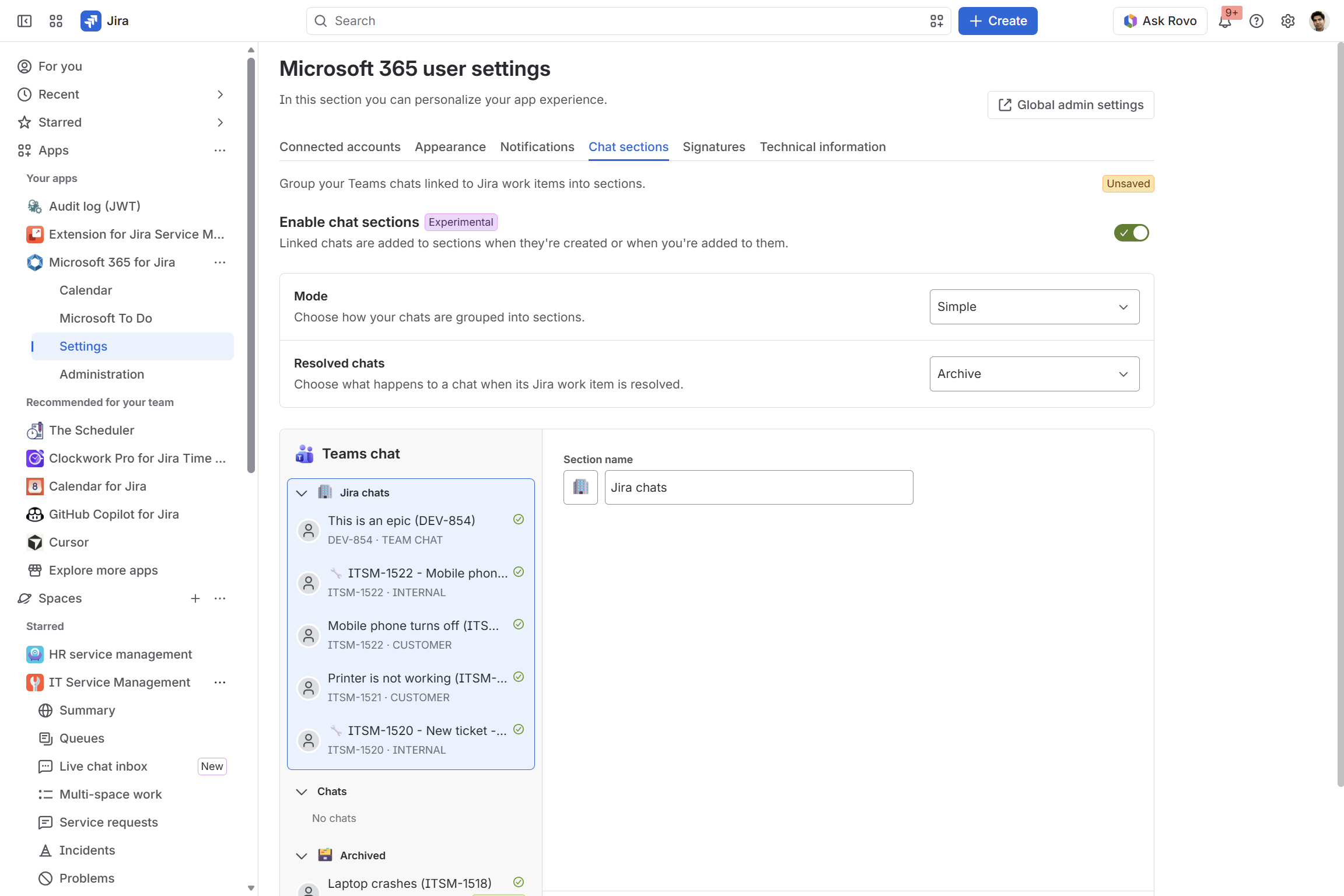
Simple
Automatically organize all new work item-related Microsoft Teams chats into a single section.
You can choose your own section name, such as Jira, Jira Conversations, or Project Chats.
This is the easiest option, if you want to keep your Jira-related conversations together and separate from your other Microsoft Teams chats.
Per space
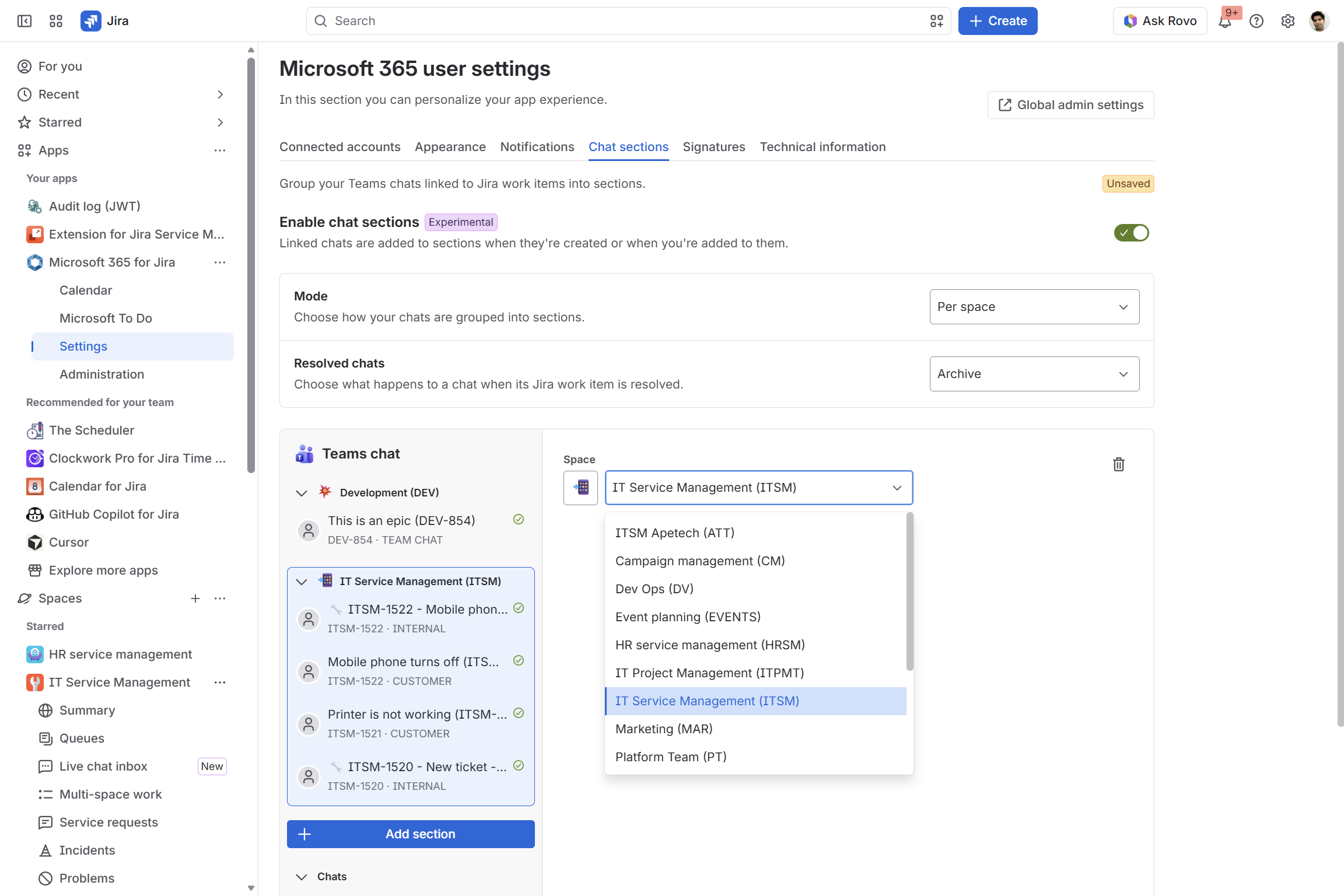
Organize new Microsoft Teams chats into sections based on their associated Jira space.
For example, chats related to the Development space appear in a section named Development, while chats from IT Support appear in an IT Support section.
This option is useful when you work across multiple Jira spaces and want to keep their conversations separate.
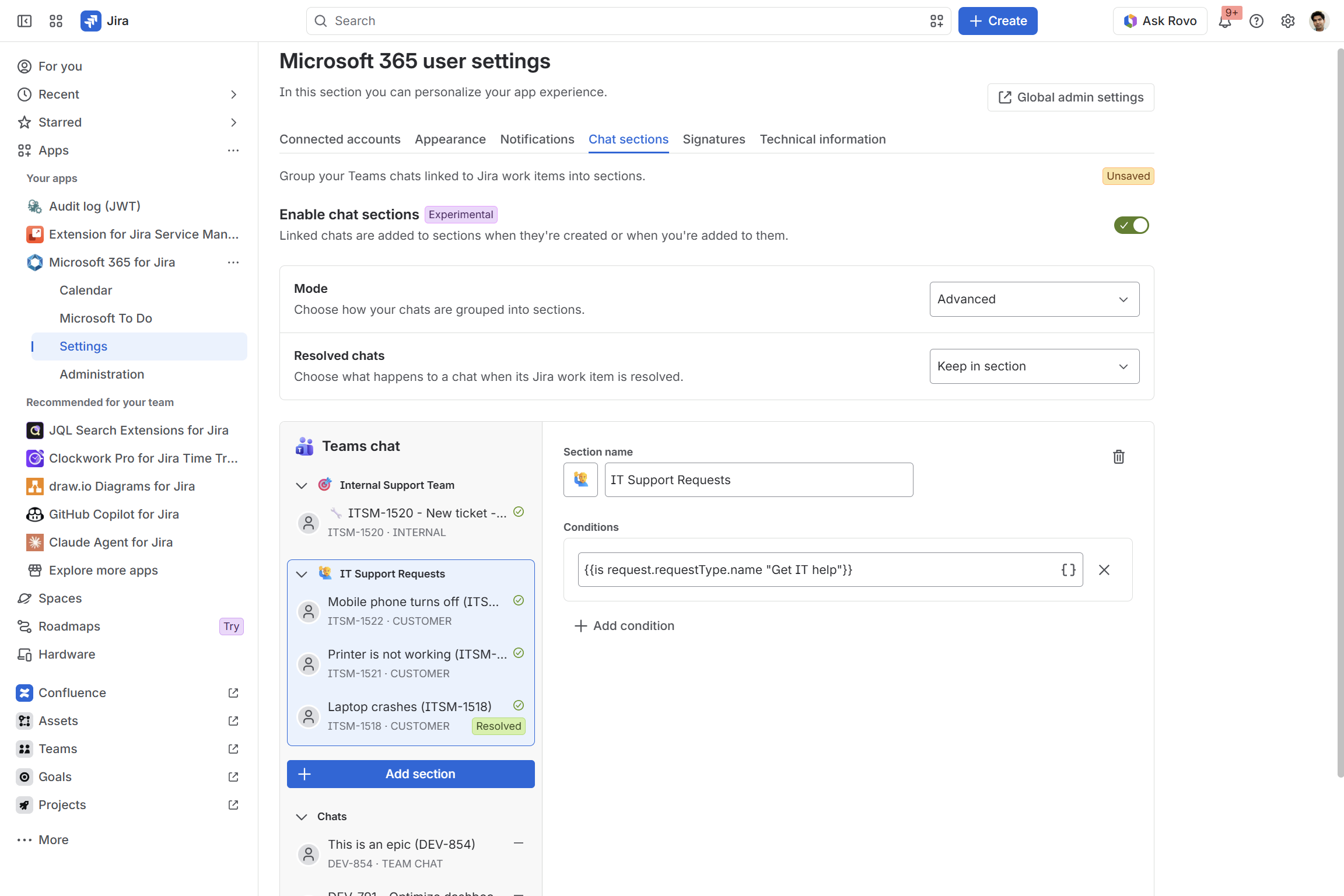
Advanced
Create custom chat sections using conditions based on Jira Smart Values.
For example, you can organize chats according to their Preset labels, such as Client, Dev, or Internal.
You can create multiple sections, each with its own conditions, to organize different types of conversations.
This gives you more flexibility over how Jira-related chats are categorized in Microsoft Teams.
Manage chats from resolved Jira work items
You can also define what happens to associated Teams chats when a Jira work item is resolved.
Choose from the following options:
|
Option |
Behavior |
|---|---|
|
Keep in section |
Chats remain in their current section without any changes. |
|
Hide from section |
Chats are hidden from the section to reduce clutter in your Microsoft Teams chat list. |
|
Move to "Chats" |
Chats are moved back to the default Chats section in Microsoft Teams. |
|
Archive sections |
Chats are moved to a dedicated Archive section, which Microsoft 365 for Jira creates automatically. |
These options help you keep active conversations visible while reducing clutter from completed work.
Use existing Microsoft Teams sections
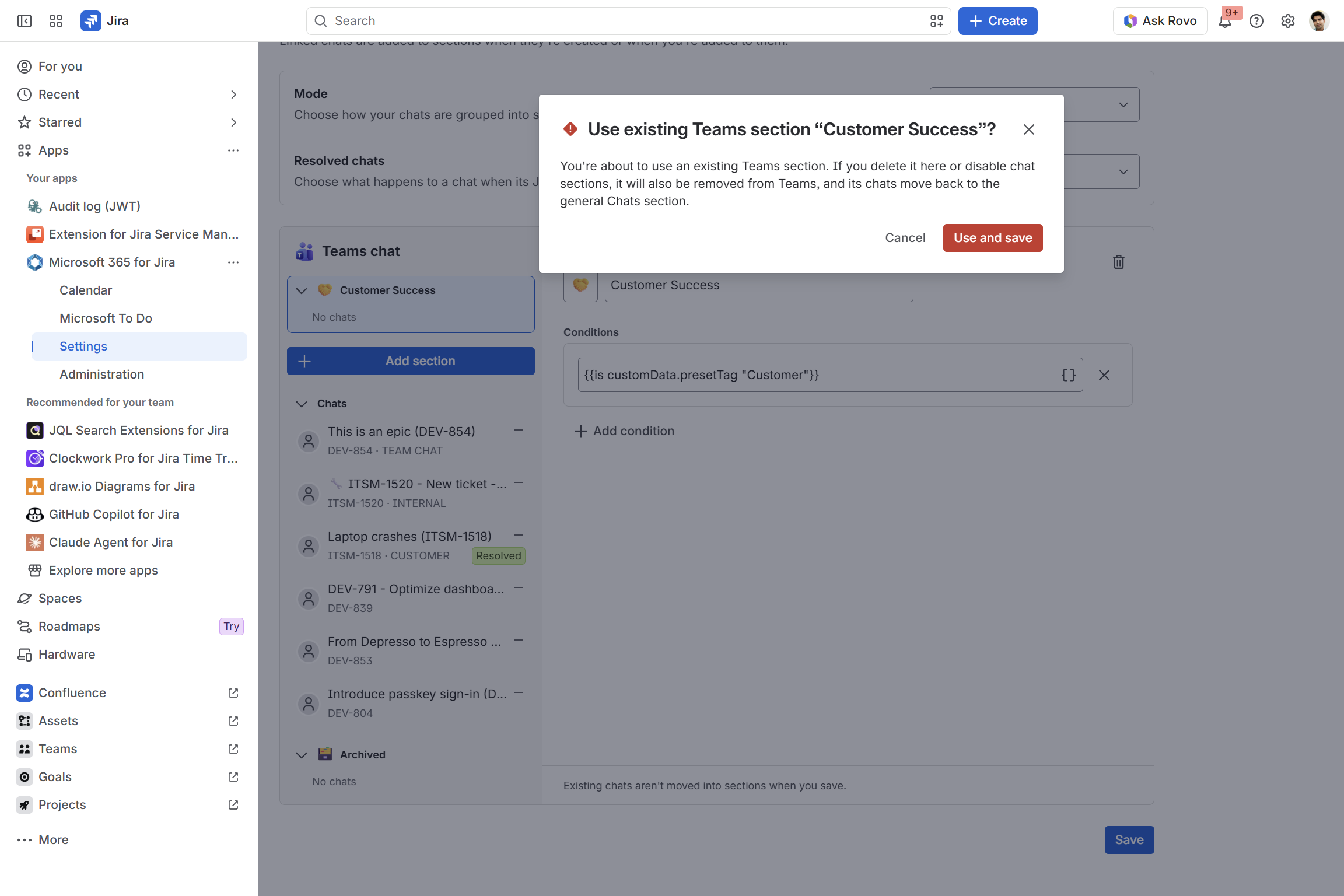
If you create a section with the same name as an existing Microsoft Teams section, Microsoft 365 for Jira asks whether you want to use the existing section.
If you confirm, the existing section and its chats are included in the new chat sections configuration.
This allows you to bring previously created chats into your new setup, even though chat sections normally apply only to newly created chats.
Important: If you later delete the configured section or disable Chat Sections, all chats in that section - including chats that were already there before you enabled the feature - are moved back to the default Chats section in Microsoft Teams.
Disable chat sections
You can disable Chat Sections at any time in Microsoft 365 user settings.
When you disable the feature:
-
The sections managed by Microsoft 365 for Jira are removed.
-
The automatic chat organization is turned off.
-
Chats from those sections are moved back to the default Chats section in Microsoft Teams.
Your chats are not deleted; only their organization in Microsoft Teams changes.
Signatures
In your Microsoft 365 settings, set an email signature Jira should use.
Copy your Outlook signature here. Add more if needed.