
Once the Jira admin has activated the Email and/or Teams feature in the admin settings, the user can view the related emails and/or Teams panel in the Jira work item directly.
To work with emails in Jira, users must first log in to Jira Cloud with their Microsoft account during their initial setup. The same applies to the Teams feature: users must log in before first use.
Please follow the steps below.
Email: login to Jira Cloud
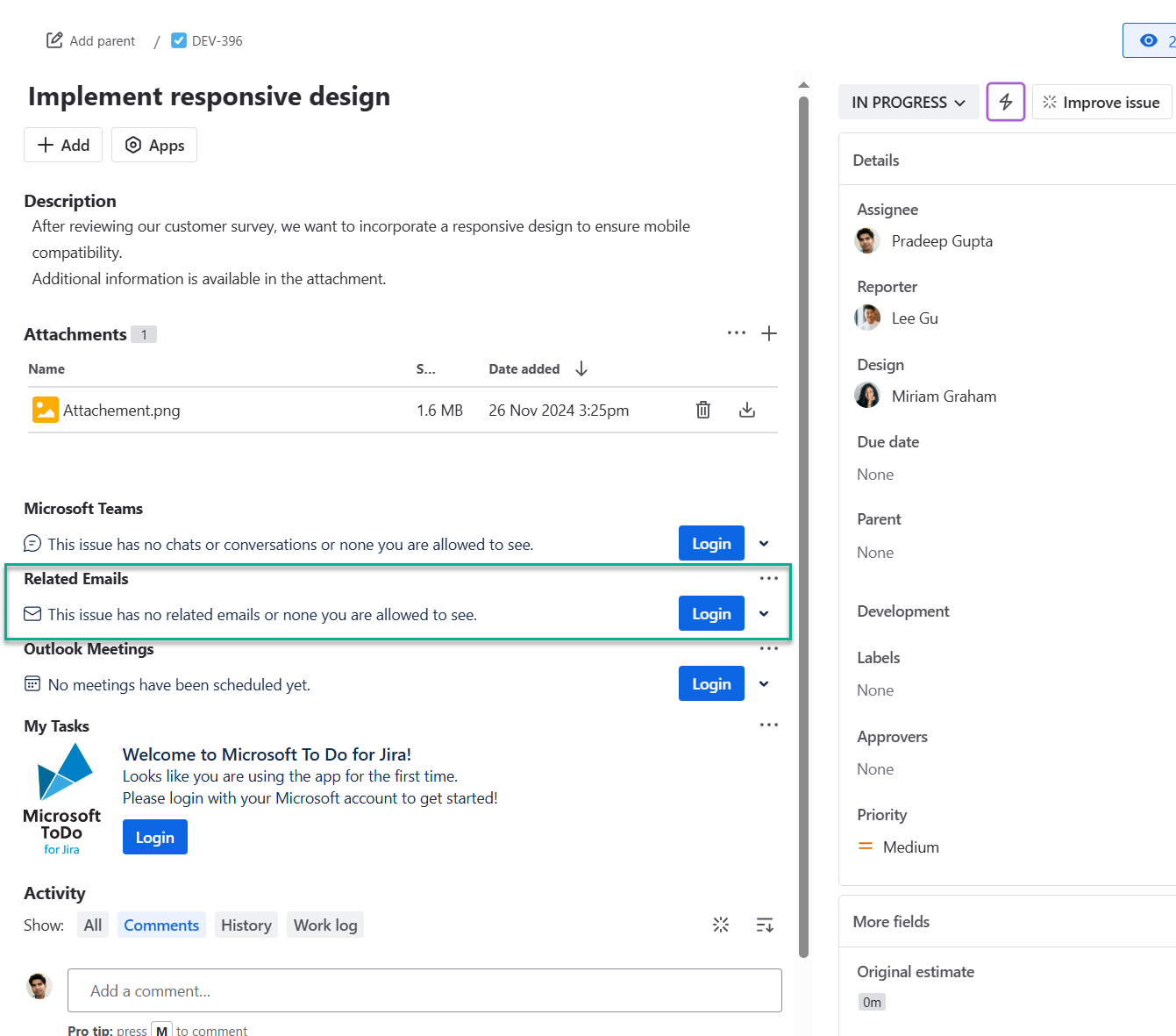
To access the email integration in your Jira issue for initiating or responding to emails, please log in using your Microsoft account.
Find the blue login button in the “Related Emails panel” or click on “Apps” at the top to select the Email feature and proceed.
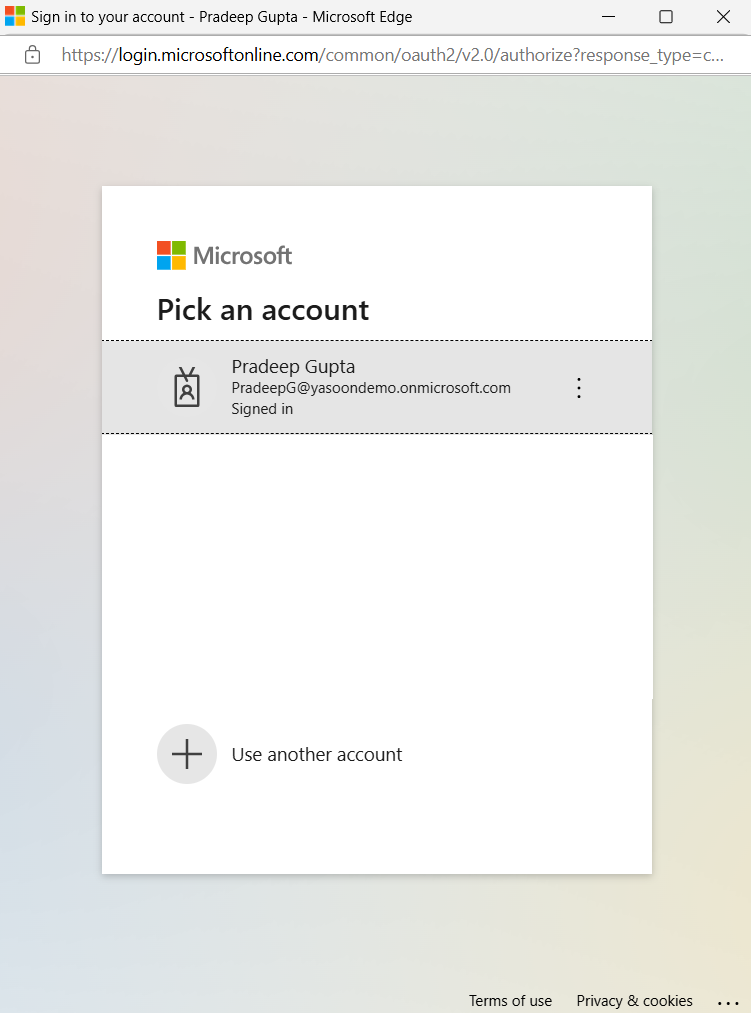
A popup window appears. Select the account to log in with, or choose a different one if not listed. After logging in, the app refreshes Jira, enabling immediate use of the Outlook email feature.
Teams: login to Jira Cloud
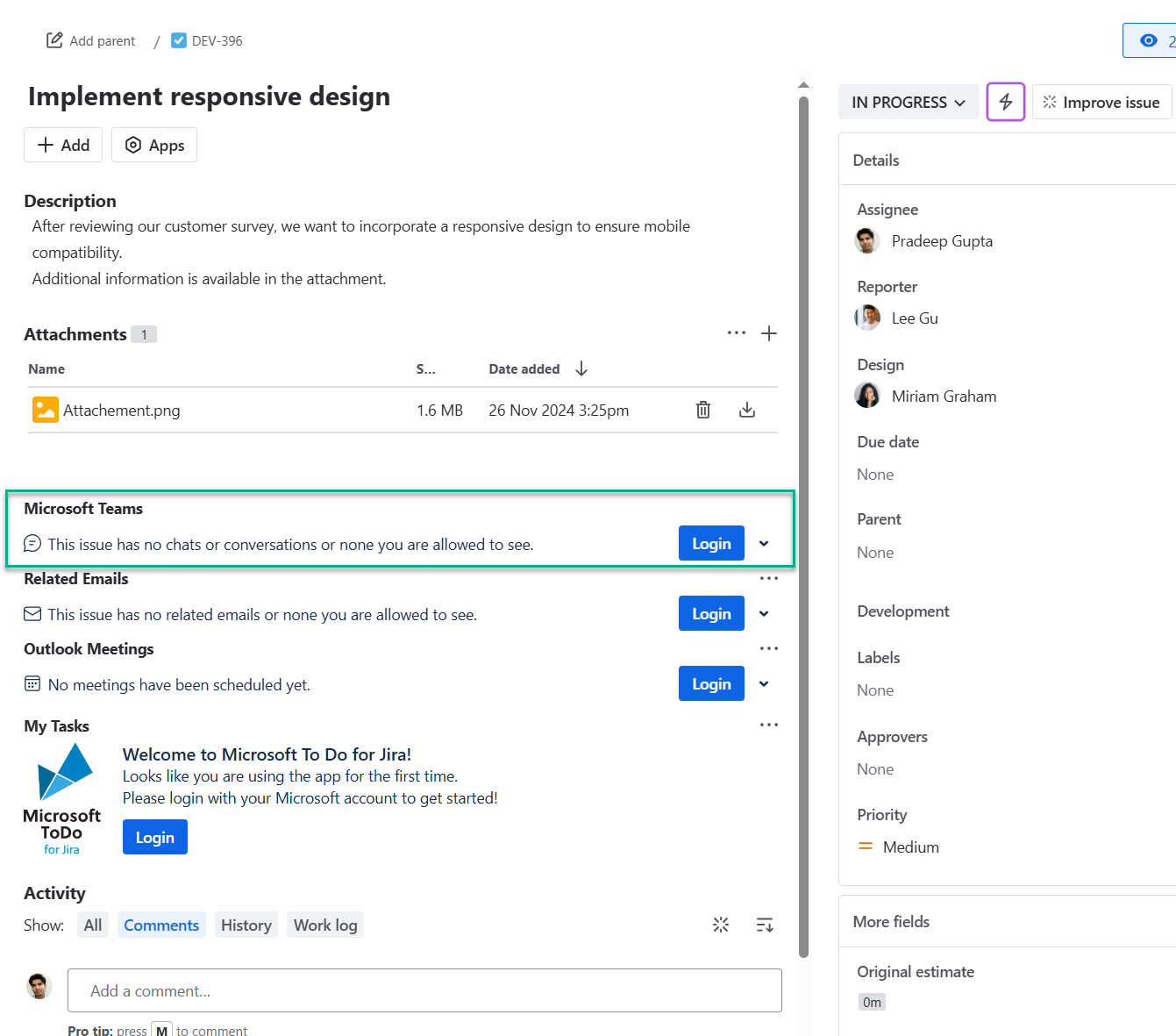
To access the Teams integration within your Jira issue and to e.g. start a chat in Microsoft Teams, you first need to log in using your Microsoft account.
Locate the blue “Login button” in the Microsoft Teams panel of your issue. Click on it to proceed.
A new dialogue appears. Select the account you wish to log in with, or opt for a different account if it is not already listed. After logging in, the app will automatically refresh Jira, allowing immediate use of the Microsoft Teams feature.