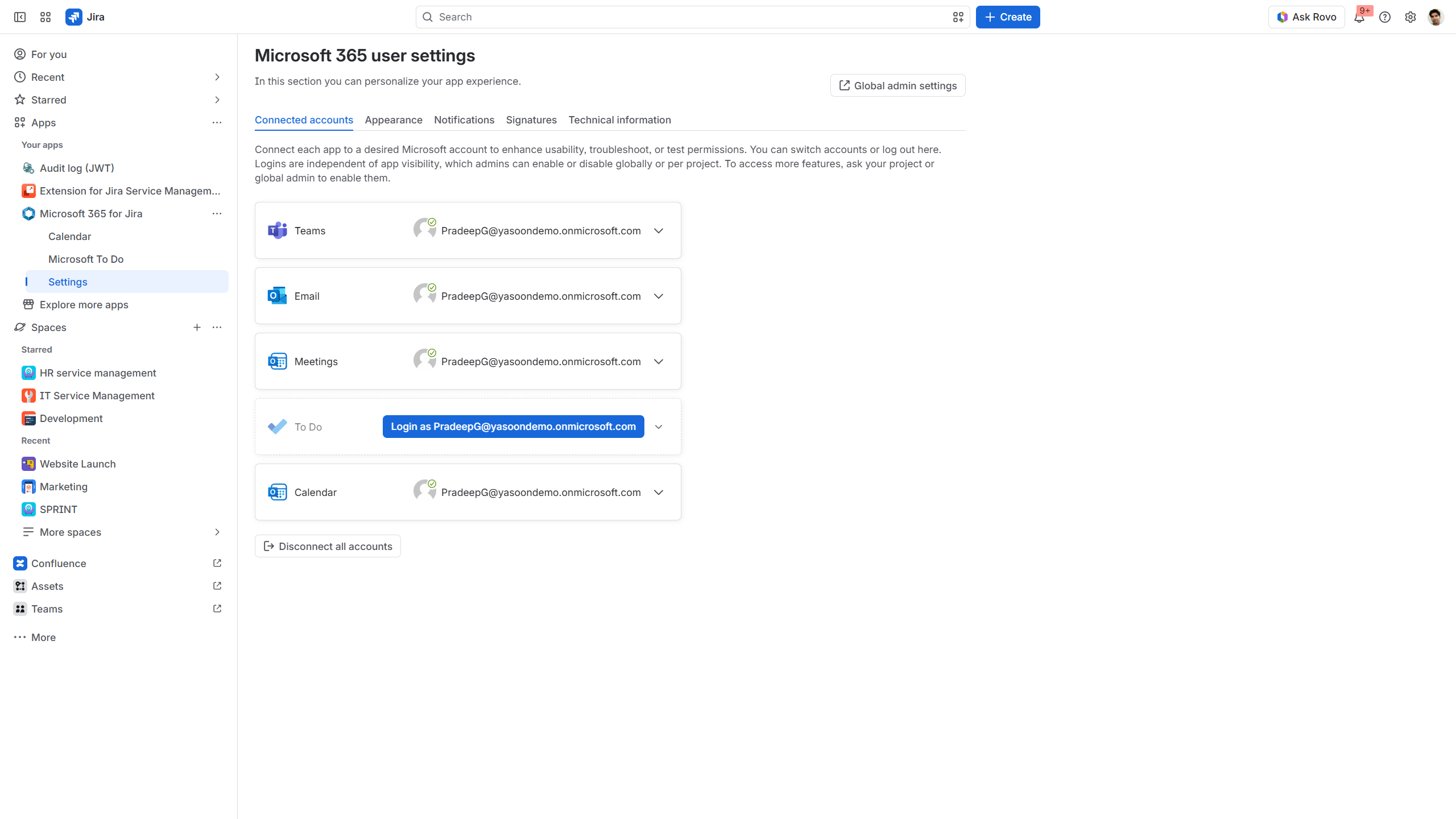
In your Microsoft 365 settings, log in with your personal Microsoft 365 account for each feature listed. By doing so, you grant our app permission to connect Jira and your Microsoft (account) and ensure the feature work properly.
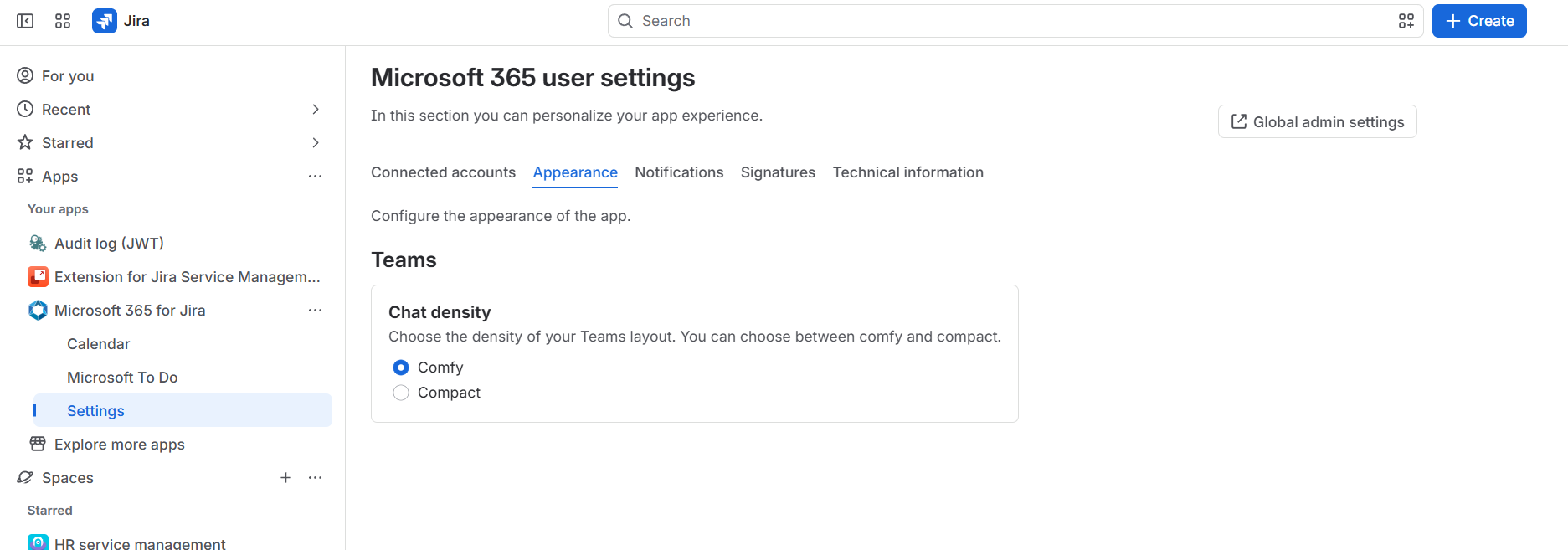
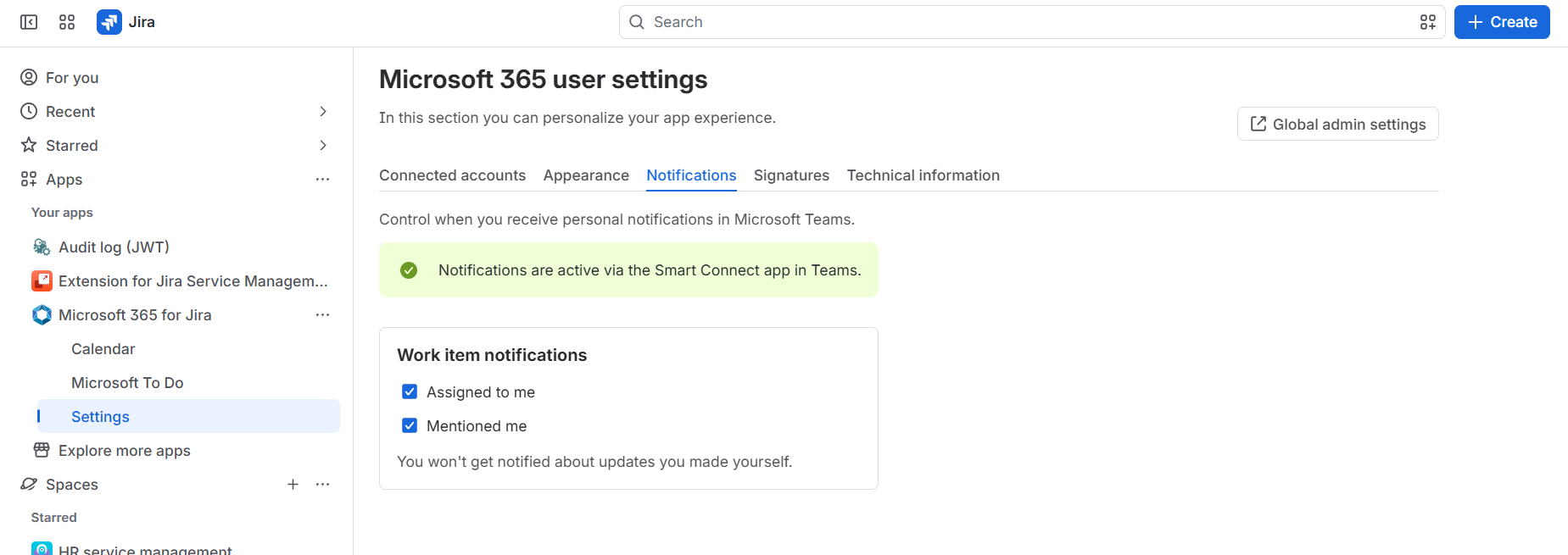
Additionally, customization options are included and can be adjusted like defining how Teams chats are being displayed (comfy vs. compact) and if you want to be notified about Jira changes in Teams (personal notifications).
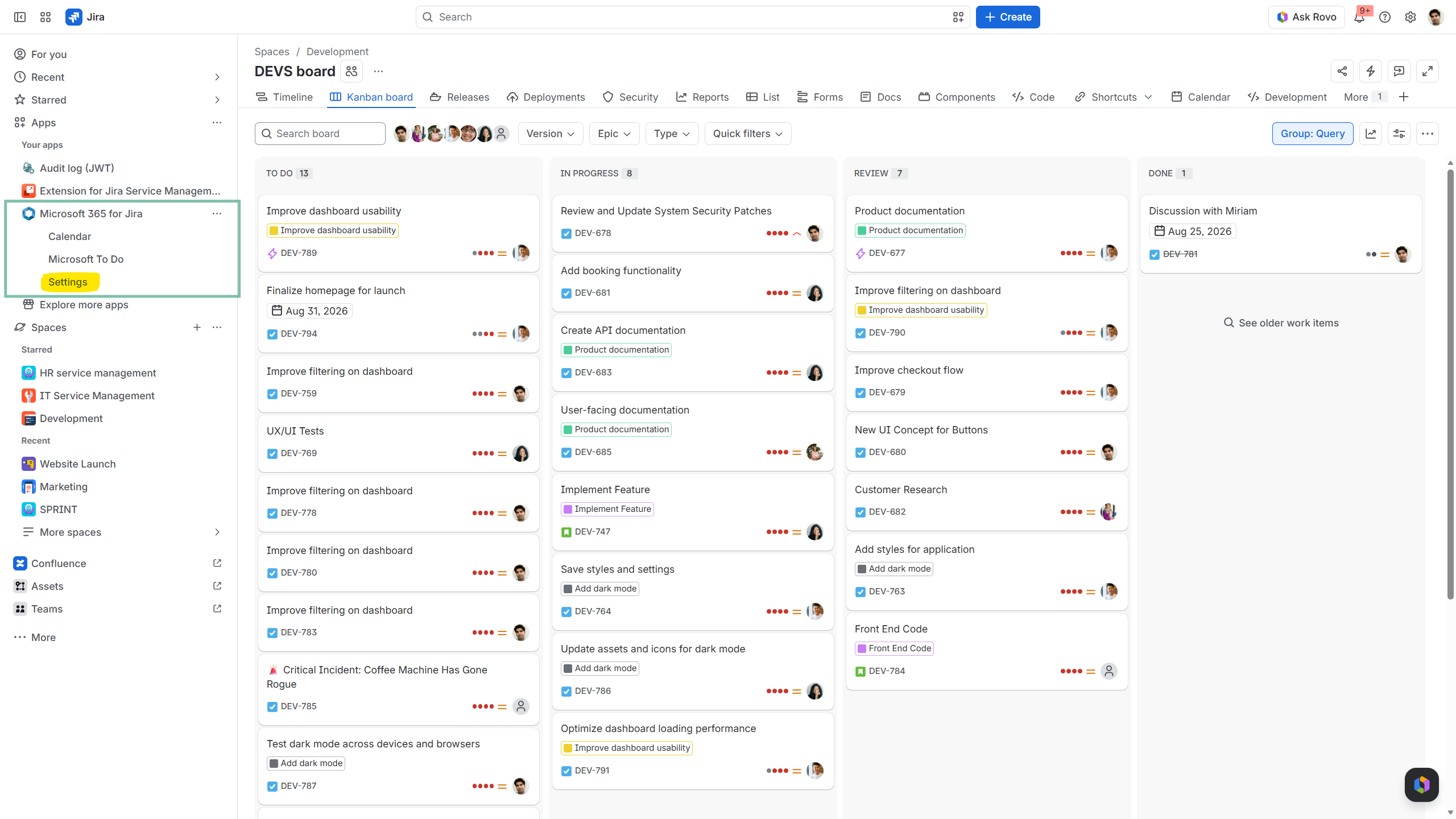
You can find your Microsoft 365 user settings in your sidebar under “Apps” > “Settings”.
Connected accounts
Log in with your (or any other existing) Microsoft 365 account here to being able to use respective features as listed below.
If not logged in, users are not able to start Teams chats, send emails or schedule meetings from Jira.
Appearance
Adjust how Microsoft Teams chats should appear in Jira work items to match individual preferences.
You can select between “comfy” and “compact”.
-
Compact view displays only plain text in the related Teams panel.
-
Comfy mode arranges chats like in Microsoft Teams, showing icons and chat bubbles in different colors for sender and receiver.
(Personal) notifications
This notification type covers personal Microsoft Teams alerts.
When a team member mentions you in a work item or assigns one to you, the Smart Connect bot notifies you in a dedicated Teams chat (1:1).
You must install our Teams app (Smart Connect bot) to use this feature.
Please note: You won't get notified about updates you made yourself.
Signatures
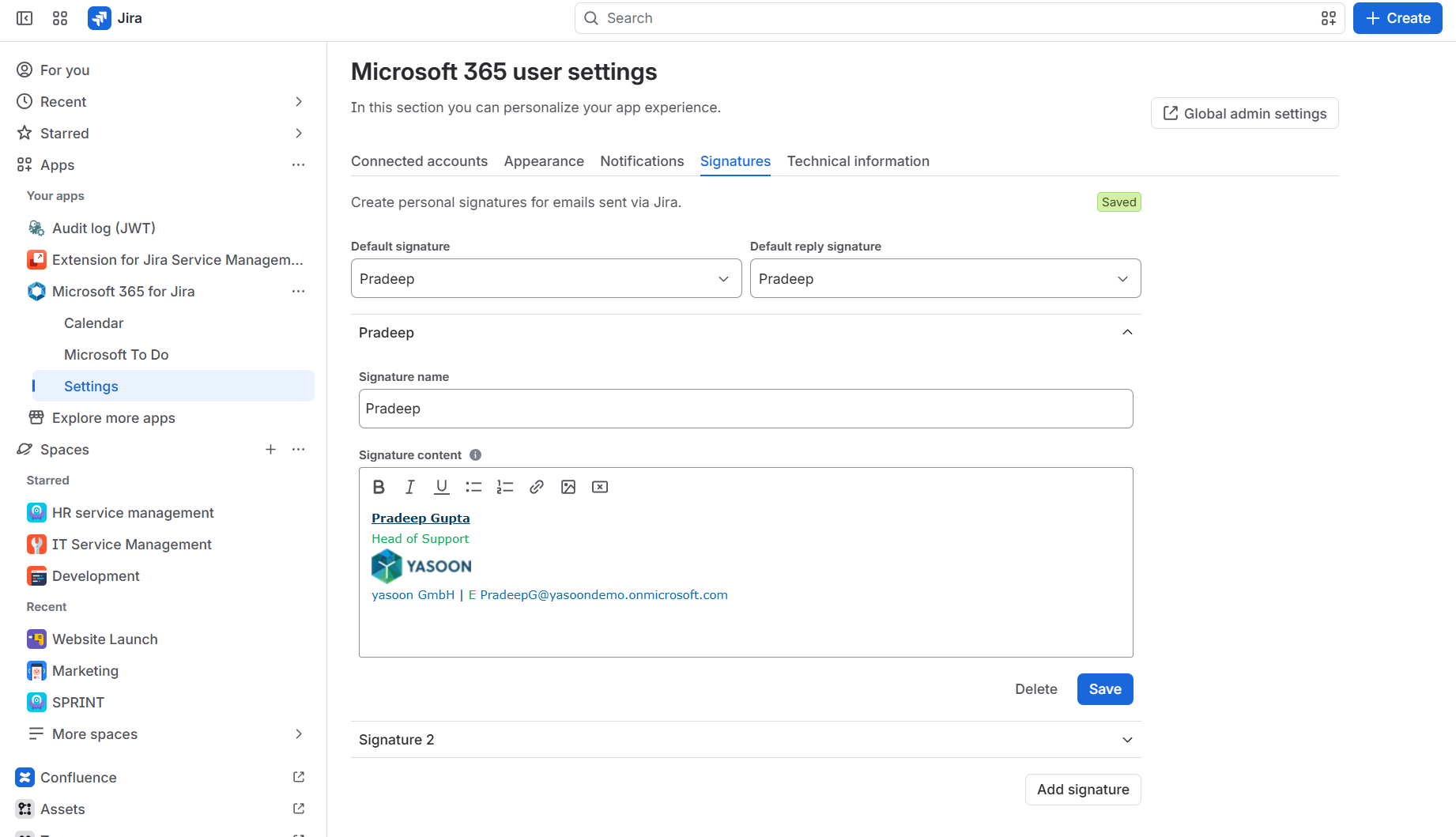
In your Microsoft 365 settings, set an email signature Jira should use.
Copy your Outlook signature here. Add more if needed.