Problem
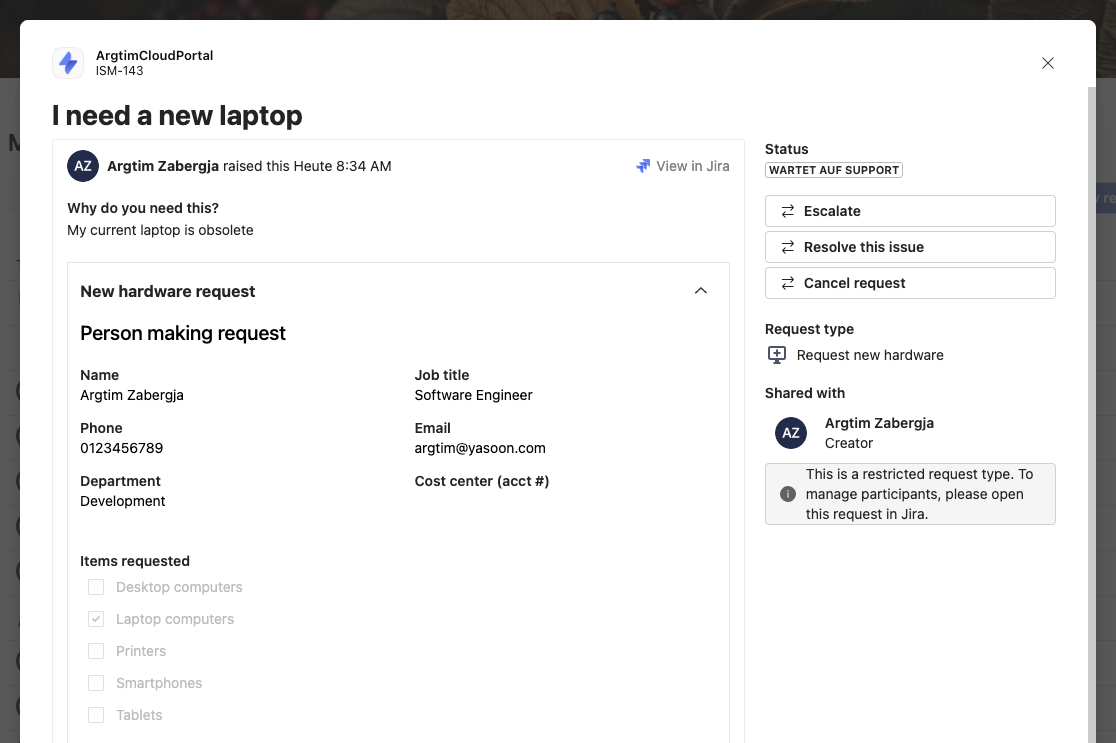
When working with restricted request types, additional configuration is required to ensure proper visibility in Microsoft Teams.
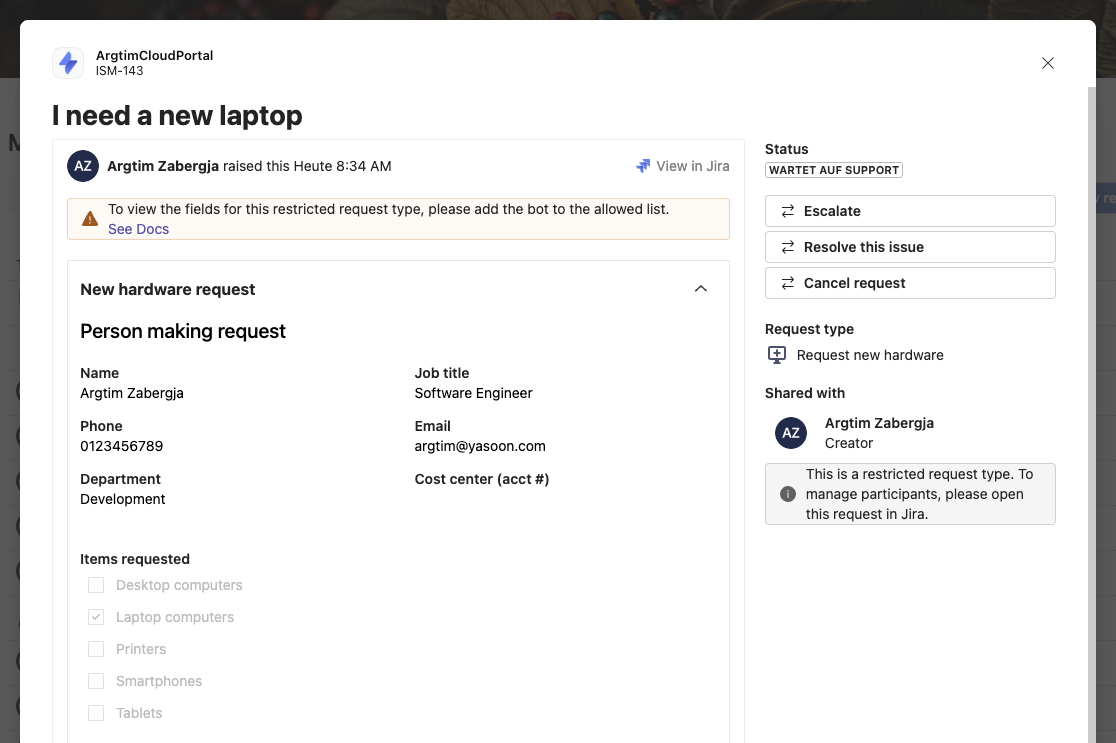
If this configuration is missing, customers may still be able to open their requests in Teams, but the request fields will not be displayed.
Instead, only the originally submitted form is visible, even though the full request details and fields are accessible within the native Jira Service Management Portal.
Solution
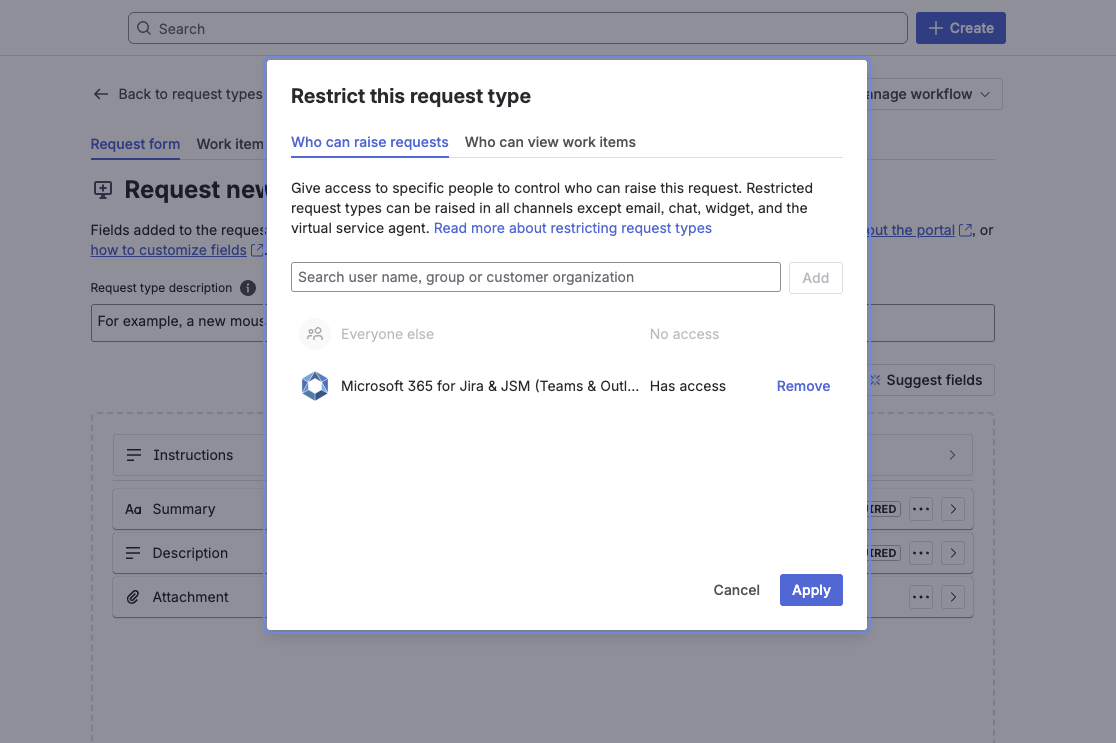
To resolve this issue, add the Microsoft 365 for Jira to the restriction settings of the affected request type.
Steps:
-
Open your space in Jira Service Management.
-
Go to space settings → Request Management -> Request types.
-
Select the restricted request type.
-
Click the Restrictions button (top right).
-
Add the Microsoft 365 for Jira user.
-
Click Apply.
Result
After applying this change, the Teams portal will correctly display all request details and fields for restricted request types.
Access to the request itself remains unchanged. Only request participants and agents can view the request. Other users cannot access the request.