Situation
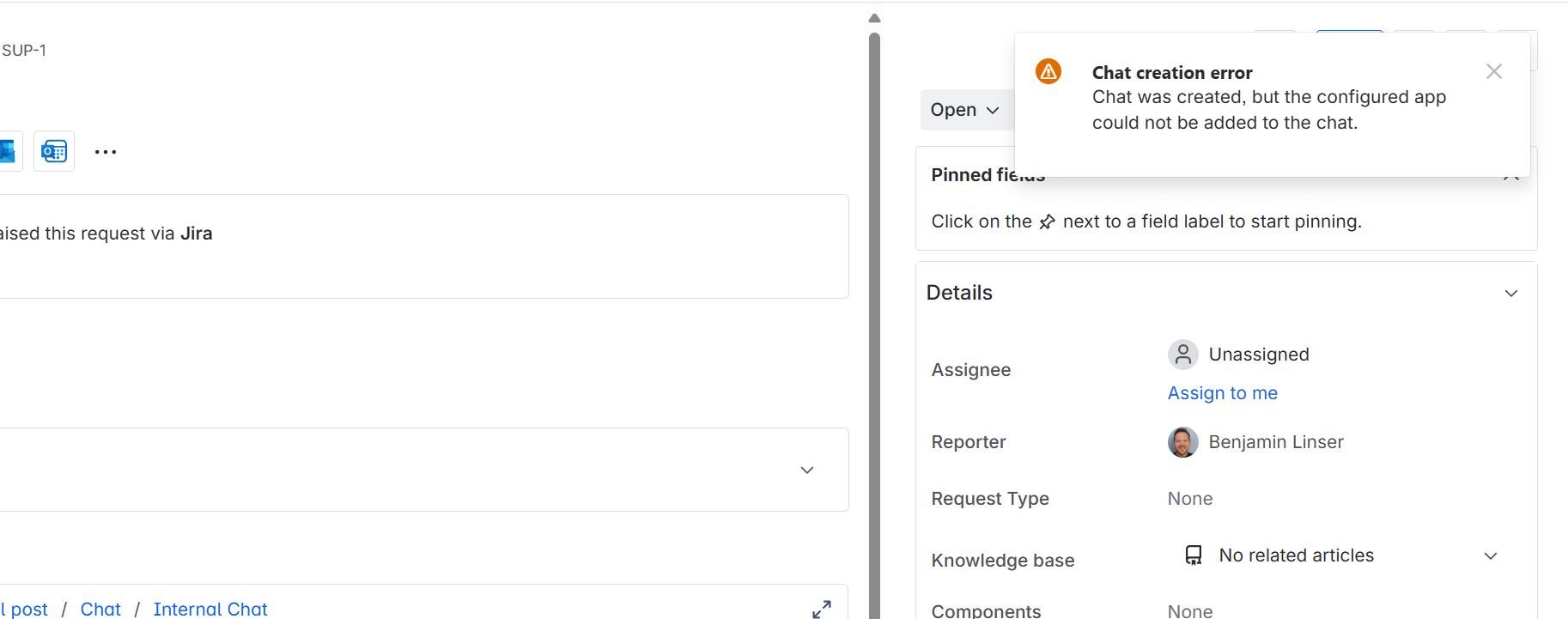
Some customers encounter a chat creation error when attempting to start a chat from Jira, which appears as follows:
Reason
Using a Preset to create the chat will throw this error because an app has been selected to be part of the chat to post updates (Preset: Teams | notifications ). The error may have various reasons.
It can either stem from the lack of approval for the app scopes (Smart Connect for Jira or the Customer Portal app in Teams) or the app being blocked by App Permission Policy.
#1 Missing approval
How to fix it
You have two options:
-
Remove the app from the preset settings by unselecting it
-
Grant the necessary scopes
Regarding the latter: To allow the app to post notifications in the chat, contact your Microsoft admin to obtain the relevant scopes.
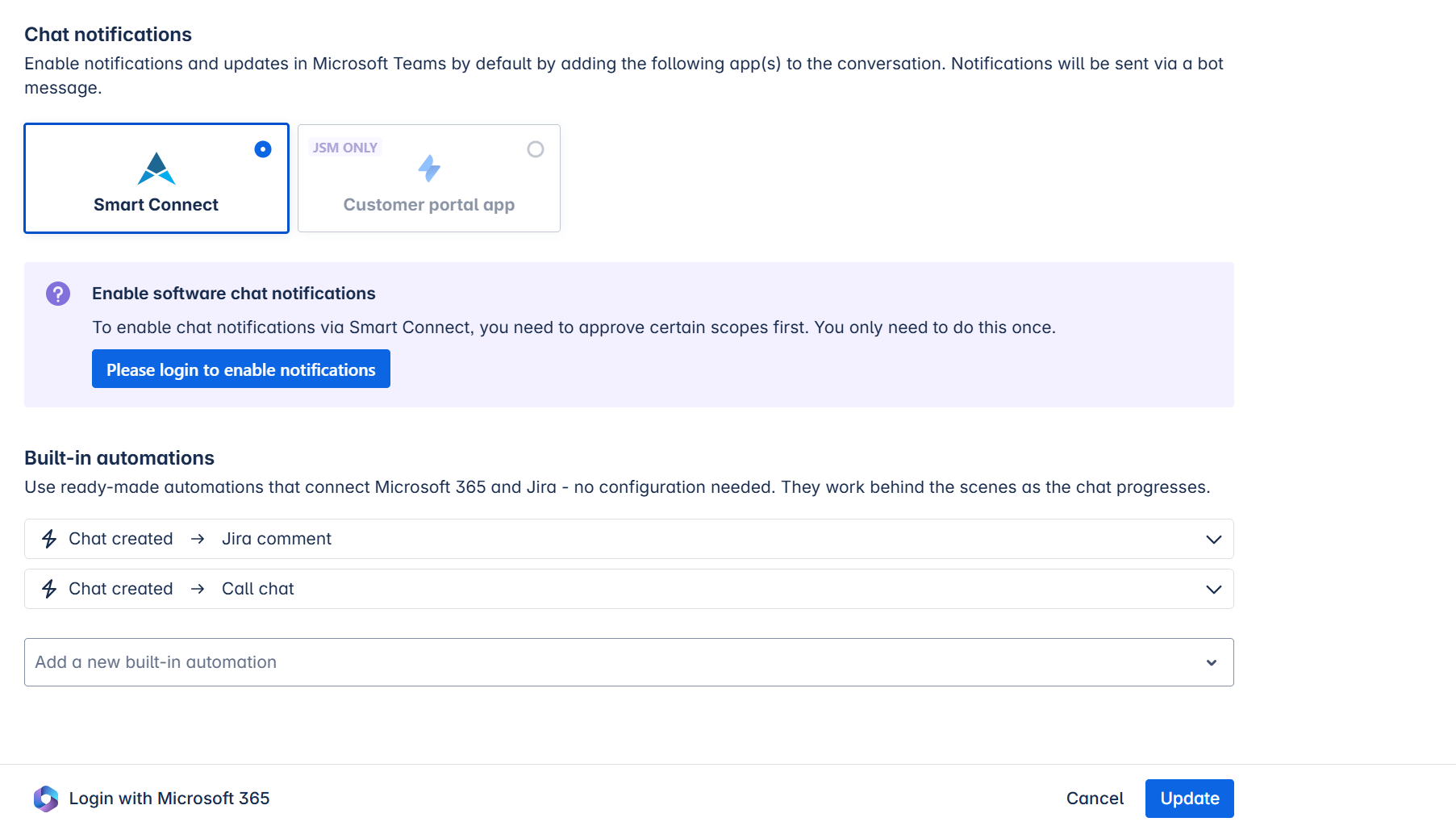
When adding the bot (either Smart Connect or your Customer Portal app) in the preset settings, you will first be prompted to log in:
Afterward, you will see the scopes and receive a link for the admin to approve them:
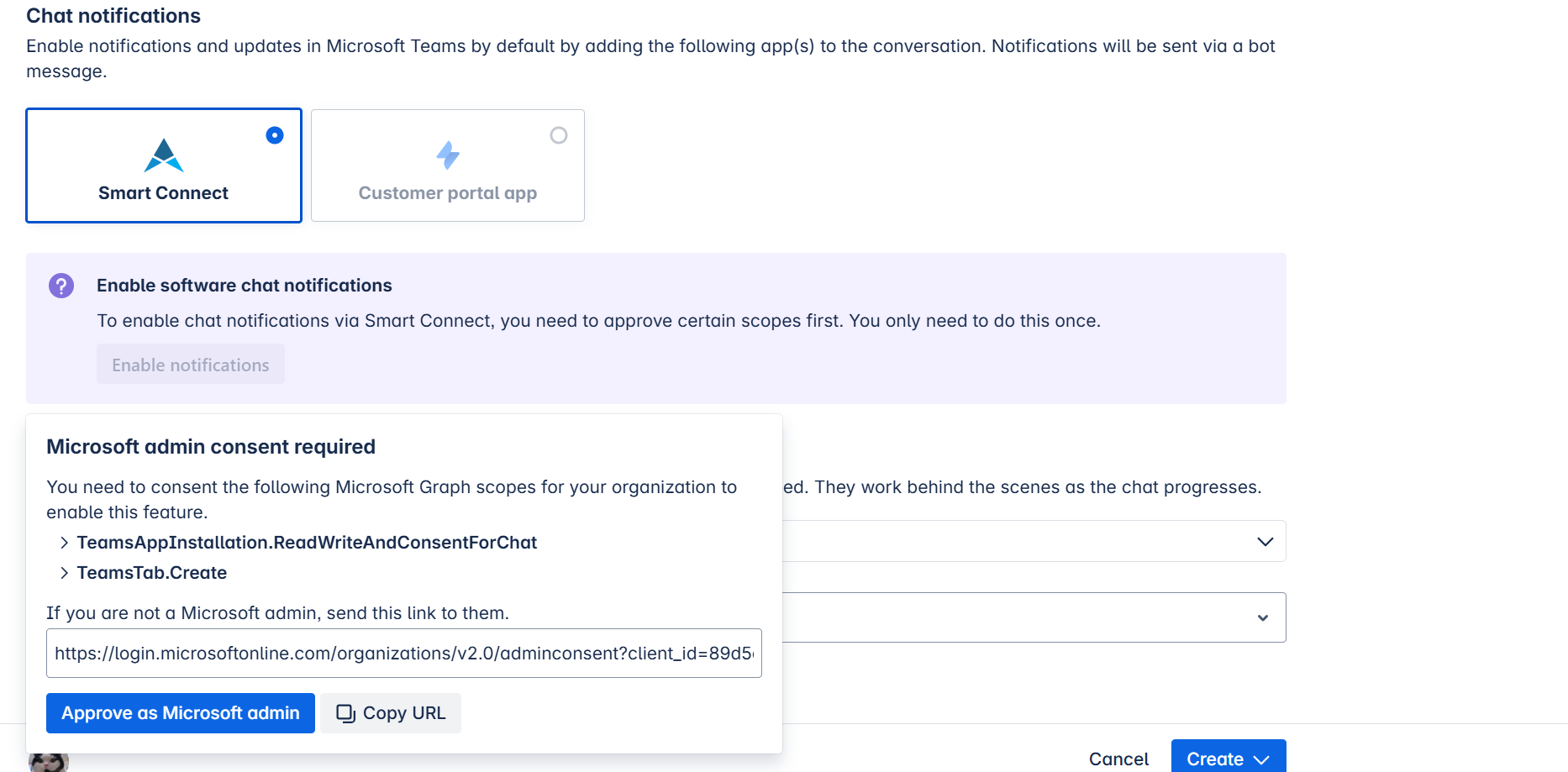
Once approved, you can start the chat without error messages and enable notifications.
#2 App Permission Policy
How to fix it
You have two options:
-
Remove the app from the preset settings by unselecting it
-
Ask your Microsoft administrator to allow the app in your tenant or for you
Teams admin
The Microsoft Teams administrator must verify if the app is blocked (e.g., one app is blocked and unavailable to everyone):
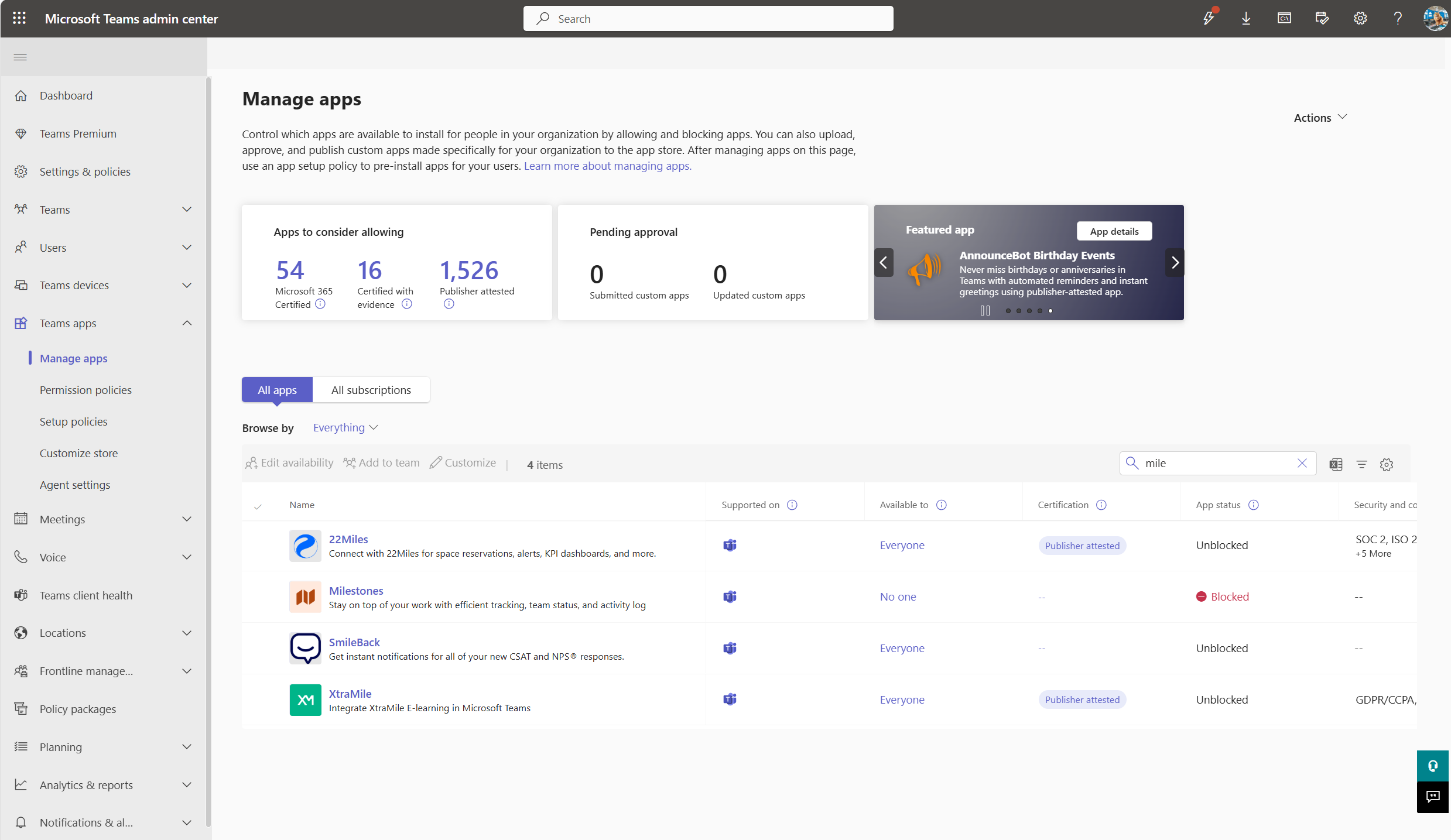
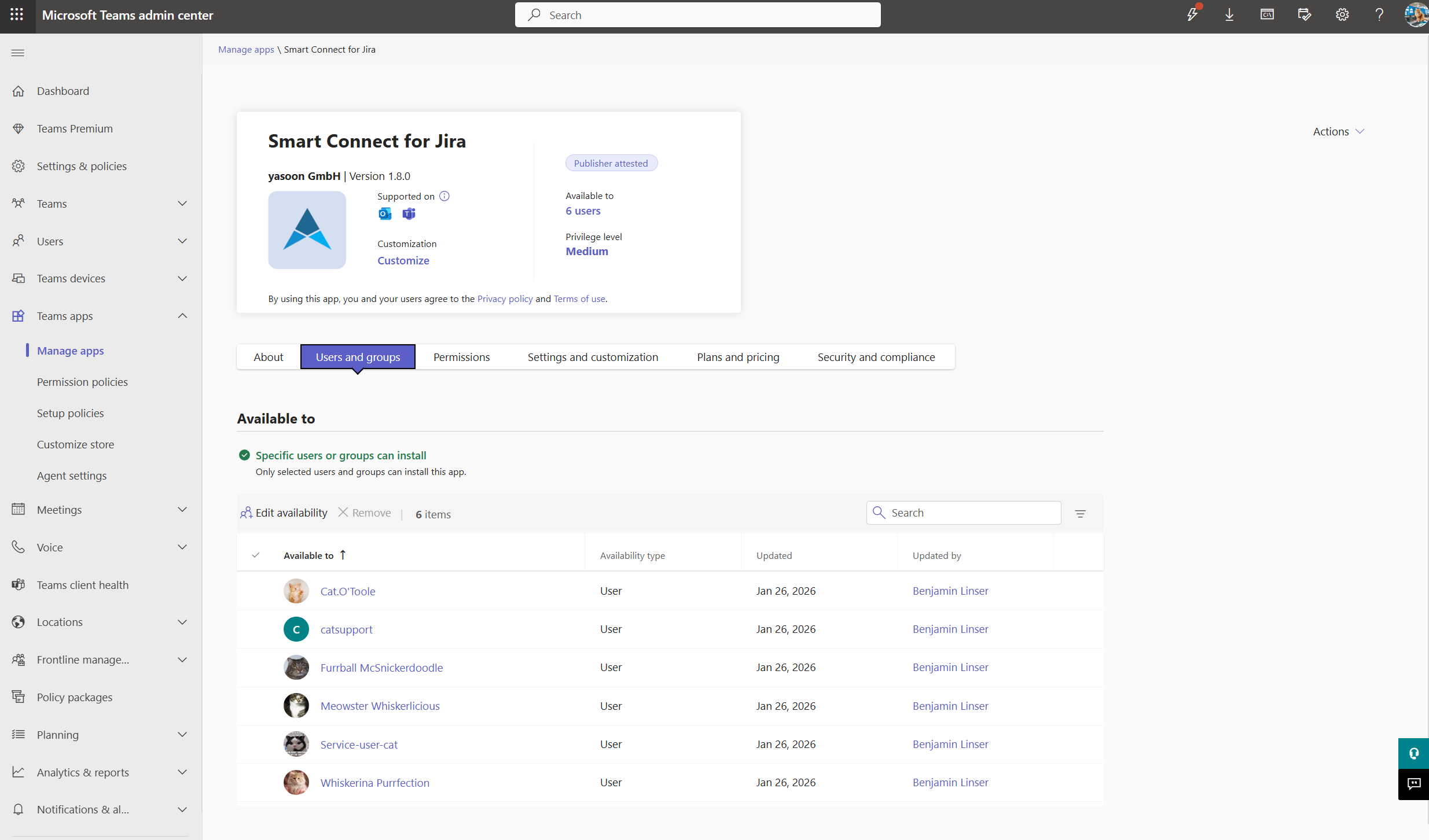
He controls app access within the Teams admin center under Teams Apps → Manage apps → Smart Connect for Jira → Users and Groups:
Entra admin
Additionally, the Microsoft Entra ID admin should check:
-
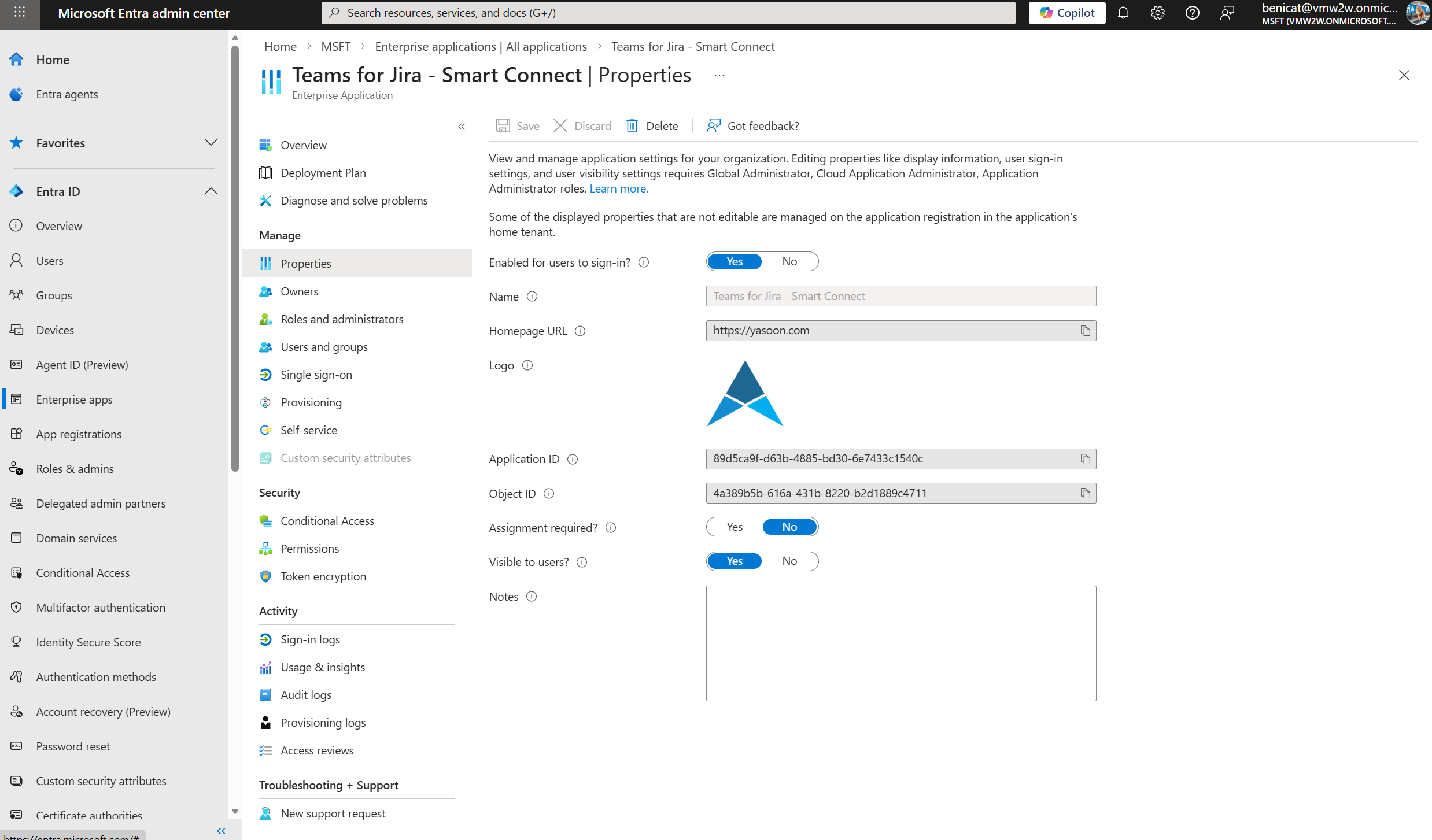
Whether the app is allowed and not blocked in the Enterprise apps section in Entra
-
If the app assignment required toggle is activated
Check both settings in the Entra admin center: go to Enterprise apps, search for Teams for Jira - Smart Connect, then select Properties. Ensure “Enabled for users to sign-in” is set to Yes.
“Assignment required” can be No or Yes; if Yes, add the relevant users to “Users and Groups”. See this documentation for details on assignment options: