
Introduction
Using our application to send and receive emails from Jira via shared mailboxes is common. Multiple scenarios arise because shared mailboxes vary widely, and the combinations of permissions and email behaviors create many edge cases.
This article outlines different scenarios, the ideal use of our app with shared mailboxes, and necessary steps.
What are shared mailboxes?
A shared mailbox is an Outlook account accessed by multiple users to send or receive emails. Typically, companies have several shared mailboxes, each assigned to a specific team or purpose.
Besides shared mailboxes, several similar, but distinct entities exist:
-
Distribution group
-
User mailbox used as a shared mailbox
-
Outlook group
What are the different permission sets?
When using a shared mailbox, Microsoft offers you three different ways of interacting with the shared mailbox.
-
‘Send on behalf of’ - permissions
-
Definition by Microsoft: “These users can send emails with both their account name and the shared mailbox name. Their emails will show that they were sent on behalf of (shared mailbox name).“
-
-
‘Send as’ - permissions
-
Definition by Microsoft: “These users can send emails as this account (originating name will not appear).”
-
-
‘Read and manage’ - permissions
-
Definition by Microsoft: “These users can read emails in the shared mailbox, and perform management actions such as adding and removing mailbox content.”
-
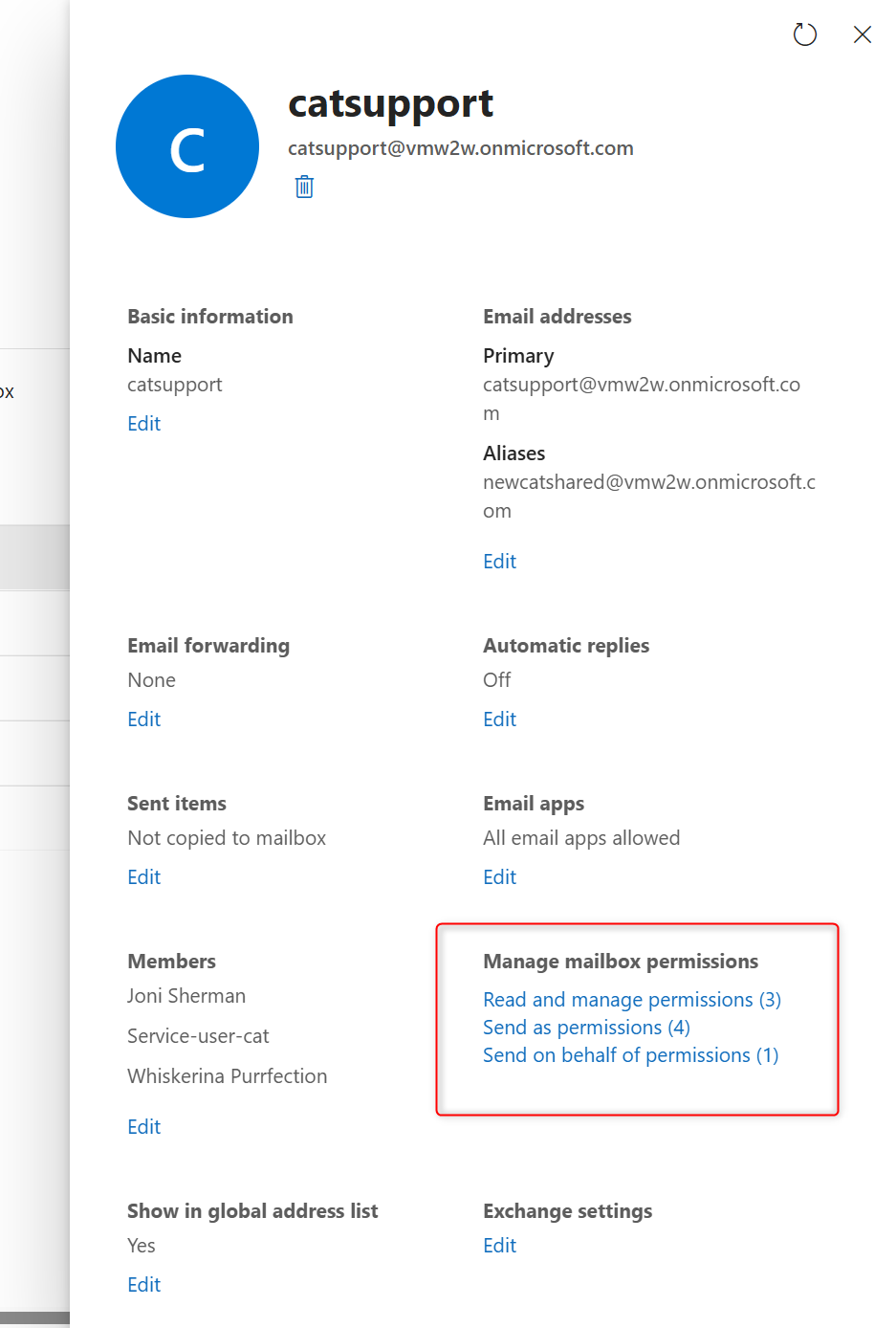
In cases 1 and 2, users can send emails from the mailbox either on behalf of it (visible to the recipient) or send as it (appearing to come directly from the shared mailbox). In both cases, replies are stored in the shared mailbox. The user who sent the email cannot access this shared mailbox via Outlook or our app, so future replies cannot be displayed in Jira.
Granting Read and manage permissions (scenario 3) to relevant users, allows replies to display accordingly and make replies possible.
What are we recommending?
The basic case we suggest is, sending from the user's personal mailbox. This case is fully supported.
Shared mailboxes are widely used, especially to share emails and improve collaboration.
We generally recommend using a shared mailbox with the read and manage permissions. This ensures emails are linked, shared, relevant users can reply, and everything is documented.
The use case is crucial, and many edge cases exist, so this approach may not always fit.
What steps are required to make all of it work?
Basic setup recommendation:
-
Create a shared mailbox in your Microsoft environment with a password.
-
Grant all relevant users full read and manage permissions (see above).
-
Log into our app using this shared mailbox, then switch back to your personal account.
To do this, go to Jira → click on the sidebar and select “Apps” → Microsoft 365 → Settings

Now you will see the features of our app and which feature you are logged into.
Click the arrow next to your email address in the email feature to switch accounts:
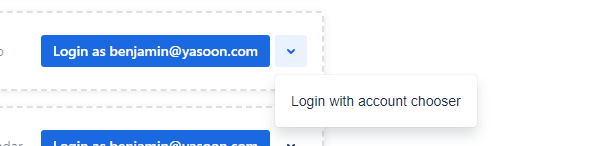
Select the shared mailbox to log in. After logging in, click the arrow again and switch back to your user account.
After setup, you can send emails via the shared mailbox from Jira using our app. Replies to this mailbox appear in the related email panel, allowing you to respond to new emails, such as posting a comment on the Jira issue.