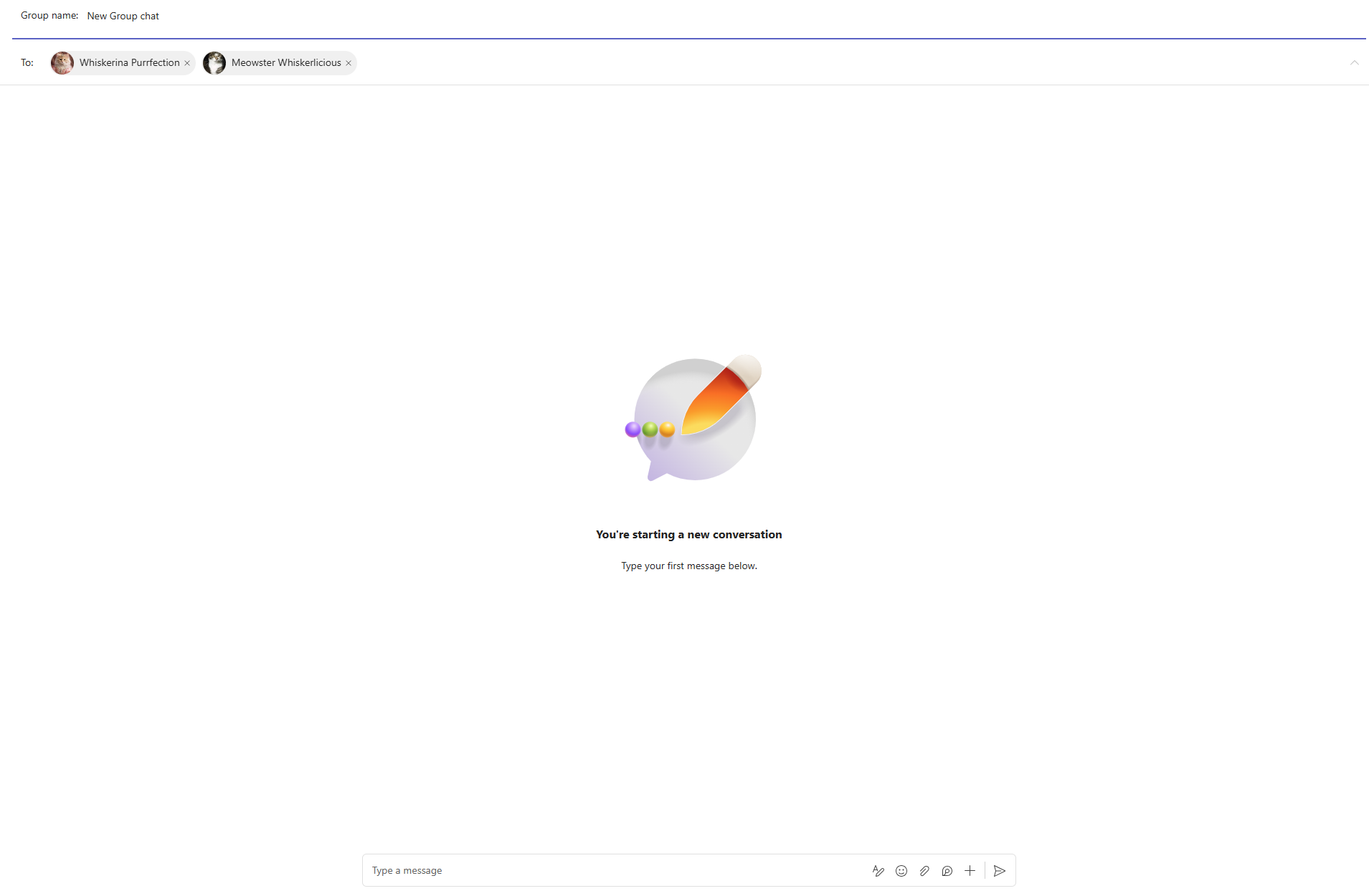
When you start using our Microsoft Teams chat feature, you'll likely see many group chats created (depending on your workload). It can be hard to tell chats apart, both in Jira and in the Microsoft Teams client.
Here are some best practices to make things easier
Use Presets and built-in-automations
View from Jira
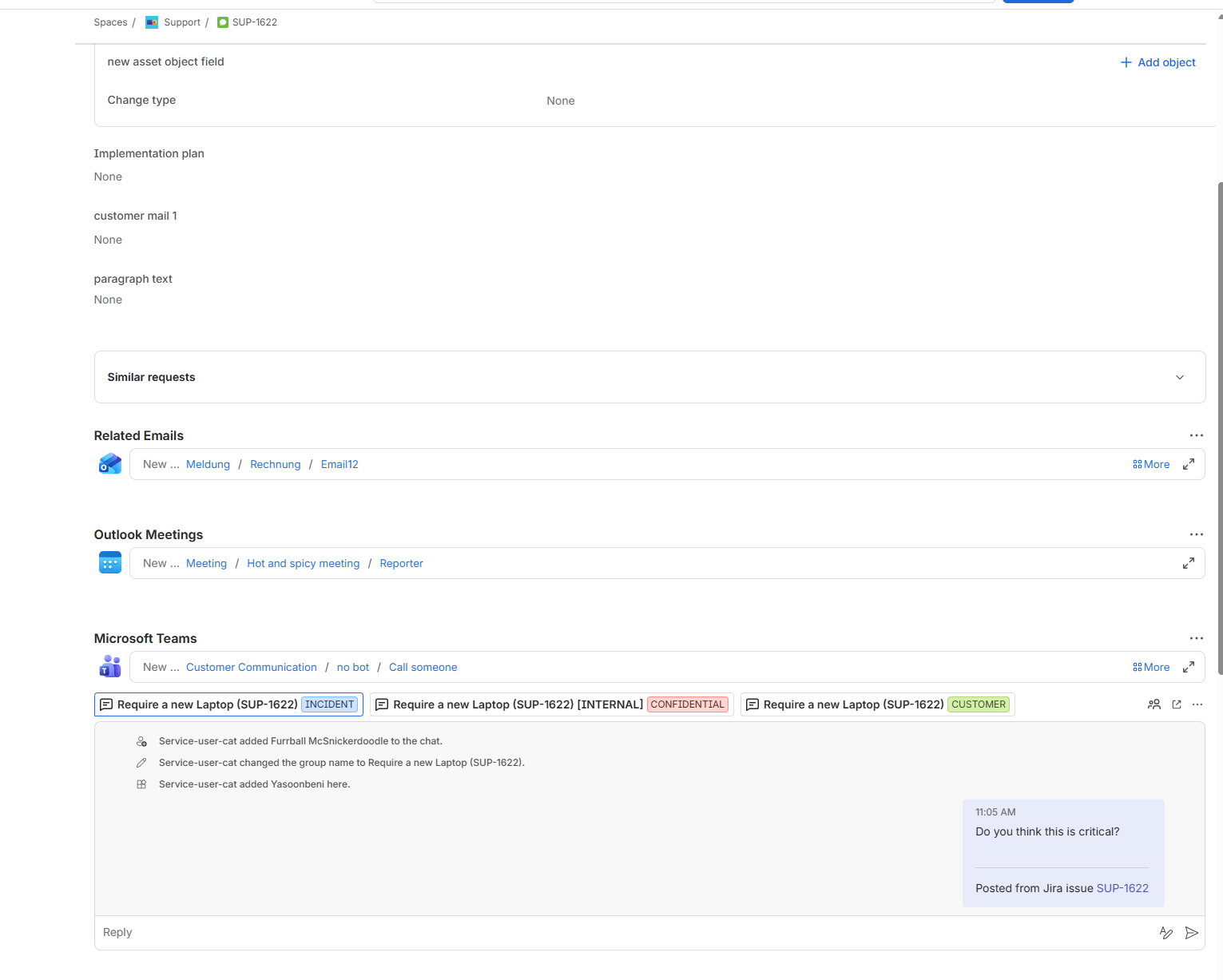
When creating multiple items from Jira, you will see tabs and a dropdown listing all chats linked to that ticket. To clarify which chat matches each topic, use preset tags and templates for the chat title. The example below shows different preset tags for different contexts on the same ticket
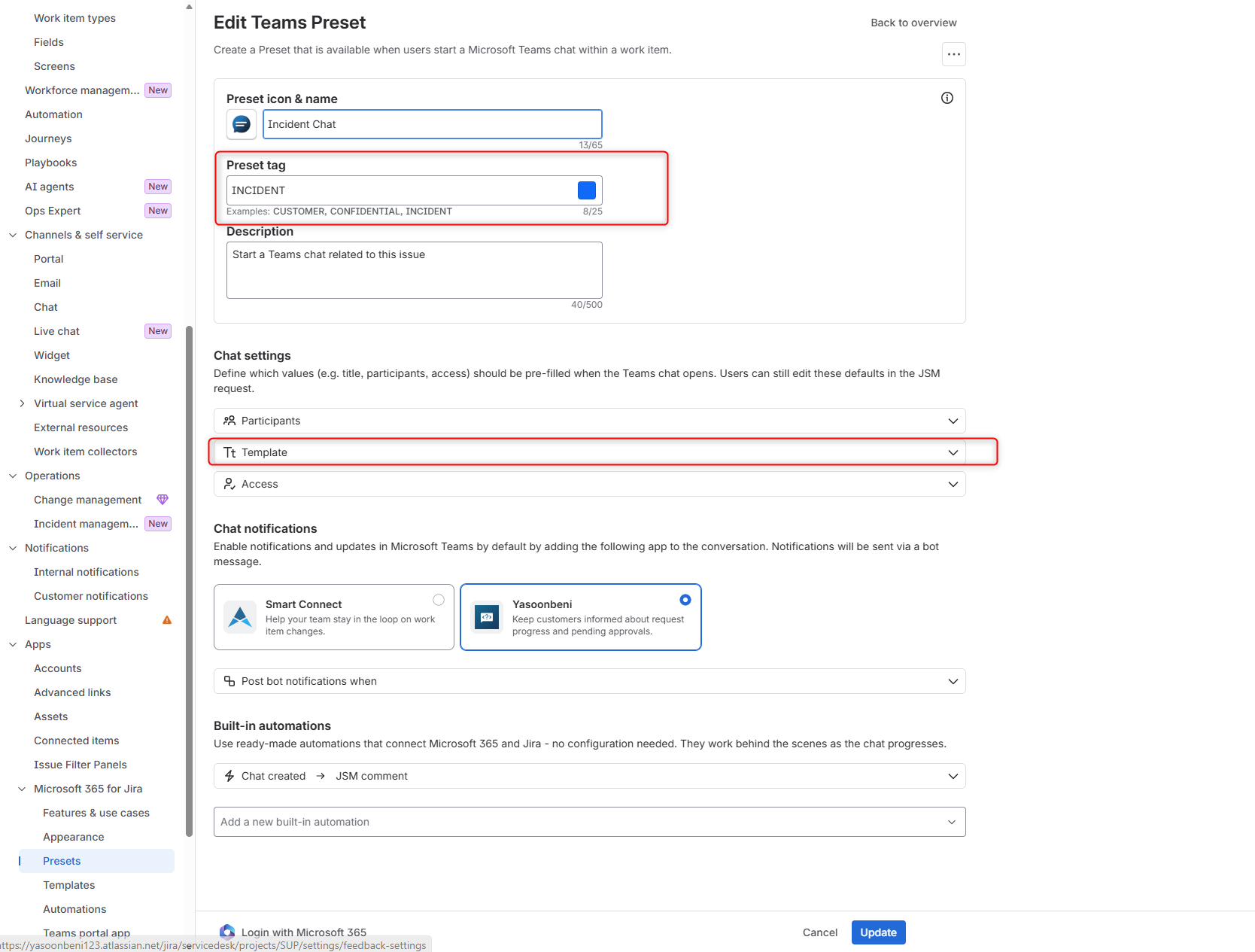
In your Preset settings, choose the Tag and color to apply and select the Template for the group chat
View from Teams
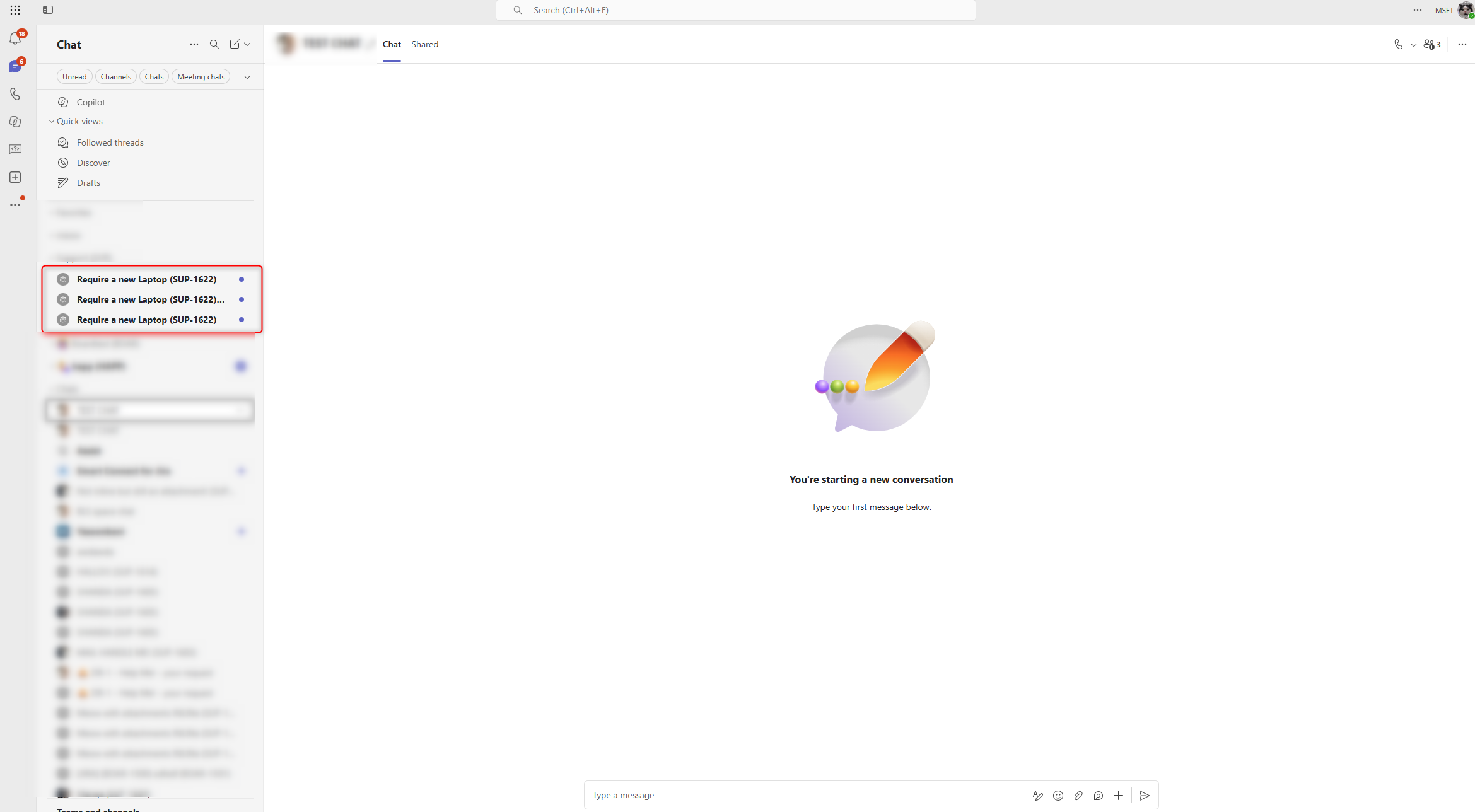
In Teams, you now have three chats for the same ticket
Imagine creating multiple chats every day. That can clutter your Teams sidebar and cause confusion.
To prevent this, we offer a preset option to hide a chat once the ticket or work item is resolved as part of our built-in automation
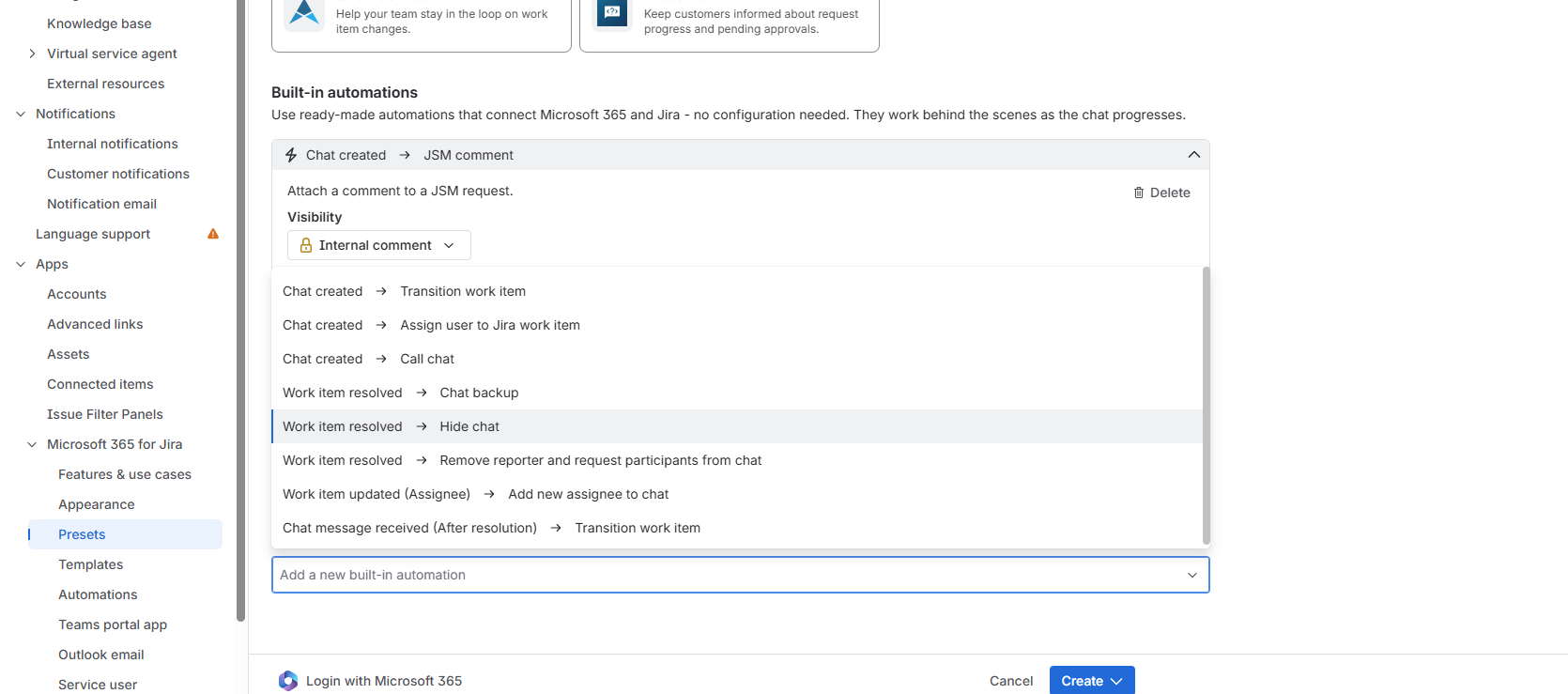
Use our Section feature to group your conversations
Even with hide-chat, templates, and preset tags, chats can get messy when you run multiple conversations for different contexts or spaces.
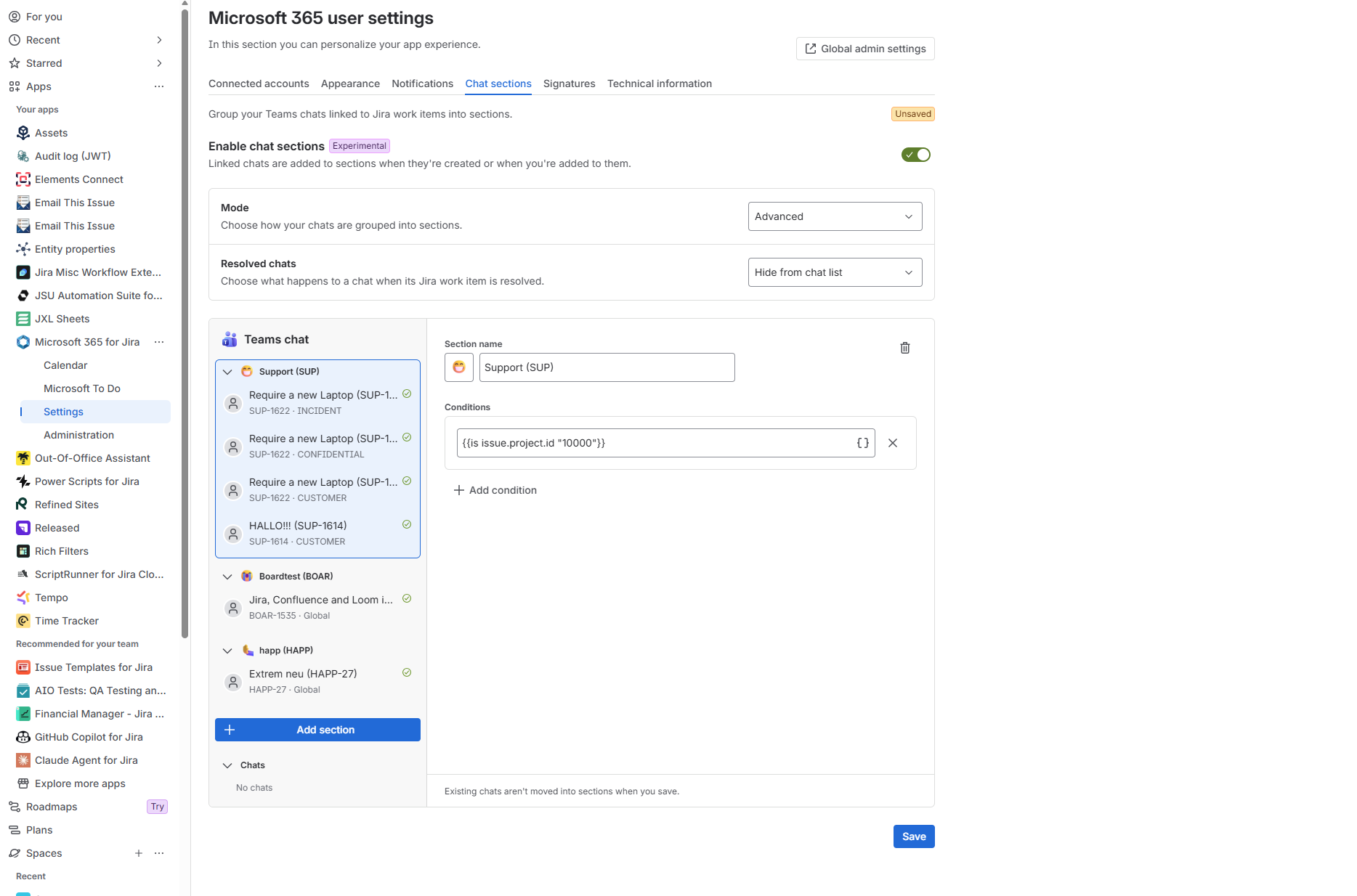
You can configure sections per user to group work items or tickets by space or any condition. In this example, we used a section called “Support” to group all support chats into one section
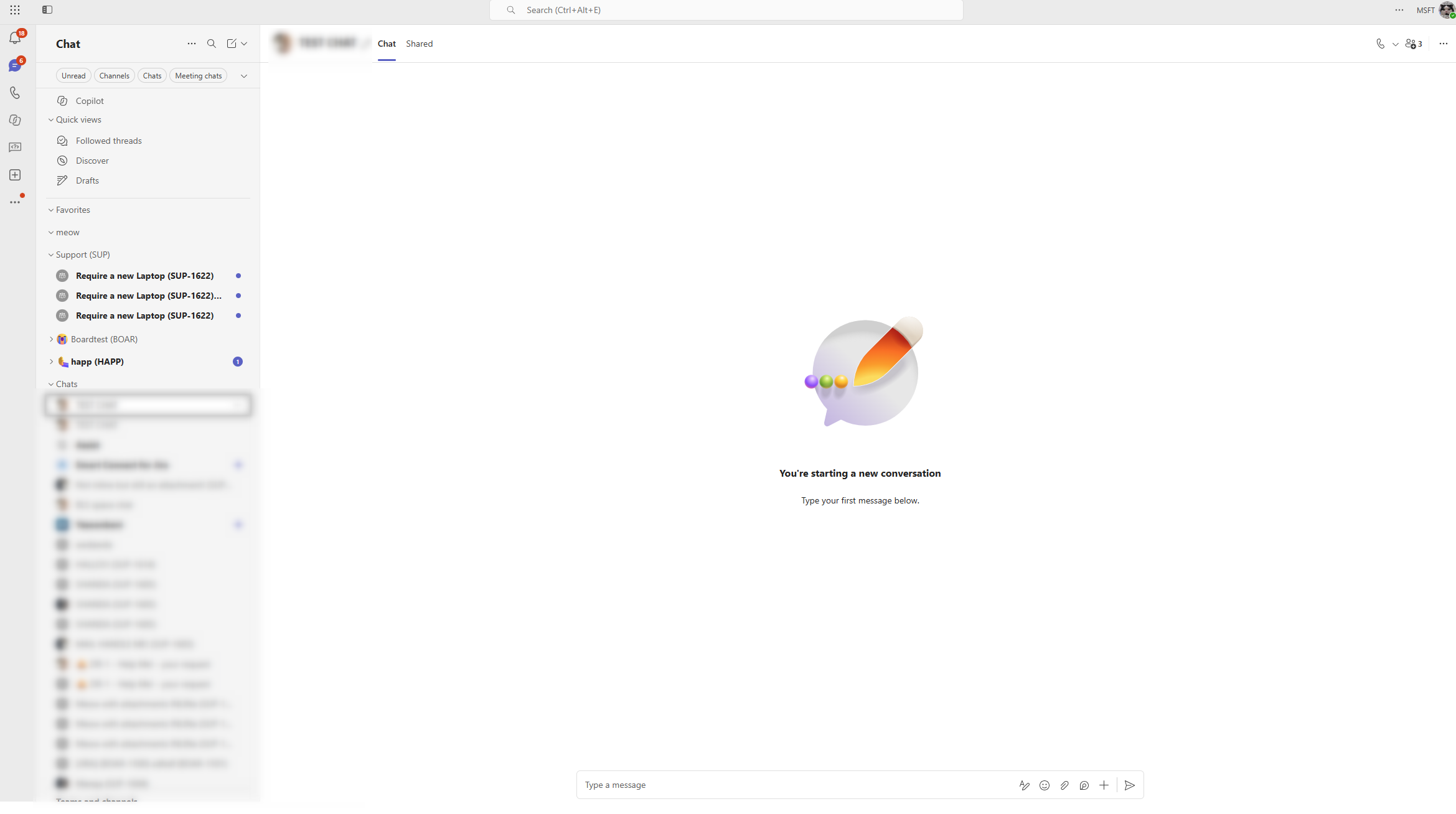
The result is that chats are grouped in Teams, separate from the “normal” chats
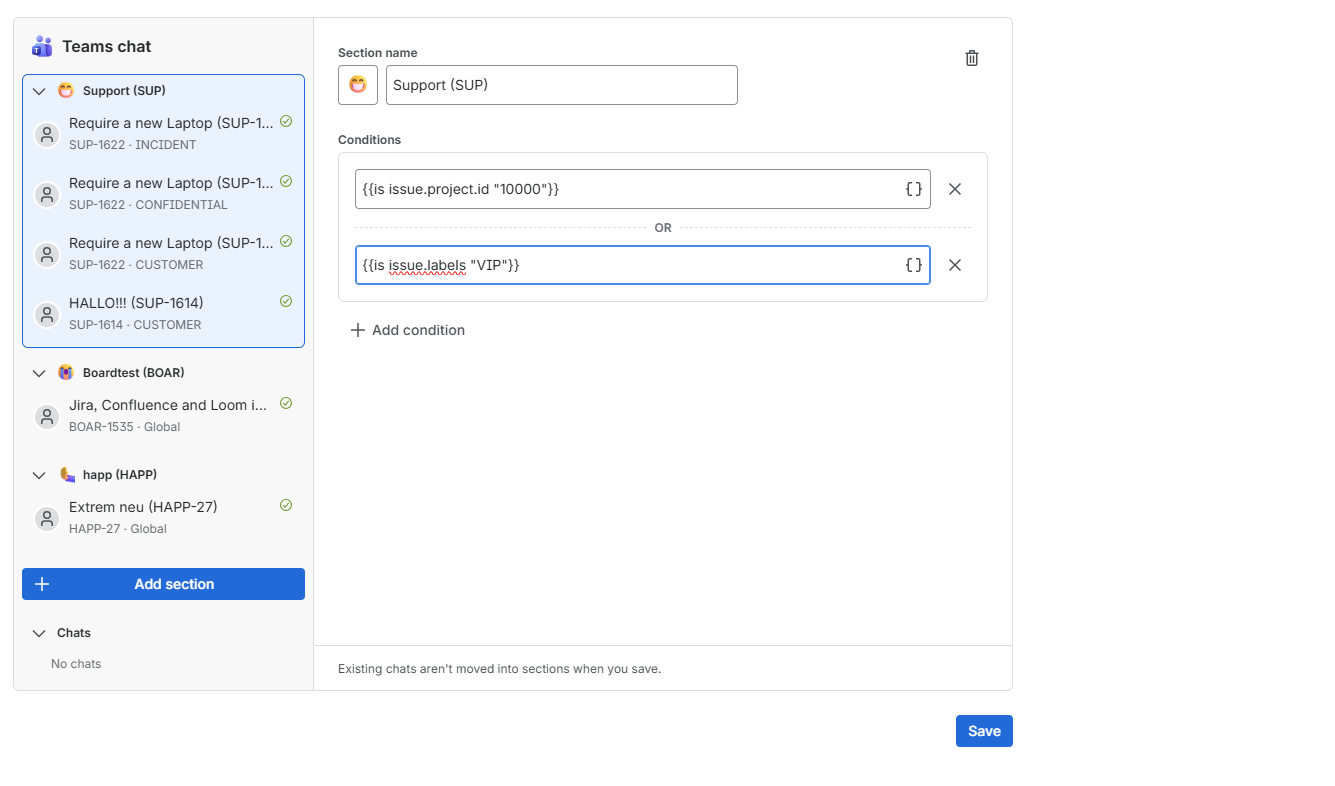
You can also set conditions so only group chats with a work item that has a specific label map to the section
In Teams I am always redirected to old group chats — why?
In Microsoft Teams, creating a new chat to reach a group redirects you to existing group chats with the same people.
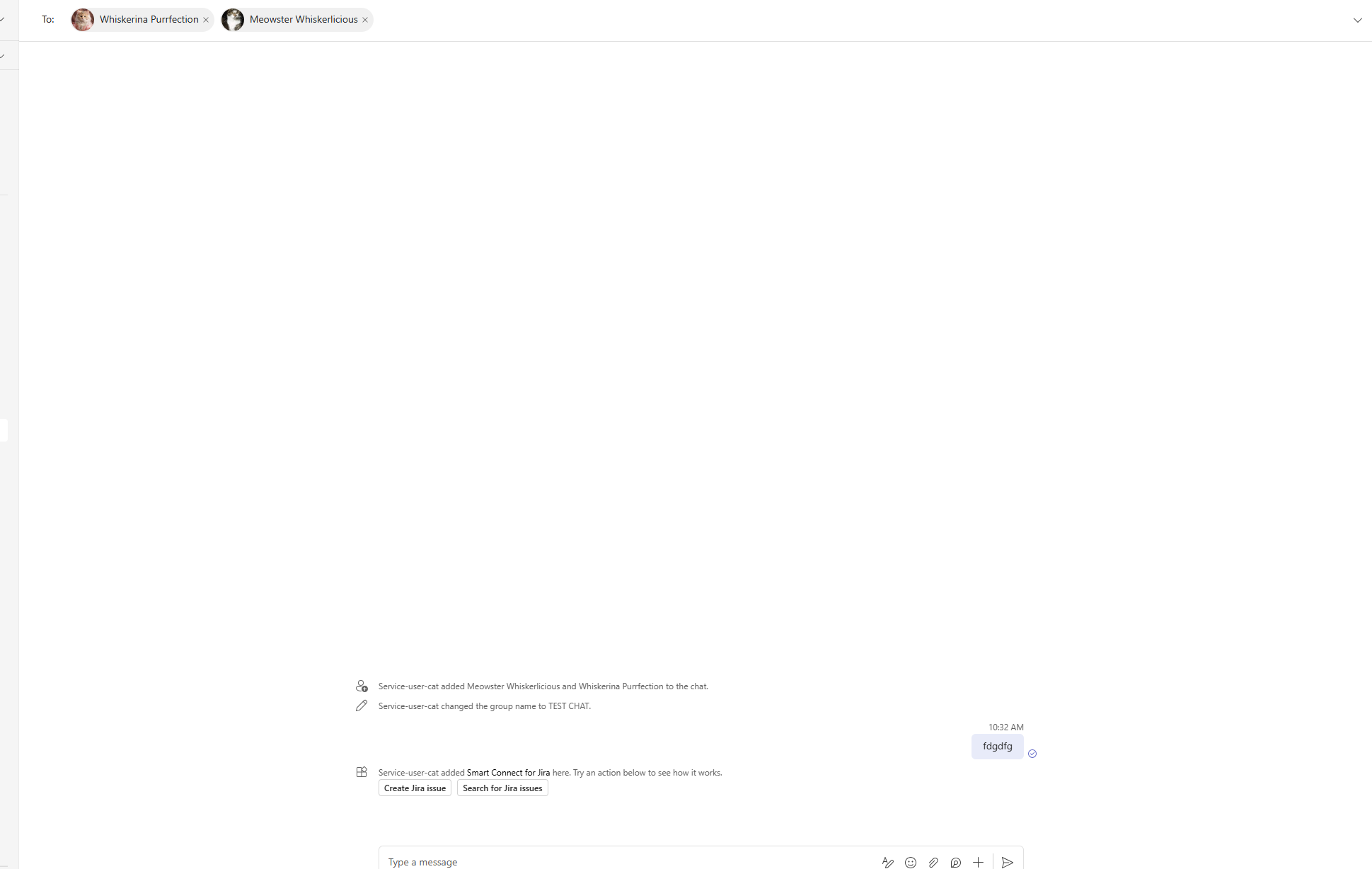
You may want to discuss a different topic with these people that isn't related to the ticket or other chat content.
To avoid confusion, create a new group chat in Teams
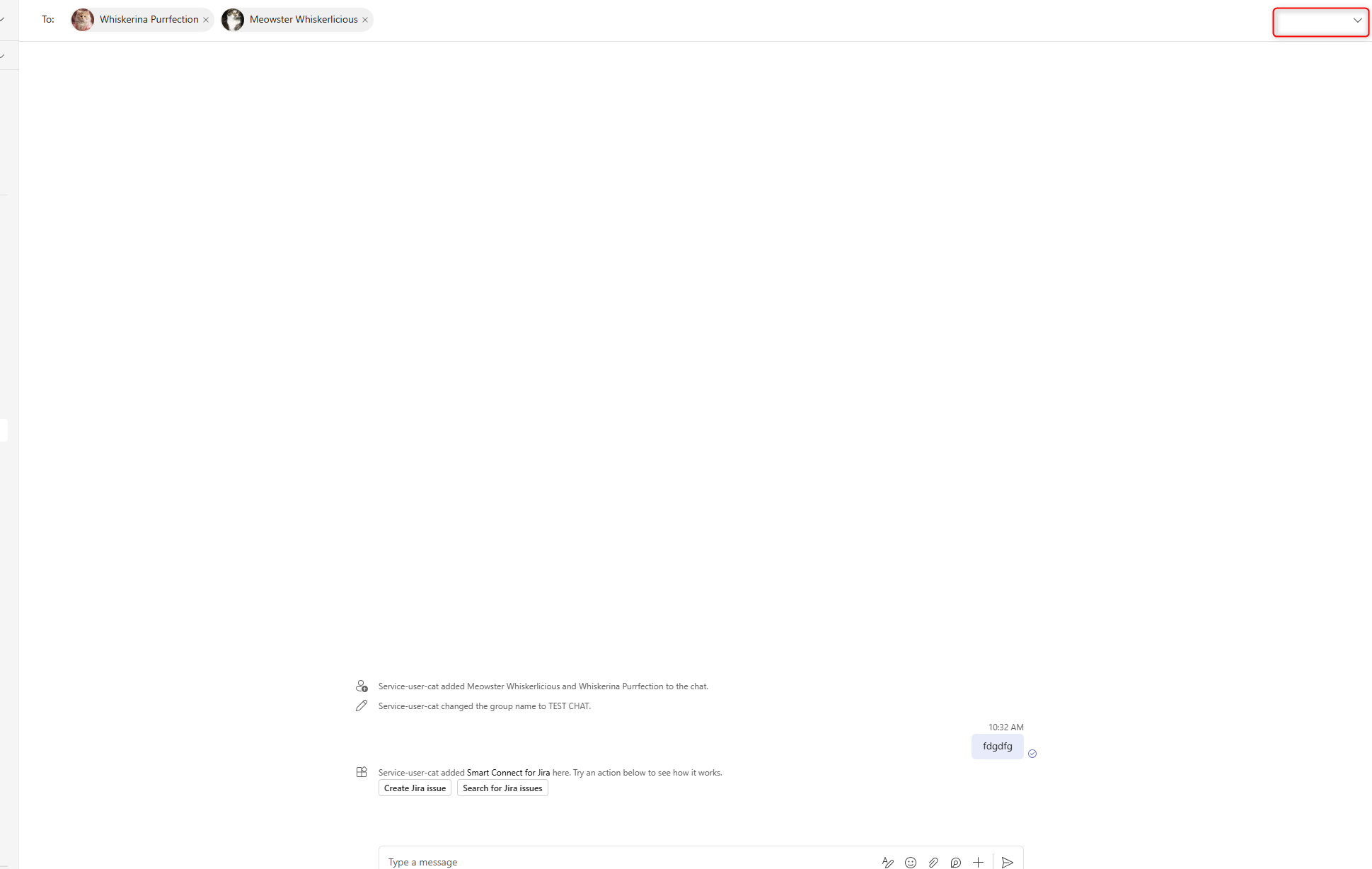
Choose a group chat name and press Enter to create the chat.