
Chatbox allows customers to submit Jira Service Management requests by typing a message directly into the JSM portal in Microsoft Teams. A request in Jira and a linked Microsoft Teams chat are automatically created.
The chatbox is configured individually for each JSM space by a space administrator.
Enable the chatbox
-
Open the relevant JSM space in Jira.
-
Navigate to Space settings → Teams portal app settings → Chatbox.
-
Enable Chatbox.
-
Choose how Chatbox should appear in the portal:
-
Front and center: Displays Chatbox prominently in the portal.
-
Portal style: Integrates Chatbox into the existing portal layout.
-
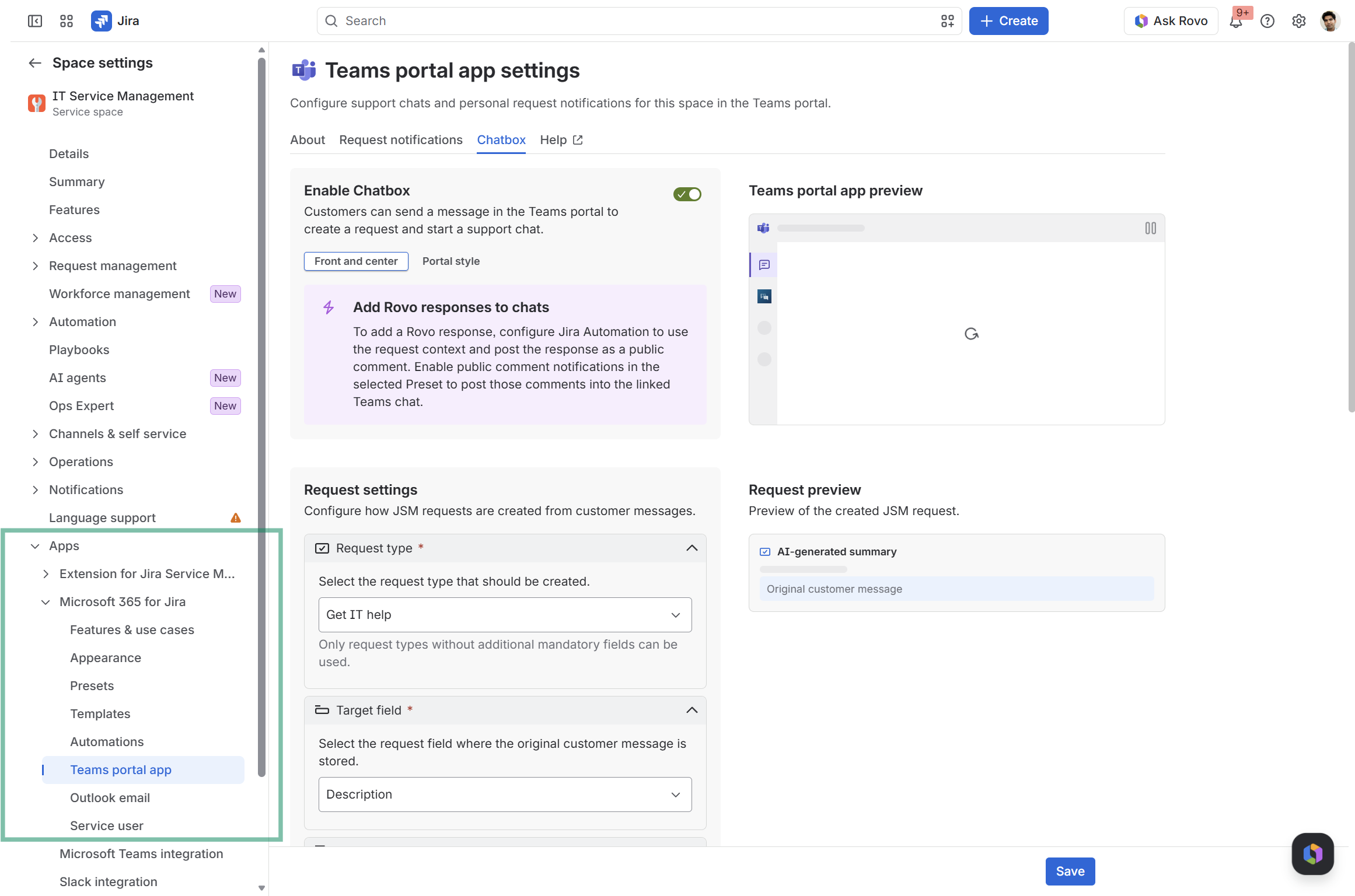
Request settings
Configure how requests submitted through the chatbox are created.
-
Request type: Select the JSM request type to create. Please note: Only request types without additional mandatory fields are supported, such as Get IT help.
-
Target field: Choose where the customer's message should be stored in Jira, e.g., Description.
-
Summary: Choose between a default or AI-generated request summary. Please note: Enable AI features to do so.
-
Reporter: The customer who sends the message automatically becomes the reporter for the created request.
Use the Request preview to check the configuration.
Chat settings
Configure the Microsoft Teams chat that is automatically started when a request is submitted.
-
Service user: Select the Microsoft 365 account that creates the chat and sends the initial message.
-
Chat title & message: Select the template for the chat title and opening message. Check out how to set-up templates.
-
Participants: Add additional chat participants based on static Microsoft 365 users or Jira fields. Note: The customer and service user are always included in the chat.
Use the Chat preview to check the configuration.
Actions after posting
Select a Preset to define automated actions after the chat is created. Check out how to set-up Teams Presets.
Only Presets configured for the Teams portal app can be selected.
Depending on the selected Preset, actions can include posting Jira comments, transitioning the request, or managing the chat when the request is resolved.
Use the Actions preview to review the configured automations.
Requirements
-
Chatbox requires a Jira Service Management space with the Teams portal app configured.
-
A Microsoft 365 service user must be configured to create Microsoft Teams chats.
-
The selected request type must not contain additional mandatory fields.
-
For external customers, the Microsoft Teams external access settings of both organizations must allow the chat.
Once enabled, customers can submit requests directly through Chatbox in the JSM portal within Microsoft Teams.
A JSM request and a linked Teams chat are automatically created, allowing support agents to join the conversation and assist the customer.
For more information or questions: get in touch!