
This feature is only available for Jira Software.
AI summary cards are configured via our Teams chat Presets.
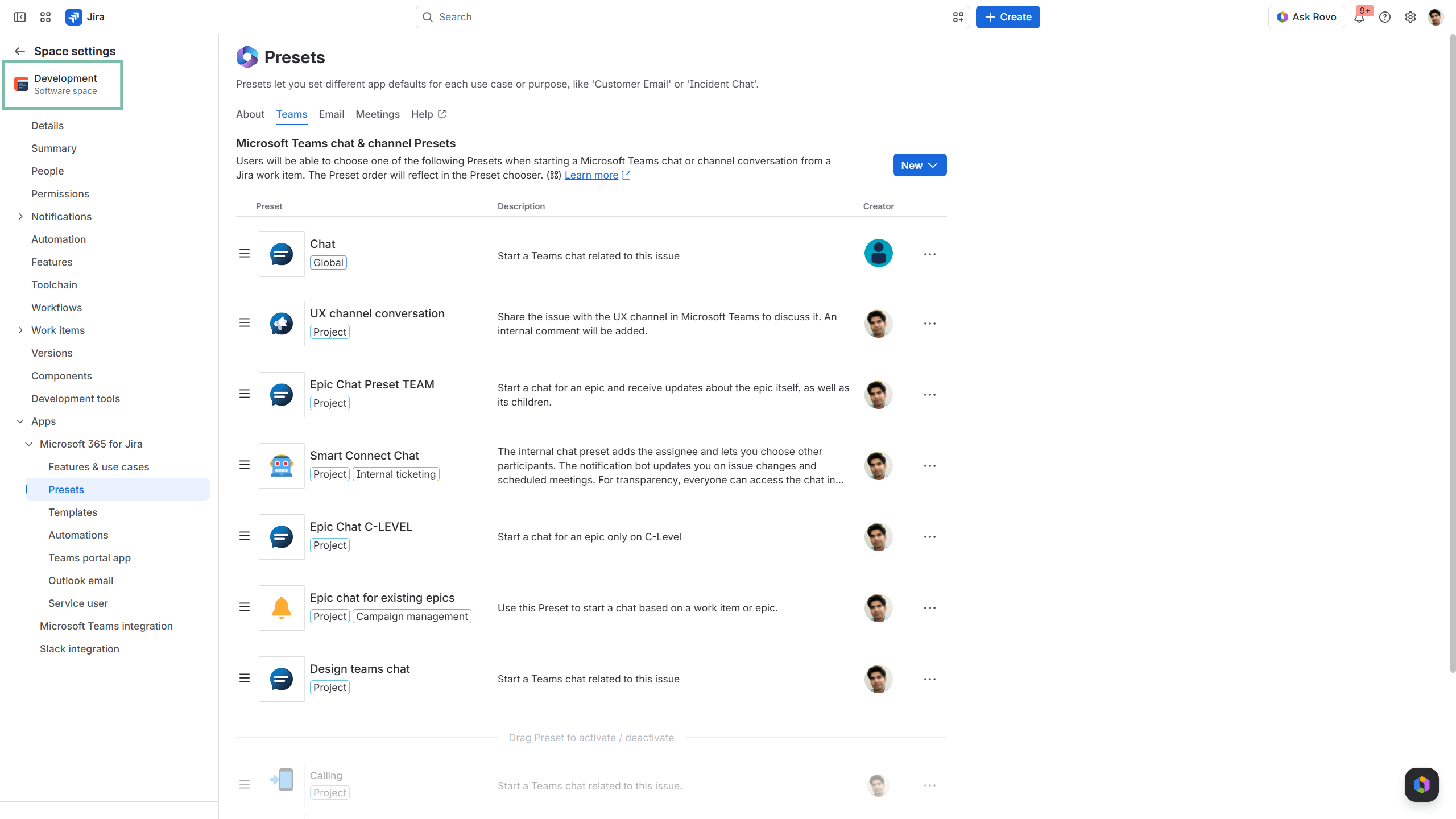
Start configuring the “summary card” under “chat notifications” of the selected Preset.
Updates and notifications on the work item will be posted via our Smart Connect bot into the related chat in Microsoft Teams.
Configuration options:
-
Schedule: Set the time, time zone and selected weekdays for the posting.
-
Status: Decide, if the summary card should only be posted for work items with a specific status (e.g. all, in review, in progress etc.)
-
Summary content: Set Jira fields and their order to be displayed in Microsoft Teams. Add a headline, if desired.
-
Info text: Add a small text at the bottom of each summary, which is included by default.
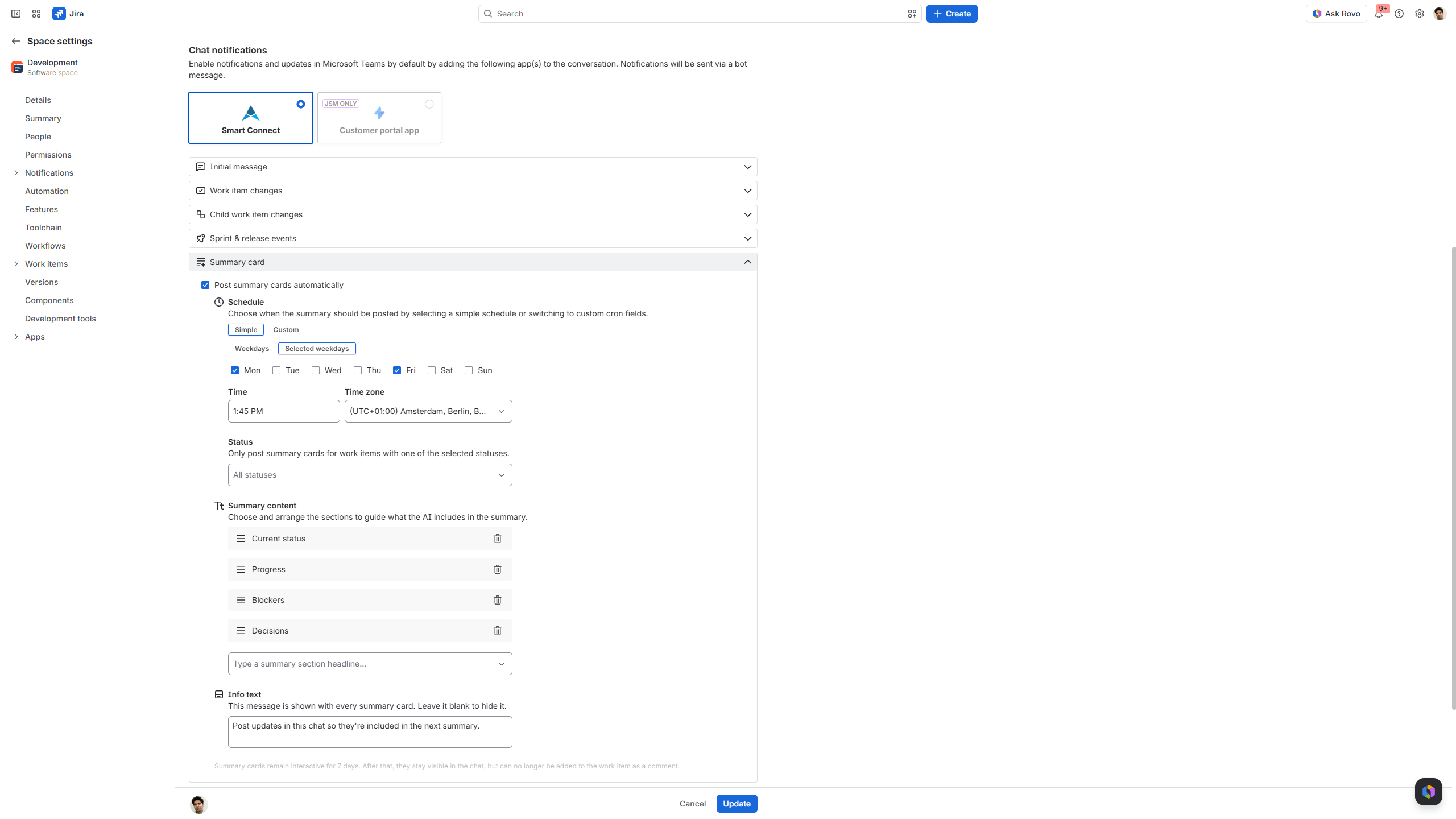
Finally, click “update” or “create” to activate the Preset.
When starting a chat from a Jira work item, select the Preset to use predefined configurations.
The AI summary card will be posted on a regular basis accordingly.
Requirements
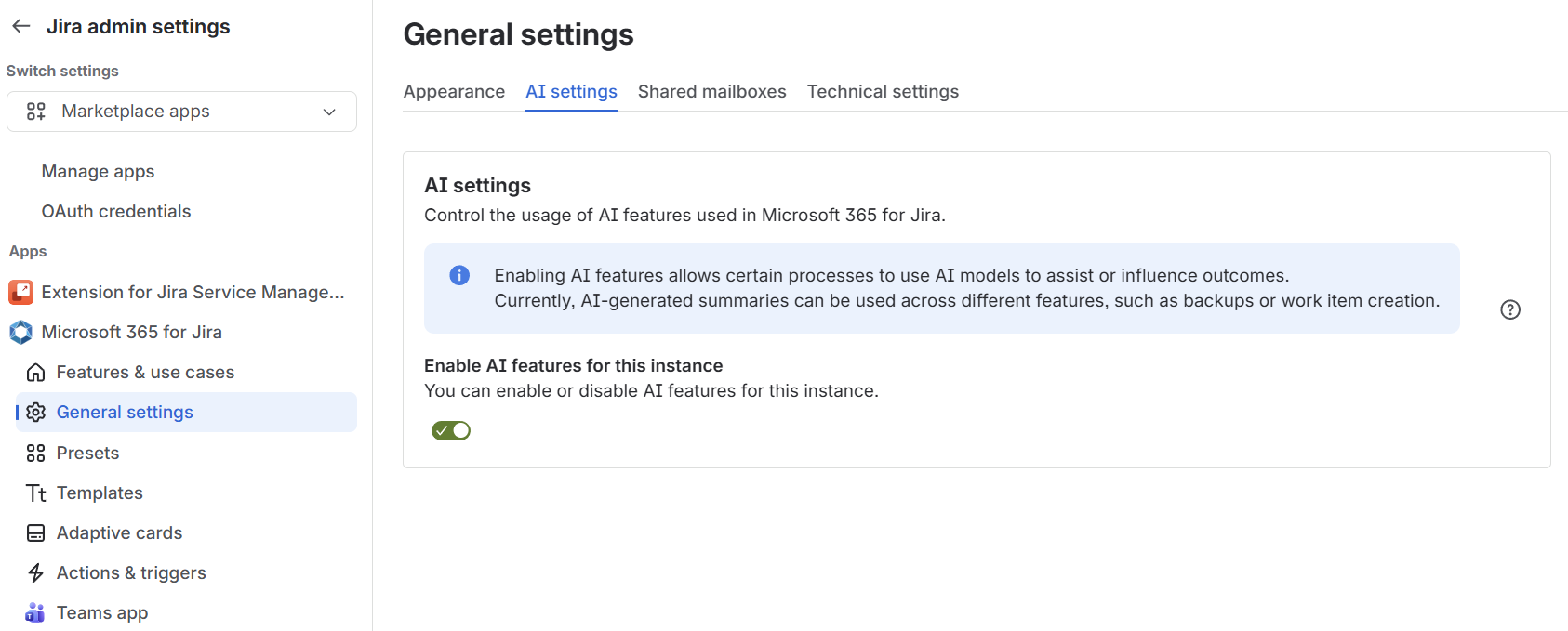
In order to use our AI features in Microsoft 365 for Jira, you need to enable AI features for your instance via the global Jira settings.
For more information or questions: get in touch!