
You can configure chat settings before or after setting up a space chat.
The configuration of the space chat is quite simple, but offers several options.
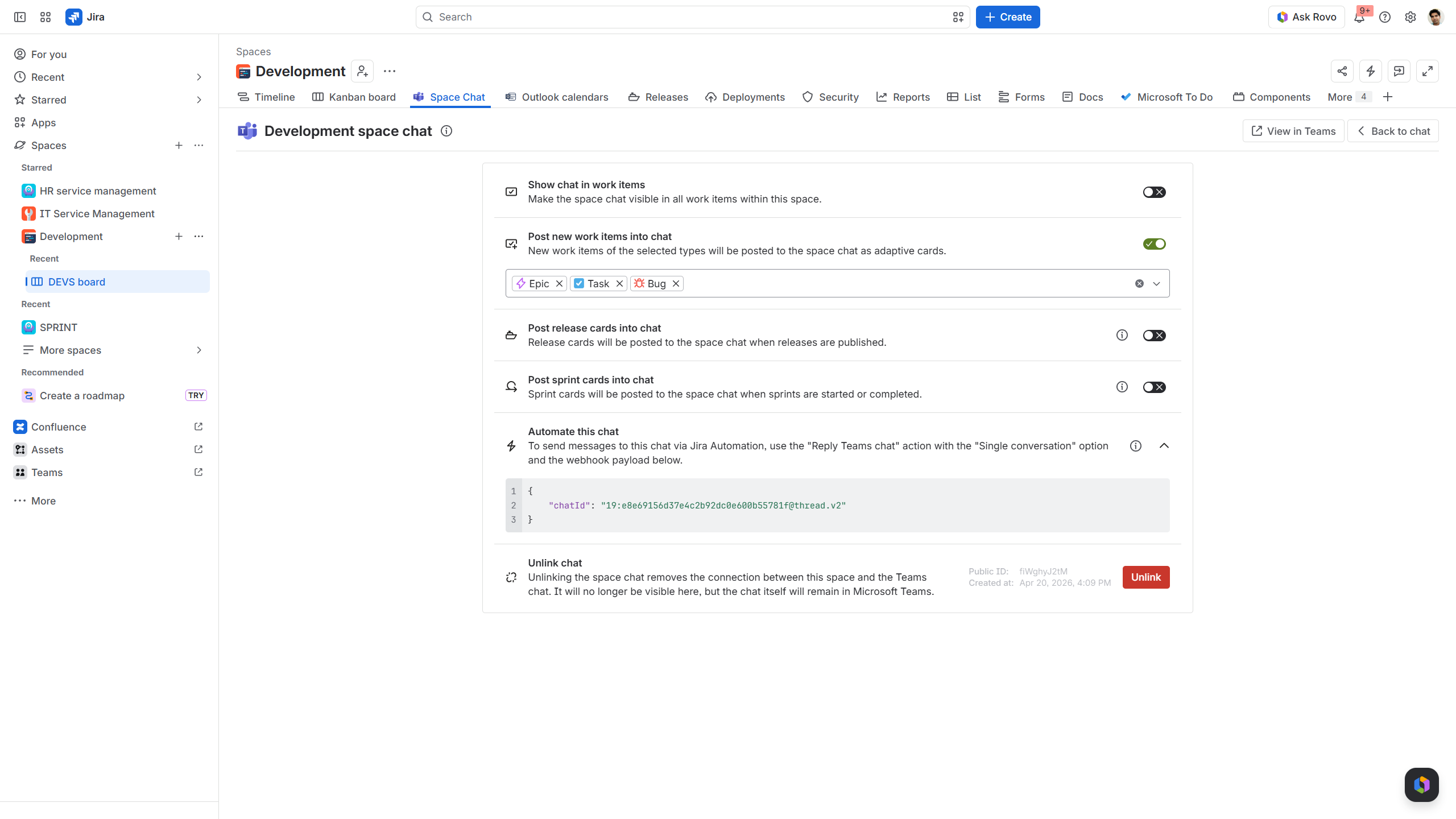
Show chat in work items
This can be useful, if you want to keep the team constantly updated throughout all work items. However, it can also lead to an information overload, if there are already linked chats existing. As the space chat is prominently accessible in the Jira navigation, it may be sufficient to only keep it there.

Post new work items into chat
Depending on the team's needs and way of working, new work items (depending on the work item type) can be automatically posted to the space chat. Thus, the whole team stays in the loop about upcoming tasks, bugs, incidents or epics. Projects can be handled quickly and team responsibilities can be aligned accordingly. This can improve overall project management.

Post release and sprint cards
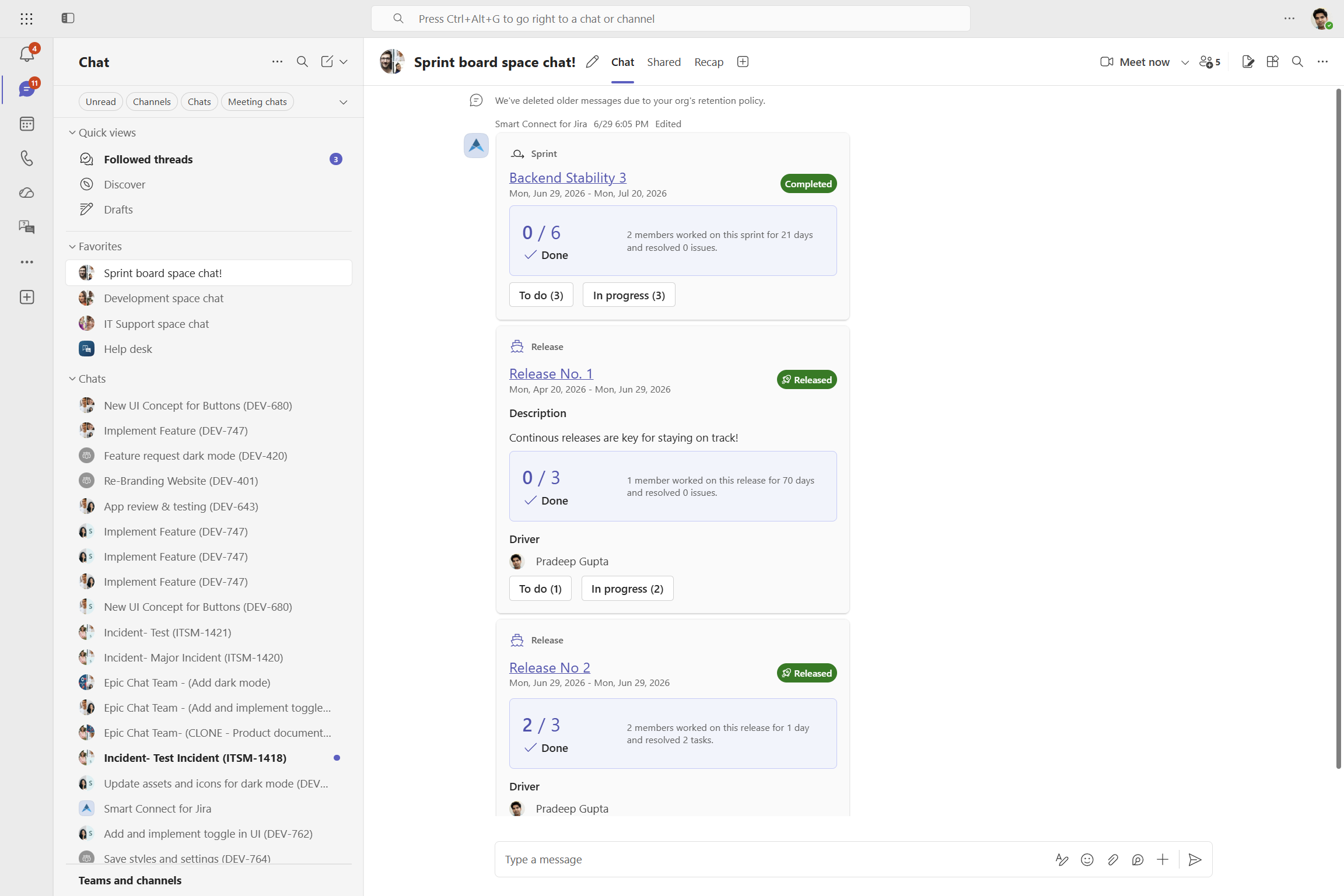
Especially for dev teams this can be an important setting. The space chat can be used as a central communication hub to share updates on current sprints and releases. Not only is the information available for everyone of the team, but details about them can easily be accessed in Microsoft Teams.

Automate this chat
Besides all the different notification types mentioned above which can be posted into the space chat (e.g., sprint updates), automating this chat can be equally important.
With our automation “Reply specific Teams chat,” updates to individual work items in that space - such as status or assignee changes - will post to the chat, depending on the triggers you define in the Jira automation.
To do so, go to our global Jira settings, open Actions & Triggers and set up the automation for Reply specific Teams chat. Copy and paste the chatID from the space chat settings and activate the automation.
This makes the space chat THE central communication hub for all updates on work items in that space.

Check this page, if you need to set-up specialized automation rules: https://support.yasoon.com/M365FJ/automation-actions-advanced-parse-custom-data .
Unlink chat
This setting is available, after the space chat has been set up. If the chat is no longer needed or another chat needs to be linked, the current chat can be unlinked at all times.
Admin requirements
No explicit configuration is required.
The space chat comes automatically when the Teams feature is activated by the Jira admin.